
Softpedia
 

NEWS CATEGORIES:


NEWS ARCHIVE >>
SOFTPEDIA REVIEWS >>
MEET THE EDITORS >>
Home > News > Linux > Ubuntu Tips and Tricks

June 6th, 2011, 18:31 GMT · By

Ubuntu 11.04 Unity Tips and Tricks

SHARE:

Adjust text size:


Ubuntu 11.04
Enlarge picture
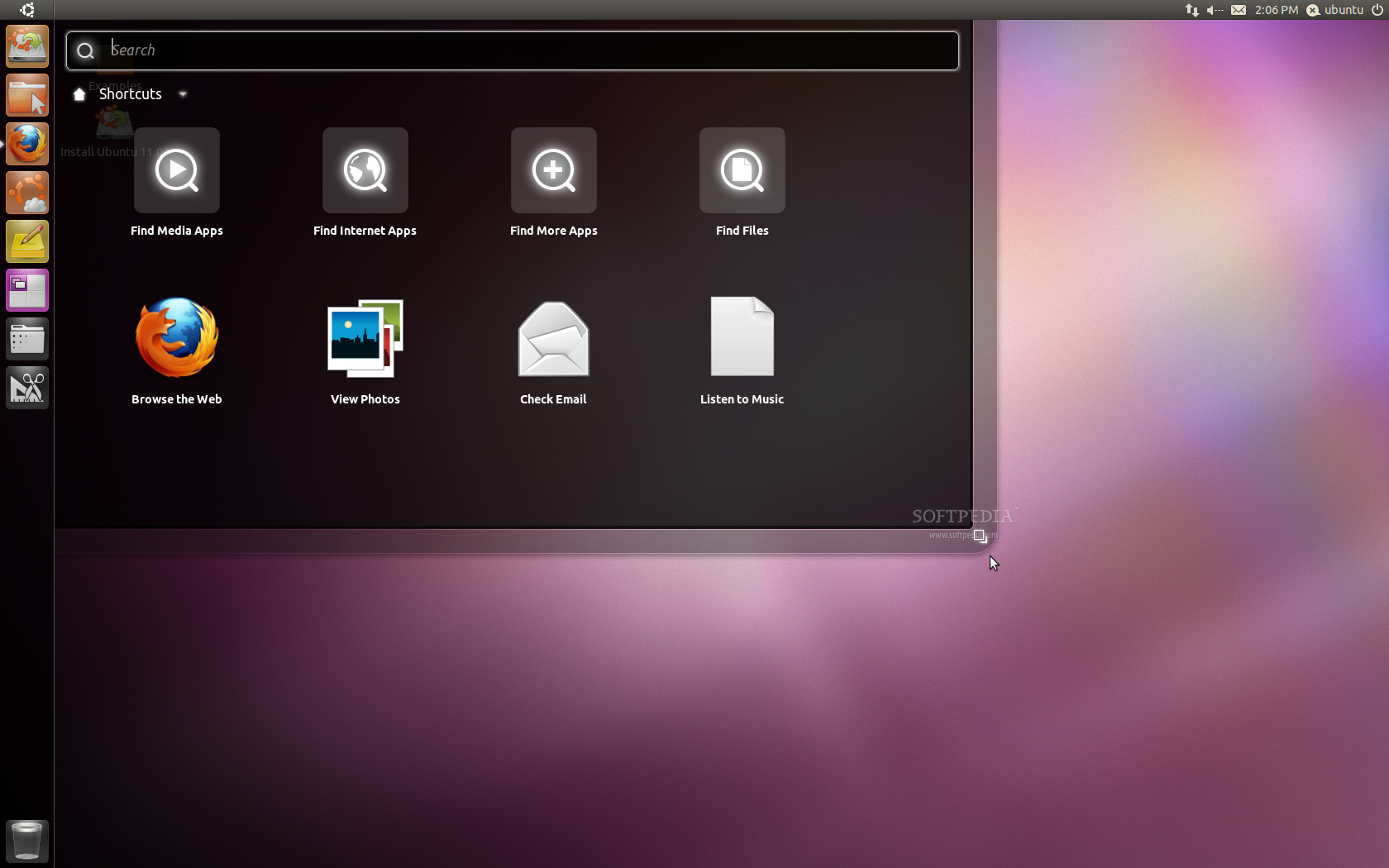
The following tutorial will teach Ubuntu 11.04 (Natty Narwhal) users how to customize the new interface developed by Canonical for the Ubuntu operating system, Unity.

The new Ubuntu 11.04 (Natty Narwhal) operating system introduced a different user interface, designed by Canonical, called Unity. But the development team did not offered some easy to understand and learn tricks, to make Unity usable by human beings.

With these trips and tricks, users should familiarize with Unity and find it very useful and user friendly. Without any ado, we'll let you now test these nice tricks.

But first, you will need the Compiz Fusion Settings Manager Tool installed in your Ubuntu 11.04 operating system. To install it, click the link below:

Install CompizConfig Settings Manager

Unity Autohide

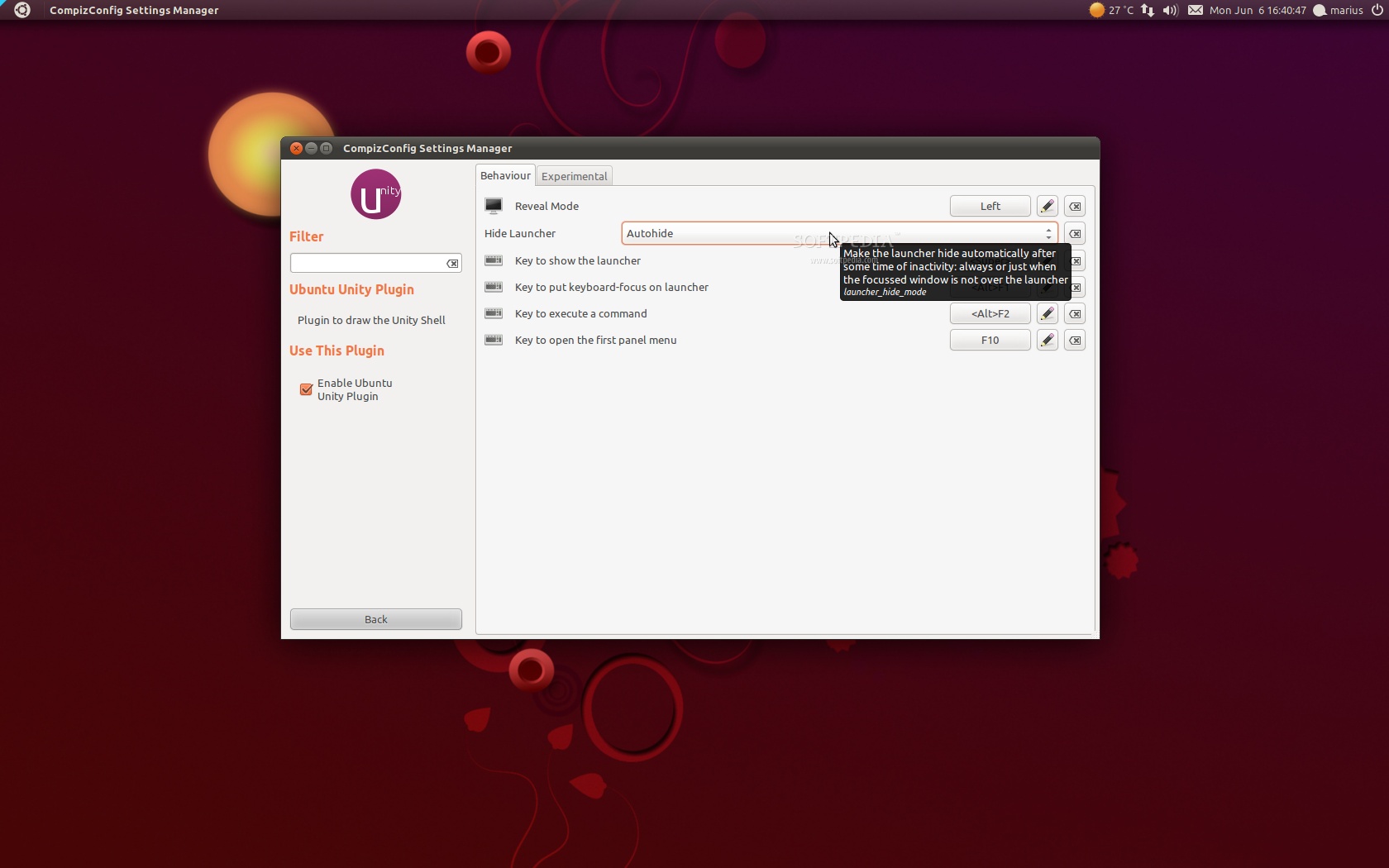
We bet that few of you knew that Unity can be hidden during your entire session. To do this, press the Windows key and search for compiz. Click the CompizConfig Settings Manager icon and search for the 'Ubuntu Unity Plugin' entry. All you have to do now is to set the "Hide Launcher" option on "Autohide".
Review image

Smaller Icons for Unity

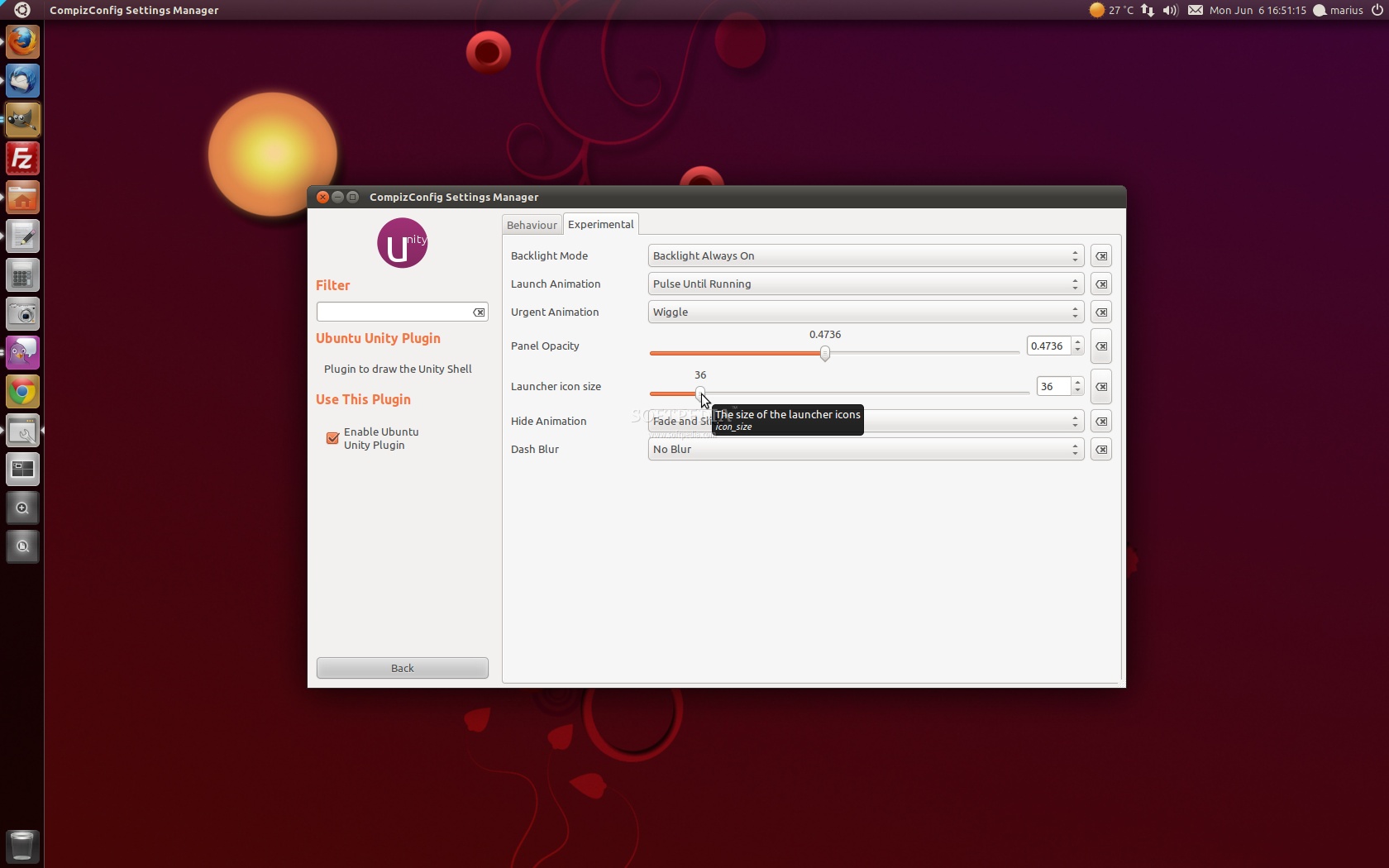
We bet you didn't know this either, but the Unity launcher can be smaller. Same as above, press the Windows key and search for compiz. Click the CompizConfig Settings Manager icon and search for the 'Ubuntu Unity Plugin' entry. All you have to do now is to go to the "Experimental" tab and drag the "Launcher icon size" slider to the desired size. We've put ours on 36 px and it looks very nice...
Review image

Transparent Unity Panel

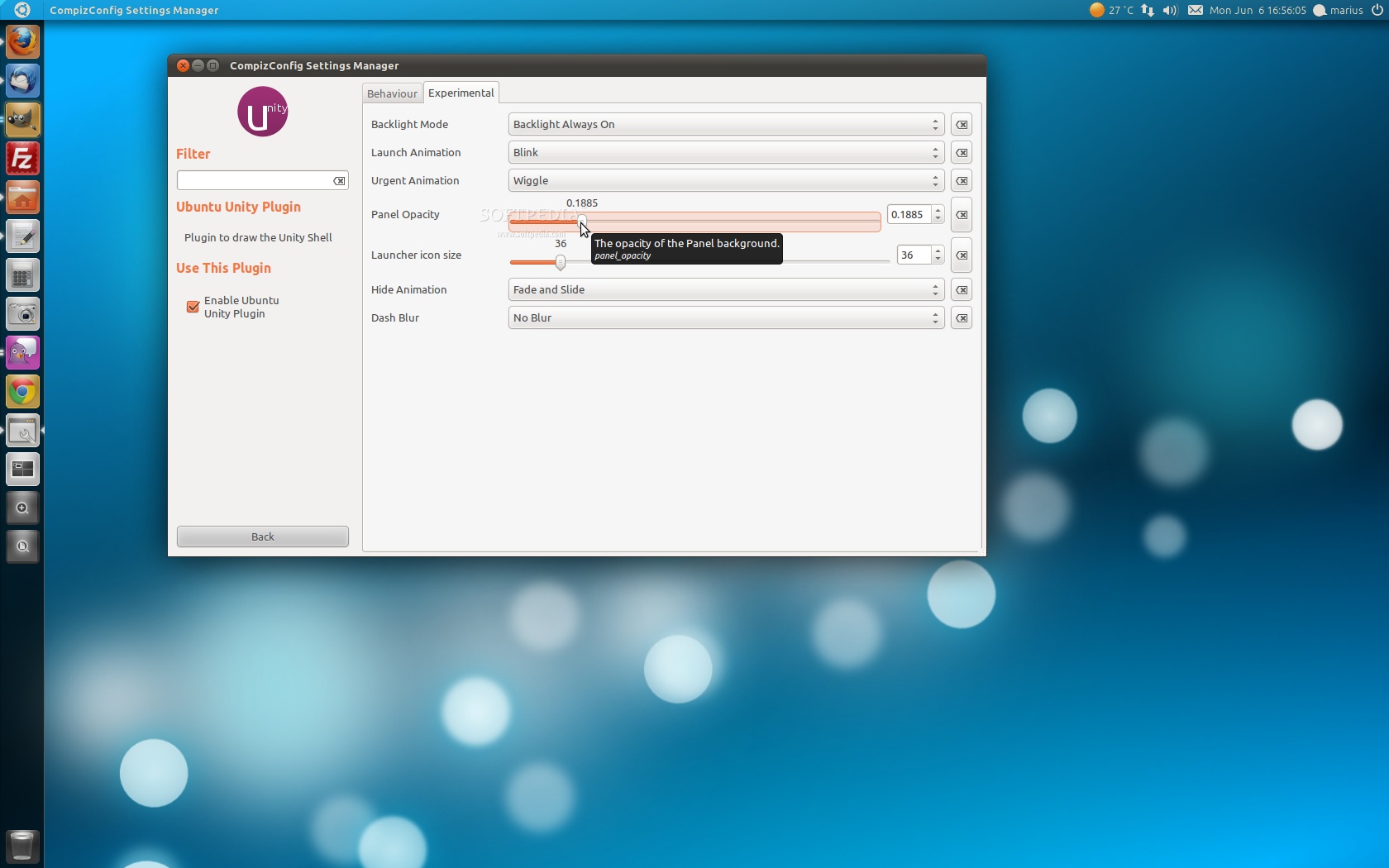
If you don't like the solid color of the Unity panel, you can easily make it partial or completely transparent. How? Easy, just press the Windows key and search for compiz. Click the CompizConfig Settings Manager icon and search for the 'Ubuntu Unity Plugin' entry. Now go to the "Experimental" tab and drag the "Panel Opacity" slider to the desired value. This is how we like it...
Review image

Unity Panel System Tray Icons for All Apps

We know you want this, so here it is... the good old system tray re-enabled, to show your apps in the systray area. To do this, you need to install the dconf-editor tool, so click the link below.

Install Dconf Editor

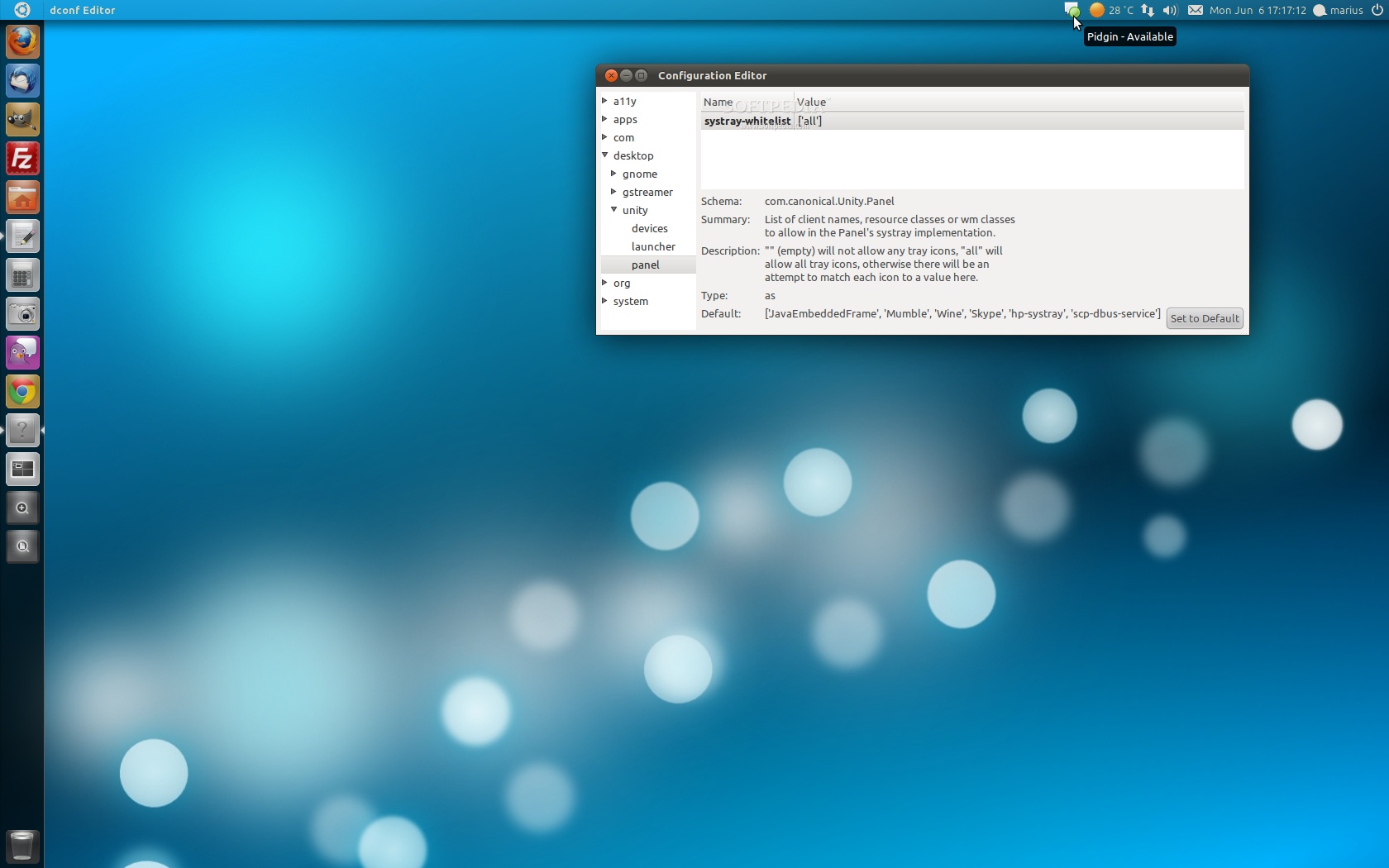
Now hit the ALT+F2 key combination and type dconf-editor. Click the Dconf-editor icon. When the "Configuration Editor" window appears go to "desktop -> unity -> panel", click the value line on the systray-whitelist option and replace everything on that line with 'all'. Log out and log back in. See the below screenshot, we now have Pidgin on system tray, yes!
Review image

Reordering Unity's launchers

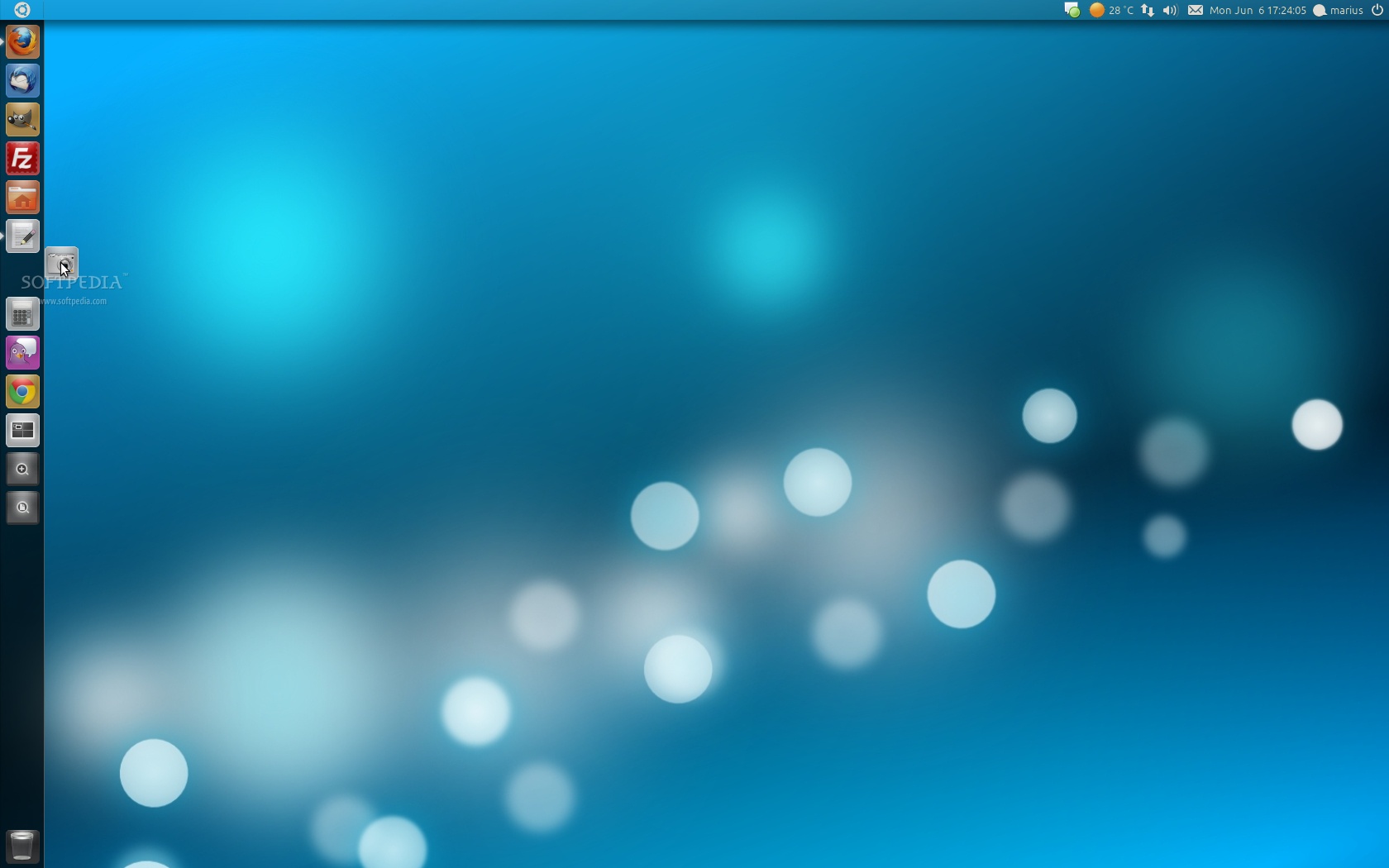
This is an easy one! Just hold the left mouse click on the desired shortcut and drag it outside the Unity launcher. Now place it wherever you want.
Review image

You can of course make other small adjustments to the Unity launcher and panel, all from the  CompizConfig Settings Manager. For example, you can:

· modify the Unity launcher's icon animation;
· modify the Unity launcher's hide animation;
· modify various Unity launcher key shortcuts.

We do hope that with this article you've learned something useful and that it will make your life much easier with the new Unity interface of the Ubuntu 11.04 (Natty Narwhal) operating system.

If you know other Unity tricks, or get stuck somewhere in the article, don't hesitate to use our commenting system below.

TELL US WHAT YOU THINK:

38,216 hits · 17 comments · Link to this article · Print article · Send to friend · Subscribe to news

MUST-READ RELATED ARTICLES:


Softpedia Linux Weekly, Issue 150

Ubuntu 11.10 Alpha 1 Has GNOME 3, Firefox 5, Linux Kernel 2.6.39

Mandriva 2011 Beta 3 Looks Awesome, Screenshot Tour

SystemRescueCd 2.2.0 Comes with Linux Kernel 2.6.38.8 and 2.6.39.1

Legacy OS 2 Is Now Available for Download

READER COMMENTS:


Comment #1 by: voku1987 on 06 Jun 2011, 23:33 UTC reply to this comment

uninstall GlobalMenu ->

sudo apt-get remove appmenu-gtk indicator-applet-appmenu indicator-appmenu;

uninstall overlay Scrollbars ->

sudo apt-get remove overlay-scrollbar liboverlay-scrollbar-0.1-0;

"Show Desktop" from Starter ->

sudo apt-get install wmctrl;
echo "#!/bin/sh
if wmctrl -m | grep \"mode: ON\"; then
exec wmctrl -k off
else
exec wmctrl -k on
fi" | sudo tee /usr/local/bin/showdesktop;
sudo chmod +x /usr/local/bin/showdesktop;
echo "[Desktop Entry]
Name=Show Desktop
Exec=/usr/local/bin/showdesktop
Icon=desktop
Terminal=false
Type=Application
StartupNotify=false" | sudo tee /usr/share/applications/showdesktop.desktop;
echo "Now put \"Show Desktop\" into the Starter...";
nautilus /usr/share/applications/showdesktop.desktop;

-> http://suckup.de/ubuntu-11.04-tweak.txt


Comment #2 by: Victor on 07 Jun 2011, 11:01 UTC reply to this comment

Thanks, I prefer small icons on the launcher and I didn't know it was possible to resize them.


Comment #3 by: xepeci on 08 Jun 2011, 01:31 UTC reply to this comment

most awesome trick
http://askubuntu.com/questions/35488/list-of-custom-launchers-quicklists-for-unity


Comment #4 by: a ubuntu noob on 10 Jun 2011, 04:04 UTC reply to this comment

thanks--very helpful; i'm a Ubuntu noob!


Comment #5 by: steve on 10 Jun 2011, 12:39 UTC reply to this comment

I installed dconf-editor; however, when I go to "desktop", no "unity" exists, only gnome, ibus,and pgp.

Comment #5.1 by: Marius Nestor on 10 Jun 2011, 13:45 GMT

That's very strange... Are you sure you're on Ubuntu 11.04 and Unity is installed?

Comment #5.2 by: Kerensky on 28 Jun 2011, 23:23 GMT

Here the same happens...

Comment #5.3 by: Ditto on 18 Sep 2011, 03:40 GMT

Same here.


Comment #6 by: drskel on 10 Jun 2011, 21:49 UTC reply to this comment

Don't like Unity at all. I'm going to use Linux Mint 11.0 instead.


Comment #7 by: wombat on 15 Jun 2011, 13:13 UTC reply to this comment

I was,t all that keen on Unity at first but I persevered with it and now i cant look back.and with your little trick on resizing the menu icons .. i love it


Comment #8 by: shank on 15 Jun 2011, 17:20 UTC reply to this comment

thanks for the info..


Comment #9 by: bim on 18 Jun 2011, 16:47 UTC reply to this comment

thanks! even a newbie like me can understand ^_^


Comment #10 by: newgrinder on 28 Jun 2011, 16:33 UTC reply to this comment

Good stuff...I upgraded to 11.04, got it up and running, went to compiz to get the 3d cube...then up pops a message saying i must disable the unity plugin...so I did. Now, I get nothing when I log in...nothing but a background? Anybody know what to do now?

Comment #10.1 by: Marius Nestor on 29 Jun 2011, 12:14 GMT

1. Switch to the Ubuntu Classic session (see here for details: http://news.softpedia.com/news/How-to-Use-Classic-GNOME-Session-on-Ubuntu-11-04-200092.shtml).

2. Open CompizConfig Settings Manager and activate the Unity Plugin.

3. Return back to the Unity session (see here for details: http://news.softpedia.com/news/How-to-Use-Classic-GNOME-Session-on-Ubuntu-11-04-200092.shtml).

Comment #10.2 by: CADMAN on 29 Jun 2011, 17:00 GMT

Go to terminal, type: unity --reset

All preferences of unity are abck to default -> problem gone.


Comment #11 by: blinkus on 17 Jul 2011, 08:34 UTC reply to this comment

I love the blue background theme. where did you guys get it from?

Comment #11.1 by: Marius Nestor on 18 Jul 2011, 13:56 GMT

From here: http://kde4world.files.wordpress.com/2010/02/kde_air_1920x1200.jpg

Copyright © 2001-2012 Softpedia. Contact/Tip us at

WindowsGamesDriversMacLinuxScriptsMobileHandheldNews

SUBMIT PROGRAM   |   ADVERTISE   |   GET HELP   |   SEND US FEEDBACK   |   RSS FEEDS   |   UPDATE YOUR SOFTWARE   |   ROMANIAN FORUM