Softpedia
 

NEWS CATEGORIES:


NEWS ARCHIVE >>
SOFTPEDIA REVIEWS >>
MEET THE EDITORS >>
Home > News > Linux > Ubuntu Tips and Tricks

November 18th, 2011, 20:01 GMT · By

How to Install Firefox 9 in Ubuntu 11.10 and 11.04

SHARE:

Adjust text size:


Firefox 9.0 on Ubuntu 11.10
Enlarge picture
The following tutorial will teach Ubuntu 11.10 (Oneiric Ocelot) and Ubuntu 11.04 (Natty Narwhal) users how to update their systems to the Mozilla Firefox 9.0 web browser.

At the request of many of our readers, we've created the following tutorial, based on our previous success on how to install Firefox 8 on Ubuntu 10.10 and Ubuntu 10.04, to guide them with the installation of the upcoming Mozilla Firefox 9.0 web browser in the Ubuntu 11.04 (Natty Narwhal) and Ubuntu 11.10 (Oneiric Ocelot) operating systems.

Official 64-bit and 32-bit Mozilla Firefox 9.0 packages are now available for the following Ubuntu distributions:

· Ubuntu 11.10 (Oneiric Ocelot)
· Ubuntu 11.04 (Natty Narwhal)

To install Mozilla Firefox 9.0 on your system follow the next step-by-step (with screenshots) tutorial.

Step 1 - Add the Firefox 9.0 repository

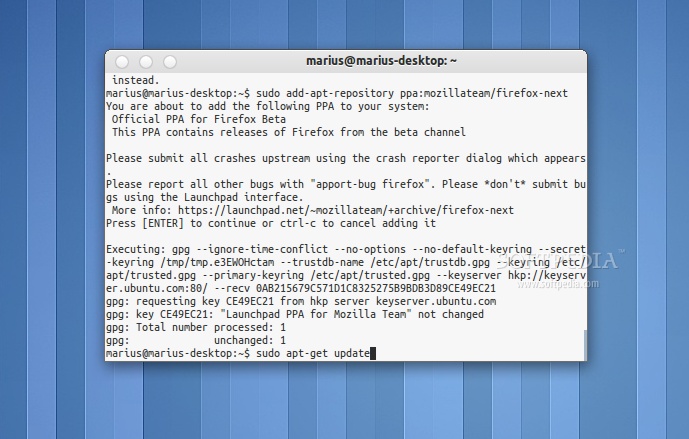
No matter what operating system you are running (Ubuntu 11.10 or Ubuntu 11.04), hit the CTRL+ALT+T key combination on your keyboard, and paste the following command in the terminal window:

sudo add-apt-repository ppa:mozillateam/firefox-next
Review image

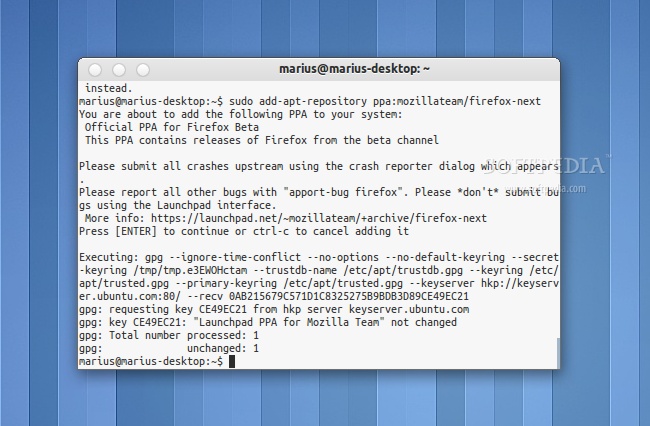
Enter your password when asked and hit the Enter key. Hit Enter again when asked. Now paste the following command:

sudo apt-get update

Review image

Wait for the update command to finish indexing the repositories. Do NOT close the terminal window. Proceed to the next step!

Step 2 - Install Firefox 9.0 in Ubuntu 11.10 or Ubuntu 11.04

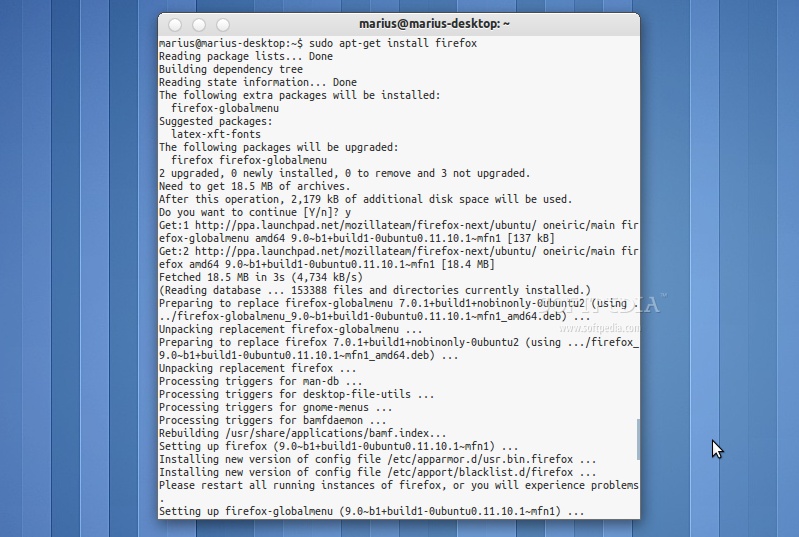
To install the Mozilla Firefox 9.0 web browser in Ubuntu 11.10 (Oneiric Ocelot) or Ubuntu 11.04 (Natty Narwhal) and update your current version, paste the following command in the terminal window.

sudo apt-get install firefox
Review image

When you will be asked if you want to install the Firefox 9 packages, type Y and hit the Enter key. Wait for the installation to finish and close the terminal window.

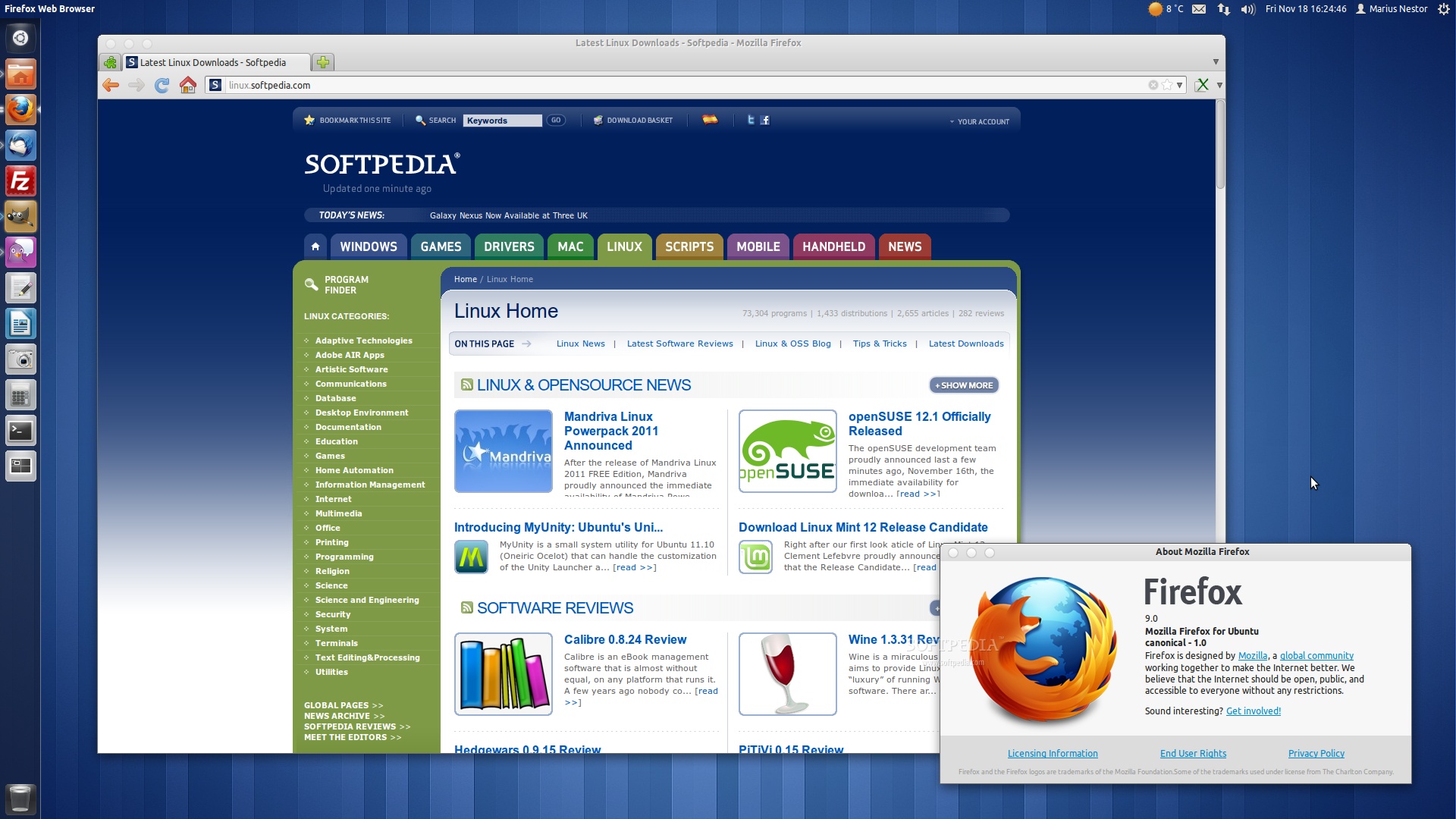
That's it! The new Mozilla Firefox 9.0 is now fully installed in your Ubuntu machine. You can start it from the Applications -> Internet menu.
Review image
Firefox 9.0 on Ubuntu 11.10 (Oneiric Ocelot)

In time, Mozilla Firefox 9.0 will automatically update to newer versions, so make sure you update your system regularly. If you have problems with the tutorial, do not hesitate to comment below!

TELL US WHAT YOU THINK:

55,545 hits · 40 comments · Link to this article · Print article · Send to friend · Subscribe to news

MUST-READ RELATED ARTICLES:


How to Install Firefox 8 in Ubuntu 10.04 and 10.10

Download Firefox 8 Final for Linux

Download Official Firefox 8 and Thunderbird 8 for Linux

Gaming on Linux, Now a Reality with Desura

Mandriva Linux Powerpack 2011 Announced

READER COMMENTS:


Comment #1 by: TrueSatan on 19 Nov 2011, 01:00 UTC reply to this comment

Your method also works on 10/04 "lucid"...thanks for writing it btw!

Comment #1.1 by: Skall on 09 Feb 2012, 08:03 GMT

Yes. True.


Comment #2 by: tek.fu on 19 Nov 2011, 06:56 UTC reply to this comment

no prob at all !!! thnx 2 all


Comment #3 by: Marius on 19 Nov 2011, 11:17 UTC reply to this comment

Aniway to make ubuntu 11.10 disable unity and get the normal gnome?

Comment #3.1 by: ayan on 20 Nov 2011, 03:33 GMT

Ubuntu 11.10 comes with pre-installed unity .. so unity is normal if you want to install gnome 3 additionally then search gnome 3 in the software center and install the packages and at the time of log in don't forget to select gnome instead of unity

Comment #3.2 by: Rohith M on 21 Nov 2011, 09:20 GMT

Hi I would like to let you know that some nice guy has forked gnome2 environment compatible with gnome3 and named it MATE desktop environ ment, which is preinstalled in ubuntu based distro linux mint, if you google a bit on MATE in ubuntu you will get how to do it, I have installed MATE even if some minor glitches here and there

Comment #3.3 by: nobody247 on 01 Jan 2012, 03:34 GMT

sudo apt-get install gnome-shell


Comment #4 by: NeilM on 22 Nov 2011, 01:12 UTC reply to this comment

Also works on Mint 12 "Lisa". Cool!


Comment #5 by: Caminante7 on 22 Nov 2011, 16:43 UTC reply to this comment

It's really worls, not like others posts I found it.
Thank you, very much


Comment #6 by: liosri on 23 Nov 2011, 05:17 UTC reply to this comment

thanks a lot


Comment #7 by: 99999 on 24 Nov 2011, 22:03 UTC reply to this comment

thanks


Comment #8 by: HuMaN on 01 Dec 2011, 16:14 UTC reply to this comment

Nice!
Thanks


Comment #9 by: chiems on 10 Dec 2011, 23:19 UTC reply to this comment

thanks.... really helpful tips


Comment #10 by: karve Singh on 17 Dec 2011, 04:10 UTC reply to this comment

Your tutorial is very good. Wish could understand the entire working of UBUNTU better, for which kindly let me know the best place to learn or get tutorial the same way as your this one :)


Comment #11 by: Ethan on 21 Dec 2011, 07:42 UTC reply to this comment

Good tutorial, thanks very much


Comment #12 by: fery on 21 Dec 2011, 20:15 UTC reply to this comment

yeah its work thanks.. its very help full :D


Comment #13 by: matsobane on 22 Dec 2011, 12:22 UTC reply to this comment

Thanx a lot, this is helpful :)


Comment #14 by: h4rdw0rk on 22 Dec 2011, 14:38 UTC reply to this comment

nice tutorial, really helps me updating to firefox 9. thanks


Comment #15 by: VivaUbuntu on 23 Dec 2011, 05:25 UTC reply to this comment

Excellent, nicely done. Your steps were really clear and easy to follow. I'm new to the world of Ubuntu Linux and certainly appreciate your site. Many thanks.


Comment #16 by: camel on 23 Dec 2011, 14:17 UTC reply to this comment

Very simple and clear, thanks!


Comment #17 by: firefox on 29 Dec 2011, 11:08 UTC reply to this comment

Thanks! Worked fine!


Comment #18 by: sooraj on 30 Dec 2011, 05:43 UTC reply to this comment

thanks..


Comment #19 by: missmoondog on 03 Jan 2012, 10:04 UTC reply to this comment

Even works updating this worthless browser to version 10!!


Comment #20 by: memyselfnie on 03 Jan 2012, 16:19 UTC reply to this comment

OUTSTANDING! Just what I was looking for. Worked like a charm!


Comment #21 by: arruu on 06 Jan 2012, 13:28 UTC reply to this comment

Thanks - works on Xubuntu 10.04 LTS as well.


Comment #22 by: Geeth on 09 Jan 2012, 04:22 UTC reply to this comment

Thanks. It is done by your way. nice explainations


Comment #23 by: ultimatorius on 09 Jan 2012, 22:39 UTC reply to this comment

Thank you... in Linux Mint v12 Firefox V10 Now!!!


Comment #24 by: Linux Skoob on 13 Jan 2012, 10:08 UTC reply to this comment

Excellent! thatnks for the help Marius, works like a charm! 100


Comment #25 by: Demolition man on 14 Jan 2012, 20:18 UTC reply to this comment

Wonderfull


Comment #26 by: htmlgifted on 17 Jan 2012, 13:38 UTC reply to this comment

works in Xubuntu


Comment #27 by: Urhixidur on 23 Jan 2012, 18:08 UTC reply to this comment

The graphical equivalent is:
1. From the desktop, invoke System: Administration: Synaptic Package Manager.
2. Supply the root password if asked to do so.
3. From Synaptic, invoke Settings: Repositories.
4. In the Software Sources window, pick Other Software: Add...
5. The magic incantation is:
deb http://ppa.launchpad.net/mozillateam/firefox-next/ubuntu natty main
(substitute oneiric for natty if that is your wish)
6. Click Add Source.
7. Click Close.
8. You may be warned the Repositories have changed; click Close.
9. Click Reload.
10. Scroll to the firefox package, or better yet Quick Filter for it.
11. Right-click it and "Mark for Upgrade". Also mark any other firefox packages that have the "upgrade available" icon by them.
12. Agree to Mark any other required packages (e.g. "firefox-globalmenu"), if any.
13. Click Apply.
14. In the Summary window, click Apply.


Comment #28 by: DJ on 03 Feb 2012, 14:53 UTC reply to this comment

perfect!!!!


Comment #29 by: alpino on 03 Feb 2012, 21:13 UTC reply to this comment

Tahk you very much.
It has been useful!
Your page looks like too muchinteresting!
Thanks, again, and cheers!
From Spain.


Comment #30 by: Bill on 05 Feb 2012, 22:37 UTC reply to this comment

Does not work, get "command not found".


Comment #31 by: aldrin hilario on 06 Feb 2012, 11:45 UTC reply to this comment

what if i accidentally turn off my computer while it is still installing the updates? will there be any error with my browser? or if i redo the update process?


Comment #32 by: gdenby on 09 Feb 2012, 11:24 UTC reply to this comment

My entry of the above three commands resulted in a re-installation of Firefox 11 (on 9 Feb 2012), not Firefox 9. Very odd... it did not work as expected.

I was seeking to revert to the older Firefox 9 since all my Bookmarks in Firefox 11 under Ubuntu 11.10 have stopped working, as has the navigate backwards button, also strange grey-screen delays in downloading. The log below is from the third command indicated... and seems to be installing the 'latest' rather than a specified version:-

- - - - --

gary@FWP-laptop:~$ sudo apt-get install firefox
Reading package lists... Done
Building dependency tree
Reading state information... Done
The following packages were automatically installed and are no longer required:
libgladeui-1-11 libnux-0.9-common libxine1-x libdbusmenu-glib3 libxine1-misc-plugins libxcb-xv0 libxine1-bin libgnome-desktop-2-17
libxine1-console libxine1
Use 'apt-get autoremove' to remove them.
The following extra packages will be installed:
firefox-globalmenu
Suggested packages:
firefox-gnome-support firefox-kde-support latex-xft-fonts
The following NEW packages will be installed:
firefox firefox-globalmenu
0 upgraded, 2 newly installed, 0 to remove and 1 not upgraded.
Need to get 19.9 MB of archives.
After this operation, 40.1 MB of additional disk space will be used.
Do you want to continue [Y/n]? y
Get:1 http://ppa.launchpad.net/mozillateam/firefox-next/ubuntu/ oneiric/main firefox i386 11.0~b1+build1-0ubuntu0.11.10.1~mfn1 [19.7 MB]
Get:2 http://ppa.launchpad.net/mozillateam/firefox-next/ubuntu/ oneiric/main firefox-globalmenu i386 11.0~b1+build1-0ubuntu0.11.10.1~mfn1 [140 kB]
Fetched 19.9 MB in 2min 51s (116 kB/s)
Selecting previously deselected package firefox.
(Reading database ... 268136 files and directories currently installed.)
Unpacking firefox (from .../firefox_11.0~b1+build1-0ubuntu0.11.10.1~mfn1_i386.deb) ...
Selecting previously deselected package firefox-globalmenu.
Unpacking firefox-globalmenu (from .../firefox-globalmenu_11.0~b1+build1-0ubuntu0.11.10.1~mfn1_i386.deb) ...
Processing triggers for man-db ...
Processing triggers for menu ...
Processing triggers for desktop-file-utils ...
Processing triggers for gnome-menus ...
Processing triggers for bamfdaemon ...
Rebuilding /usr/share/applications/bamf.index...
Setting up firefox (11.0~b1+build1-0ubuntu0.11.10.1~mfn1) ...
Please restart all running instances of firefox, or you will experience problems.
Setting up firefox-globalmenu (11.0~b1+build1-0ubuntu0.11.10.1~mfn1) ...
Processing triggers for menu ...
gary@FWP-laptop:~$ e


Comment #33 by: silvr on 26 Feb 2012, 15:26 UTC reply to this comment

Thanks


Comment #34 by: queennikki1972@gmail.com on 12 Mar 2012, 20:25 UTC reply to this comment

I have a apache 2.2 web server. The servre has been working fine until today. I can access the server from a windows machine and even a virtual box running windows, however firefox in ubuntu WILL NOT LOAD anymore as of today. I cannot figure out for the life of me why.


Comment #35 by: Tony on 03 Apr 2012, 10:48 UTC reply to this comment

So far so good, I've followed your tutorial and the new version of FF has been installed. Now let's see if it stops crashing.


Comment #36 by: Win User on 30 Apr 2012, 19:30 UTC reply to this comment

thanks man, your tutorial was sweet. I * hate ubuntu.. but you made my life easier. Thanks again

Copyright © 2001-2012 Softpedia. Contact/Tip us at

WindowsGamesDriversMacLinuxScriptsMobileHandheldNews

SUBMIT PROGRAM   |   ADVERTISE   |   GET HELP   |   SEND US FEEDBACK   |   RSS FEEDS   |   UPDATE YOUR SOFTWARE   |   ROMANIAN FORUM