
Softpedia
 

NEWS CATEGORIES:


NEWS ARCHIVE >>
SOFTPEDIA REVIEWS >>
MEET THE EDITORS >>
TRENDING TODAY
Home > News > Technology and Gadgets > Tips and Tricks

July 27th, 2011, 08:13 GMT · By

How To Enable Skype Support on Samsung Plasma Smart HDTVs

SHARE:

Adjust text size:

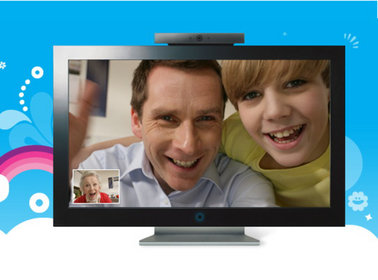
How To enable Skype support on Samsung plasma smart HDTVs
Enlarge picture
Samsung has recently added Skype support to its newer LED SmartHub HDTV models, but this functionality can also be enabled for plasma TV's by following just a few simple steps, which we have put together in a small How To.

The Skype application is compatible only with the Samsung CY-STC1100 webcam, which has to be purchased separately (it appears like the FREETALK TV Camera for Samsung can also work for Skype).

Sadly, the webcam won't officially work with anything other than Samsung LED TV's, but this is only an artificial limitation that can be easily overcome by using this How To.

The guide was tested using a Samsung 55-inch HDTV, model number PS50C7000, but it should work with other Samsung plasma HDTVs as long as they are SmartHub enabled.

After getting a hold of the Samsung webcam, the first thing that one has to do is to update its firmware to the latest version available (in our experiments this was T-VALDEUC-3009.2 - 11.05.11).

This is achieved by connecting the camera to an empty USB port on your computer and running the firmware update application that is available on Samsung's support website.

The next step is to download the Samsung Skype app that is available here. One this is done, connect the plasma TV, over wireless or Ethernet, to the same network as the one used by the computer with the Skype app.

In order to transfer this application to the HDTV, one has to install a small web server on its PC. I recommend Small HTTP server since this is very easy to use and requires only a minimal set of system resources (get it from here).

After installing the HTTP server, the next step is to unzip the archive with the Samsung Skype app. Now copy the contents of the archive in the root directory of your web server.

This should now contain a widgetlist.xml file as well as an widget directory with Skype.zip inside it.

The widgetlist.xml file has to be edited to point out to the PC that the files are placed on. In order to do this you have to find out the IP of the computer running the HTTP server (running ipconfig in a terminal window should do the trick) and edit the following line in widgetslist.xml to contain your IP:

<download>http://192.168.1.110/widget/Skype.zip</download>

As you can see, in our case, the IP of the network computer was 192.168.1.110.

To verify that everything worked OK and that the file is accessible from the network, you can try to access the link in widgetslist.xml from a web browser. If this will ask you to download the file to your PC, then everything worked as intended.

Now it's time to head over to the Samsung plasma TV and install the Skype application.

Start your TV and go to Internet@TV -> Settings -> ID -> Create. Here create a new account called develop with any password you would like. Go back to the Internet@TV menu and press the red A key to log-in with the newly created profile (develop).

After the log-in procedure, a new tab should appear in the Settings menu called Developer. While here, setup the server setting to point out to your computer (in our case 192.16.1.110).

In order to get Skype installed on the plasma TV, you should Sync your apps. If everything worked out OK, then Skype should be among the applications installed.

After completing this step, the HDTV should find an update for Skype. Install it to get the latest version and you now you can use your Samsung smart TV to chat on Skype with your friends and family.

In our experiments, the camera supported only SD resolutions. Thanks to Courage on our Romanian forums for putting this small how-to together.


29,192 hits · 21 comments
Link to this article · Print article · Send to friend

MUST-READ RELATED ARTICLES:


Samsung Series 3 Notebooks Start Shipping in the US

Samsung Intros New MeeGo Powered Notebook in the Indian Market

Samsung 470 Series SSDs to Ship with Norton Ghost 15 Migration Software

Panasonic Plasma TV Black Color Levels No Longer Deteriorate

LG to Roll Out Large Screen OLED HDTV Ahead of Sony

READER COMMENTS:


Comment #1 by: vlad on 06 Aug 2011, 15:02 UTC reply to this comment

I cannot download skype app.
Could you repair the broken link. thank you.


Comment #2 by: vladi on 07 Aug 2011, 13:14 UTC reply to this comment

link to skype app. doesn't work. could you correct it. thank you


Comment #3 by: vlad on 11 Aug 2011, 20:03 UTC reply to this comment

Do you know how to do the same on smart TV UN46D6000 series with smart Hub, please help.


Comment #4 by: vlad on 15 Aug 2011, 14:17 UTC reply to this comment

I finished all steps, but updating of skype doesn't let by Smart Hub, it shows Connecting and stuck. It seems to me that Skype app. is missing in zip file, couse inside only are xml file and icons. will be very interesting to hear some ideas about enabling Web Browser in the same way. thank you for smart ideas that can compensate minuses of Sumsung HDTV


Comment #5 by: Strelac on 16 Sep 2011, 07:17 UTC reply to this comment

Link for Skype is broken, can you re-upload it? Thanks...


Comment #6 by: Ash - Webtronix on 07 Nov 2011, 12:32 UTC reply to this comment

ok, this is probably the best set of instructions i have come across. Many Thanks... le46c750 - Ash

Comment #6.1 by: Nick on 26 Sep 2012, 23:00 GMT

Did you get this working on a LE46C750 Ash?
I do not have the camera, do you have to install camera first?
I find I getthe errot Network or server inrerference occured Please try again later


Comment #7 by: test123 on 28 Nov 2011, 00:19 UTC reply to this comment

I did this proceedure and I get the user installed app on SmartHub, but when I select the Skype app it just goes to the "connecting" box and never goes any further... I'm not sure where it is trying to connect to, or if the "update" mentioned in the proceedure isn't available anymore. Can someone that originally posted this Skype app provide some assistance? If you could provide the code to allow this to be packaged in the Samsung SDK so that it could be fully loaded as a complete user app that functions this would be very helpful to many that are looking for this feature. Thanks in advance for the help!

Comment #7.1 by: Silverburn on 18 Dec 2011, 20:29 GMT

Yeah, this is my problem too. Just sits there, "connecting".

Anyone else found a way forward? I'm on a UE46C6320 (6 series LED)


Comment #8 by: smlick on 20 Jan 2012, 19:50 UTC reply to this comment

Faboulous thank you!!!!!

Comment #8.1 by: Procyon on 10 Feb 2012, 15:54 GMT

Are you sure ? ....
What TV model and CPU type?
Is the "Skype Apps" successful to complete the "connecting" process??


Comment #9 by: Procyon on 10 Feb 2012, 15:43 UTC reply to this comment

I did the proceedure, but when I select the "Skype App" it just goes to the "connecting" box and never goes any further...
Some help? ... TV: PS51D6900 (Europe - equivalent to PN51D6500/D7000 U.S.) - Mstar cpu


Comment #10 by: Armen on 18 Mar 2012, 16:49 UTC reply to this comment

Stuck in "connecting"... Does anyone got this actually working?


Comment #11 by: Armen on 18 Mar 2012, 17:56 UTC reply to this comment

Stuck on "connecting..."

Comment #11.1 by: Original tester on 02 May 2012, 19:06 GMT

I'm the original tester of this "hack".

What you should know:
0. Log Out from develop account!
1. This is ONLY activating a hidden feature, so the app (skype) must be included on the firmware (some models might not have the app)!
2. It's working on some/older models, but I really cannot test them...
3. I think you must have a Skype compatible camera in order to work...
4. The links are working, but you must not have something that block the referrer (paranoid antivirus etc)... You can try another browser.


Comment #12 by: js on 10 May 2012, 23:50 UTC reply to this comment

the samsung skype app is bogus
just a few icons
no scripts

Comment #12.1 by: Berry on 20 Jun 2012, 01:58 GMT

I* bought the ES8000, but I can't find Internet@TV -> Settings -> ID -> Create.

Comment #12.2 by: basestring on 23 Jun 2012, 03:27 GMT

ok I found it, and got it to work and have the skype Icon on my tv. but when I press it, it just keeps loading and nothing happens!!! I live in China, and China don't have skype in the app store. I checked the files, but the config file don't have any details about skype!!!!! so how can this work? I need the real skype app to get this to work


Comment #13 by: alibaba on 25 Jun 2012, 01:56 UTC reply to this comment

PS51D6900 - stuck in "connecting" too : ( Any ideas?


Comment #14 by: tiga on 15 Aug 2012, 20:37 UTC reply to this comment

I tried the procedure as described above. After installing the Skype app on my UE32C6000 it is shown as a user app with a red underground in the app list. There is no update process for the app or did I miss something?
When I open the app it says connecting endlessly as described in several posts before. I don't have a camera yet as I want to see the app running before purchasing.
Could you pls confirm, that there should be an update of the app and that the procedure also works if no camera is connected to the TV?


Comment #15 by: Sam on 22 Dec 2012, 04:51 UTC reply to this comment

Bottom Line
For all Smasung SMART HDTV's below Model # D6000.
You need an ouside application.
1-SMART STICK or
2-LAPTOP WITH SKYPE to connect to back of SMART HDTV through VGA
3-A good web-cam

Copyright © 2001-2013 Softpedia. Contact/Tip us at

WindowsGamesDriversMacLinuxScriptsMobileHandheldNews

SUBMIT PROGRAM   |   ADVERTISE   |   GET HELP   |   SEND US FEEDBACK   |   RSS FEEDS   |   UPDATE YOUR SOFTWARE   |   ROMANIAN FORUM