 14 DAY TRIAL //
 A common problem in Linux systems is the X11 configuration, which doesn't have a GUI software to be configured, yet. So, in this guide, I will show you how to setup your X11, so it can recognize your monitor, mouse, keyboard and, of course, the video card.
WARNING: This guide was made on a Fedora machine! It will work on other distributions, but X11 config files may reside in other locations. Try it yourself and see if it works!
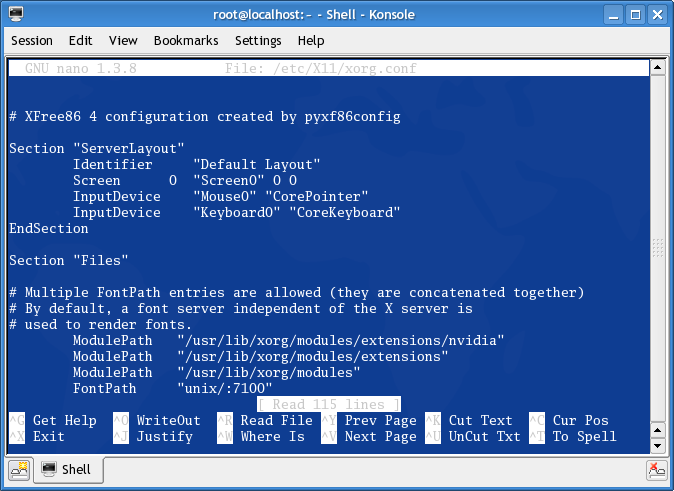
Let's open up a console and type:
nano /etc/X11/xorg.conf
You'll see something like this:
Ok, now if you don't have problems with your Mouse or Keyboard, you don't have to modify anything on the "Input Device" sections. If you need or want to do some modifications to your Mouse, you can search the "Input Device" section with the Mouse configurations and modify what you need, like the location of the device or the port on which is connected:
Section "InputDevice"
Identifier "Mouse0" Driver "mouse" Option "Protocol" "IMPS/2" Option "Device" "/dev/input/mice" Option "ZAxisMapping" "4 5" Option "Emulate3Buttons" "yes"
EndSection
For Keyboard, you can modify the layout and the model, if you have problems or want to change something to suite your needs, so find the "InputDevice" section that looks like this:
Section "InputDevice"
# Specify which keyboard LEDs can be user-controlled (eg, with xset(1)) # Option "Xleds" "1 2 3" # To disable the XKEYBOARD extension, uncomment XkbDisable. # Option "XkbDisable" # To customize the XKB settings to suit your keyboard, modify the # lines below (which are the defaults). For example, for a non-U.S. # keyboard, you will probably want to use: # Option "XkbModel" "pc102" # If you have a US Microsoft Natural keyboard, you can use: # Option "XkbModel" "microsoft" # # Then, to change the language, change the Layout setting. # For example, a German layout can be obtained with: # Option "XkbLayout" "de" # or: # Option "XkbLayout" "de" # Option "XkbVariant" "nodeadkeys" # # If you'd like to switch the positions of your capslock and # control keys, use: # Option "XkbOptions" "ctrl:swapcaps" # Or if you just want both to be control, use: # Option "XkbOptions" "ctrl:nocaps" #
Identifier "Keyboard0" Driver "kbd" Option "XkbModel" "pc105" Option "XkbLayout" "us"
EndSection
The Monitor is the most common hardware device that you may have problems with. It may not be recognized correctly or at all on the installation of your Linux system. Search the "Monitor" section in the xorg.conf and modify things like Monitor Model, Horizontal Synchronization and Vertical Refresh (if you don't know the latest two, please check your Monitor Manual):
Section "Monitor"
### Comment all HorizSync and VertSync values to use DDC: ### Comment all HorizSync and VertSync values to use DDC:
Identifier "Monitor0" VendorName "Monitor Vendor" ModelName "Samsung SyncMaster 910V/910M/913V" DisplaySize 380 300
### Comment all HorizSync and VertSync values to use DDC:
HorizSync 30.0 - 81.0 VertRefresh 56.0 - 75.0 Option "dpms"
EndSection
Your Video Card may also not be recognized correctly in your Linux machine. To make modification to it, search for the "Device" section and modify the Vendor, Card Model and Name or the video driver:
Section "Device"
Identifier "Videocard0" Driver "nvidia" VendorName "Videocard vendor" BoardName "nVidia Corporation NV34 [GeForce FX 5200]"
EndSection
Please remember that if you install a video driver prior these modifications in the xorg.conf file, the Driver in the "Device" section may be automatically changed. For example, if you own a Nvidia Video Card, the default Driver will be "nv", and when you install a driver for this card, it will change to "nvidia", so you don't need to do other modifications.
The Screen resolution can also be modified from the xorg.conf file. Just go to the "Screen" section and add more resolutions, to suite your needs:
Section "Screen"
Identifier "Screen0" Device "Videocard0" Monitor "Monitor0" DefaultDepth 24
SubSection "Display"
Viewport 0 0 Depth 16 Modes "800x600" "640x480"
EndSubSection
SubSection "Display"
Viewport 0 0 Depth 24 Modes "1280x1024"
EndSubSection
EndSection
As a bonus, to enable the shadows and translucency of your X Server, Composite Extensions, you can add the following section at the end of your xorg.conf file:
Section "Extensions" Option "Composite" "Enable" Option "RENDER" "Enable" EndSection
And you must add the following options to the "Device" section in the xorg.conf:
Option "AllowGLXWithComposite" "1" Option "RenderAccel" "true"
These options will enable accelerated rendering, which speeds up rendering of shadows and translucency.