 14 DAY TRIAL //
 When Microsoft developed the new Windows 8, it tried to address all user categories, be they home users, small or large businesses.
That’s why the new operating system comes with plenty of improvements that enhance not only the GUI, but also the overall stability and performance.
[admark=1] Until now, regardless if they were using Windows XP, Vista or 7, Microsoft’s customers had to install third-party software solutions to track memory and CPU usage, get information on the running apps or manage the user accounts and the running processes.
Well, Windows 8 users no longer need to do that thanks to the brand new Task Manager.
That’s right, Microsoft rolled out a facelift of the old-fashioned Task Manager that’s not only capable to manage the task, but also to track system performance and provide an in-depth look in this particular area.
Processes
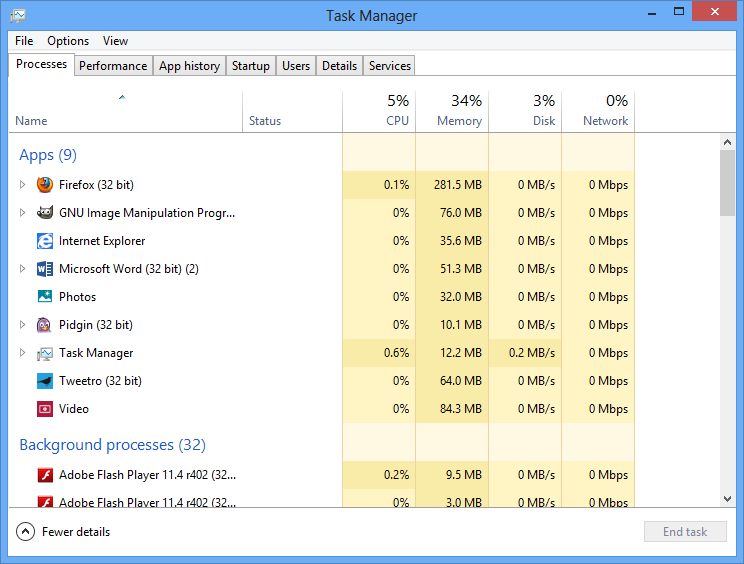
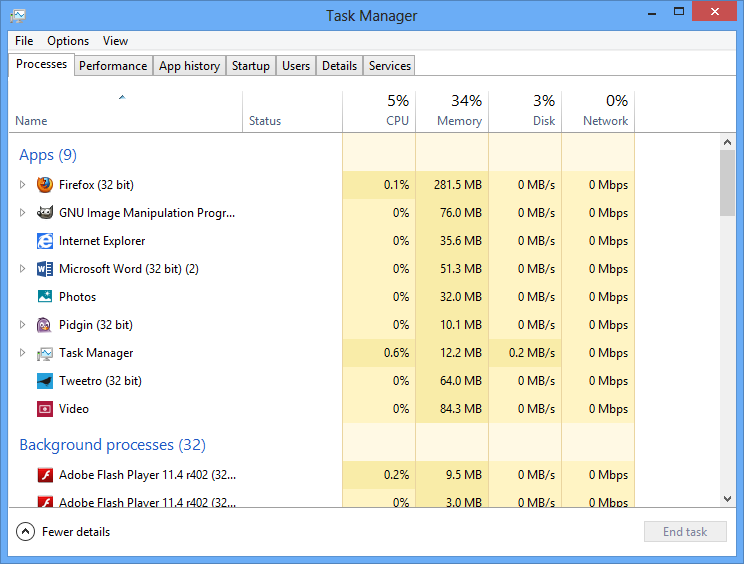
The refreshed Task Manager relies on tabs to provide access to its main features. The first one is called “Processes” and does exactly the same thing as on the old Task Manager, but with much more advanced options.
It does list the apps and the running processes, but it also groups the background processes in a separate category to easily keep an eye on all items.
What’s more, each process comes with plenty of details, such as CPU, memory, disk and network. You can not only terminate a process, but also search online for more information and open file location.
Performance
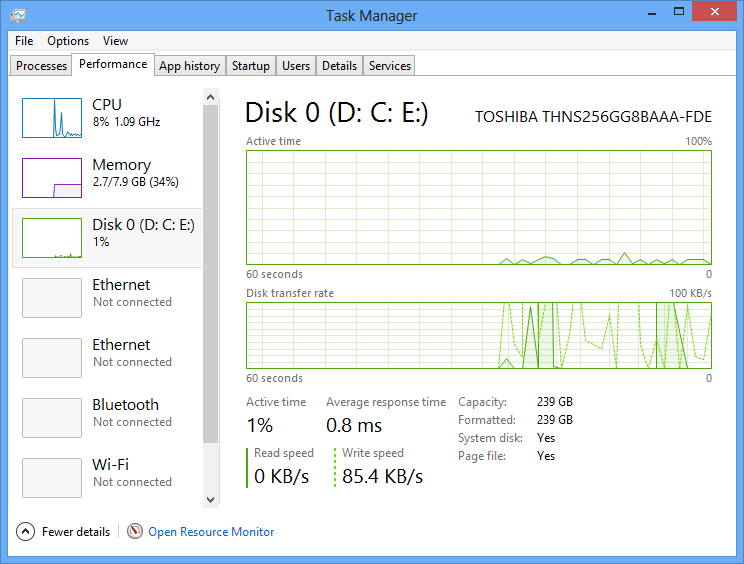
This is a completely new area and it provides a fairly good amount of information on CPU, memory, disk and network performance.
You can easily see usage figures in the list on the left, while the main window shows real-time graphs to track speed and transfer rate. It’s all a matter of needs, so Windows 8 indeed seems to appeal to more user categories.
App history
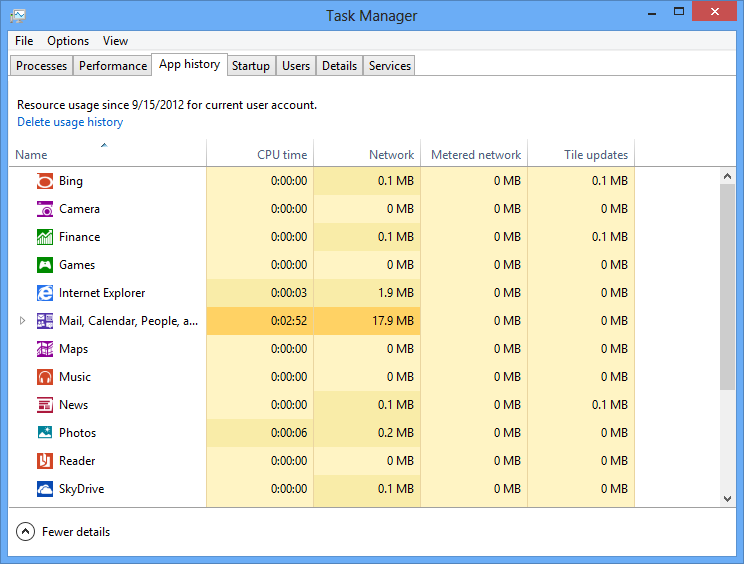
The “App history” tab was specifically designed to show resource usage for a specific user account. It tracks apps history until the user manually deletes the logs and displays CPU time, network, metered network and tile updates for every single item.
Startup
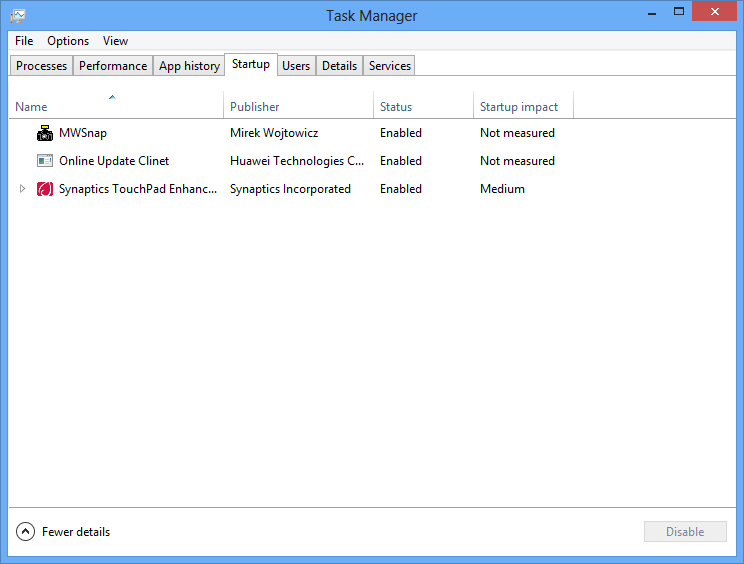
The “Startup” screen shows every single application that’s configured to run at Windows boot, along with information such as publisher, status and startup impact. This last column gives you the power to speed up the booting process by disabling the processes that slow down the computer.
Again, you are allowed to search online for more information and open file location.
Users
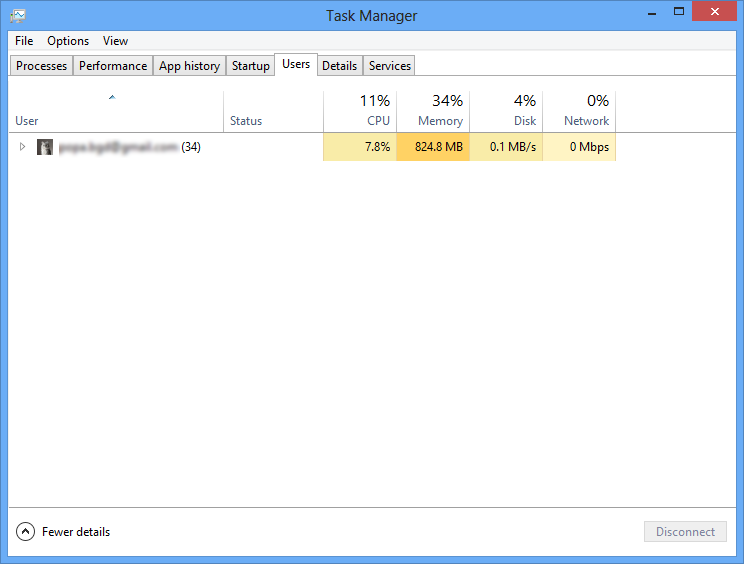
If you’re looking for more information on the logged-in users, this is the right tab. It displays the currently authenticated users, along with their active processes.
Of course, you can see CPU, memory, disk and network usage of each item, with available options including “End task” and “Create dump file.”
Details
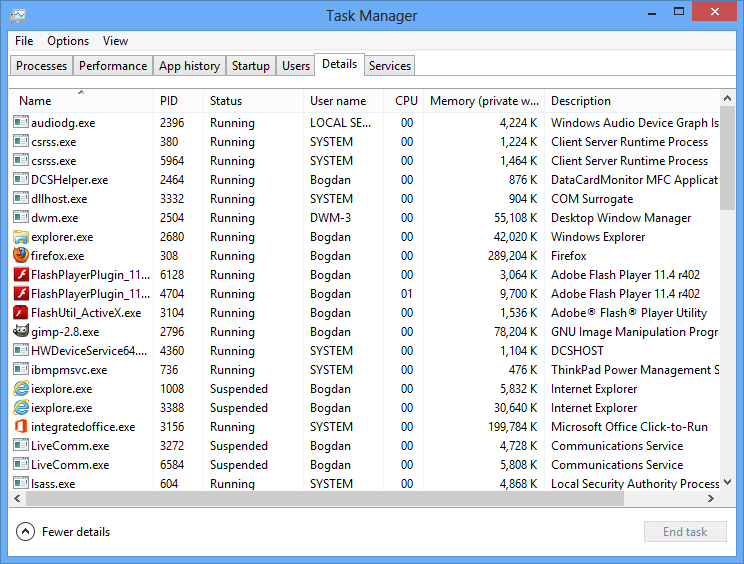
The “Details” tab clearly requires a bit more computer knowledge because it displays all the active processes alongside PID, status, username, CPU, memory and description.
Right-clicking a process provides a great number of options, such as end task, end process tree, set priority and affinity, analyze wait chain, create dump file and search online.
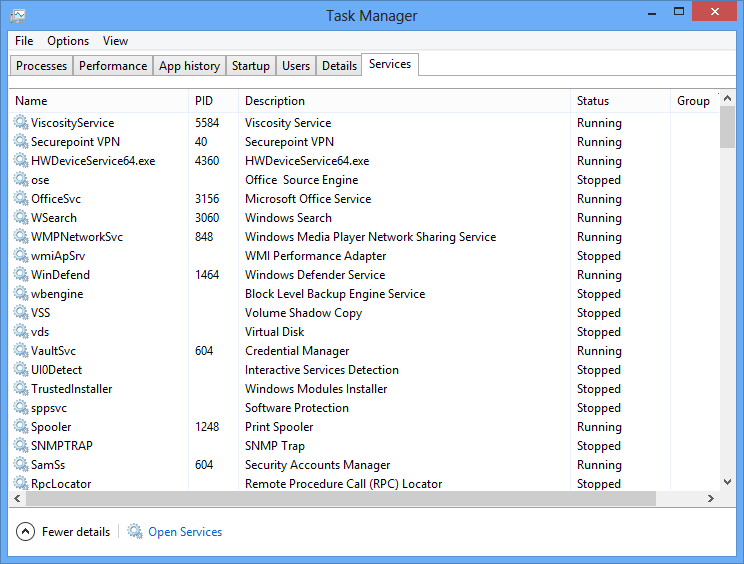
Last but not least, this is the equivalent of the “services.msc” command on the previous Windows versions. This one shows service name, PID, description and status. Of course, you are allowed to start, stop and restart services, but also to open services and search online for more information.