
Softpedia
 

NEWS CATEGORIES:


NEWS ARCHIVE >>
SOFTPEDIA REVIEWS >>
MEET THE EDITORS >>
TRENDING TODAY
Home > News > Microsoft > Tweak Mode

November 24th, 2009, 14:05 GMT · By

Windows 7 RTM - Enable the Quick Launch Bar

SHARE:

Adjust text size:

Windows 7
Enlarge picture
There’s no disputing over the fact that Windows 7 brings a consistent overhaul of the graphical user interface that has become synonymous with the Windows operating system. One critical aspect of the Windows 7 GUI redesign is the revamping of the Taskbar, which is now affectionately referred to in some circles as the Superbar. Microsoft aimed to deliver a more user-friendly design, less crowded, less redundant. In this regard, the Superbar comes with an evolved mechanism to deal with pinned items and opened programs, new functionality such as Thumbnail Previews and JumpList, with an upgraded Notifications Area, and without Quick Launch.

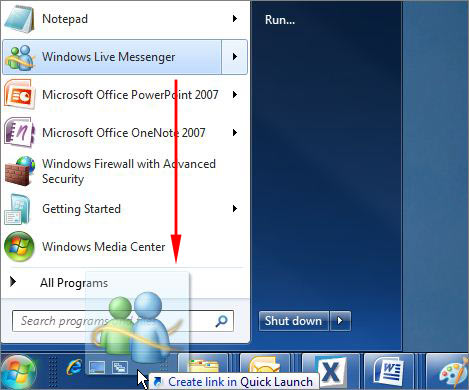
Now in all fairness, the Superbar has inherited all the functionality of the Quick Launch area. In this sense, users can now pin program icons right to the Taskbar, essentially making Quick Launch useless. However, there will always be users that enjoy a tad of redundancy. Especially for these types of customers, Microsoft has documented the steps necessary to bring back Quick Launch for the Windows 7 Taskbar.

Customers must understand that the disappearance of the Quick launch area from Windows 7 is default behavior and a part of the Windows GUI evolution. As far as I’m
Windows 7 Quick Launch
Enlarge picture
concerned, customers should first off all give the Superbar a chance, as they will notice they have no reasons at all to miss Quick Launch. But if the new Windows 7 Taskbar simply doesn’t cut it for them, then they will be able to bring back Quick Launch even in Windows 7 RTM, following the steps outlined below, courtesy of Microsoft.

“1. Right-click an empty area of the taskbar, point to Toolbars, and then click New toolbar.
2. In the dialog box, copy and then paste the following folder name to the Folder box, and then click Select Folder: %AppData%\Microsoft\Internet Explorer\Quick Launch
3. Now you see the Quick Launch bar with the text on the rightside of the task bar. To hide the Quick Launch text and program titles, right-click Quick Launch, clear Show Text and Show title.
4. Drag the Quick Launch bar to the leftside of the task bar. If you cannot move the Quick Launch bar, right-click the taskbar again, and make sure that the Lock the taskbar option is cleared .
5. If you prefer big icons in the Quick Launch bar, right-click an empty area of the Quick Launch bar, point to View, and then click Large Icons.
6. To add a program in the Quick Launch bar, drag the desired icon to the Quick Launch bar.”


8,330 hits · 5 comments
Link to this article · Print article · Send to friend

MUST-READ RELATED ARTICLES:


Download Expression Web 3 Service Pack 1 (SP1)

Download Google Chrome 4.0.249.11

Windows 7 Gets Some Family Guy Love after All

Windows Azure Cloud OS “Transparency”

IBM Embraces Windows 7 Upgrade and Migration Tool

READER COMMENTS:


Comment #1 by: littlebug on 24 Nov 2009, 14:19 UTC reply to this comment

And if you use language bar, the quick launch bar is gone after restart


Comment #2 by: Arnol on 26 Nov 2009, 05:41 UTC reply to this comment

Quicklaunch keeps the Taskbar, Start Menu and Desktop clean. I couldn't live without it. But since installing Microsoft System Essentials Anti-virus clicking on Quick Launch produces a blank screen for 2-3 seconds while each of its 42 program and folder locations are being validated. This only happens the first type it used after a reboot but did not occur when previously using AVAST Anti-viurs.


Comment #3 by: hansbaar on 03 Dec 2009, 14:16 UTC reply to this comment

I followed the instruction to enable Quick Launch. However, after each boot or restart of my PC, the Quick Launch toolbar disappeared. I found out that when I removed the Language toolbar from the taskbar, my Quick Launch stays enabled, although i noticed that the icons in there will sometimes be shuffled a little bit


Comment #4 by: flirno on 20 Dec 2009, 17:23 UTC reply to this comment

Quicklaunch relocation was important if you have multiple monitors or huge monitors. It aided in reducing carpel tunnel by making task accessibility over large desktops faster and easier. Now if you have a huge monitor or a monitor array it takes forever to get anything done because of the mouse traversal time.

Frankly it is a huge pain in the hindquarters.

This is analogous to an MMO like world of warcraft suddenly deciding you only get one button bar instead of 24. Oh yeah you can stack the buttons now...but..only one bar.

This change gets a big F from me. The rest of Win7 seems to be fine. The loss of bar functionality and flexibility a big fail.

The scenario I have involves 4 monitors. The main monitor, a monitor above the main monitor and monitors to the right and to the left of the main monitor. I had a right side toolbar, a left side toolbar and a top side toolbar for different shortcuts and applications accessible to different monitors. This was great.

What we have now is terrible. For now I am making do with shortcuts on the desktop but that is a poor solution because 1: creates desktop clutter 2: cannot make desktop icons 'pop up' from hidden view like th toolbar could. Oh yeah, the loss of the toolbar is big.

As soon as 3rd party options that mimic the OLD functionality are available I will be getting them. Even if I have to pay for them.


Comment #5 by: Naynay on 14 Jun 2010, 07:48 UTC reply to this comment

I'd like to note that the quickbar seems tied to the profile (appearance, theme - rightclick on desktop and click to change personal preferences) you have saved it to, and the quick bar is more likely to stay if you save your appearance/theme after setting it up. I have the language bar on my toolbar as well and I need it there very much.

However, the quick bar will still disappear at random, but no longer on every startup. I too noted it is probably related to the language bar, because when I set the quick launch up anew after this, I often have two quick launch bars. In any case, the quick launch stayed where it was for 1 month after I saved it and as long as I don't touch the theme, so you might want to try this.


Also, that superbar functionality thing - it's all fine and awesome to say that this new superbar is the way to go and the quickbar is an old-fashioned thing, but the reality is that the quickbar, for many people, is simply the one and only way to go quick about windows, software, folders, internet, etc., especially as already mentioned for those with more screens. Compare it to the popularity of the Macintosh docking station if you want, just more managable and smaller - and what's more, more intuitive even for less experienced users, because I never had any trouble figuring out how the Quick Start works, while I after 3 months still don't know most of this new superbar and why on Earth it would ever be called that.

Copyright © 2001-2013 Softpedia. Contact/Tip us at

WindowsGamesDriversMacLinuxScriptsMobileHandheldNews

SUBMIT PROGRAM   |   ADVERTISE   |   GET HELP   |   SEND US FEEDBACK   |   RSS FEEDS   |   UPDATE YOUR SOFTWARE   |   ROMANIAN FORUM