 14 DAY TRIAL //
 Have you seen the title? You are probably on the point of laughing at me. Who in the world would want to decompress a 4 Mb mp3 audio file to obtain a wav file that eats about 10 times more disk space? I do! And you would do the same after you will listen to my little story.
Yesterday, I was asked by a relative to help her in doing a Power Point presentation for school. With the text and the images ready, it is quite simple to create a nice looking mixture using the Microsoft's product. Copy paste text, insert photo, select the font and background color and you are done. But more, my relative requested a special element to be inserted into the presentation: a sound file. This sound file should have been played while the slides defile on the desktop.
At first sight, this operation does not require any special abilities. Using the insert sound feature, the sound is attached to the presentation file and ready to be played in any moment. However, there is a little issue to debate on. Power Point does not permit an mp3 sound file to be encapsulated into a pps or ppt presentation project. It means that you can insert the mp3 file to be used by the presentation but it won't be embedded into the presentation. If you send the presentation to anyone else, you need to send him the mp3 file too. Only wave files are accepted to be part of the presentation file.
Due to this impediment, you might consider to use a wave file but surprise, you have your HDD stuffed with mp3s but no decent wave sound can be found. Converting the desired mp3 sound file into wav is your first thought. But you don't have such converter installed. In the worst scenario (no internet connection) you find yourself in the critical state not to be able to add the sound to the presentation.
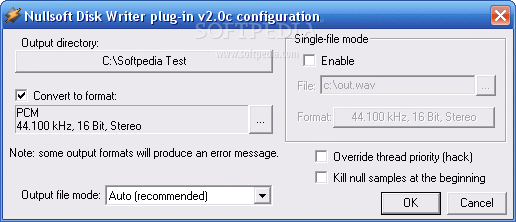
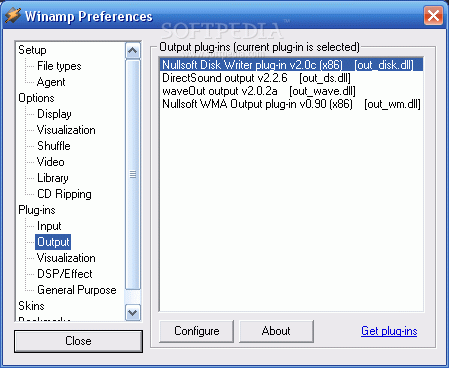
I want to give you a little tip that can save you precious time. Do you have Winamp? It is maybe the most notorious audio player ever created. You can use it as an mp3 to wav converter! In order for it to work, you need to configure it properly. Hence, right click on the main window and go to Options > Preferences. In the Winamp Preferences menu, in the left panel, go to Plug-in > Output. In the right, you will get the list of the installed plug-ins. Select NullSoft Diskwriter plugin and then click configure. This is a plug-in that instructs Winamp not to play the files but to convert them into wav format.
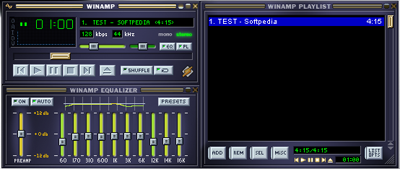
In the configuration window, specify the output folder where the files are to be saved and select the quality of the output wave files. With these basic settings, you will be able to convert your mp3 file into wave. The great thing is that if you want to convert multiple files, you can simply add the mp3s into the playlist and then click play. Winamp will convert them all, one at a time.
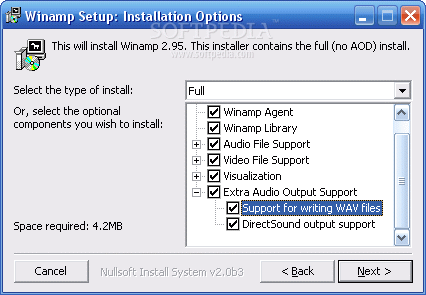
I have been using Winamp version 2.95. It is an old version but it eats the less resources and it does its job perfectly. In case you install Winamp, do not forget to select Extra Audio Output Support because it includes the support for writing WAV files.