 14 DAY TRIAL //
 Dropbox has just rolled out two-step verification for all accounts. The feature is designed to make your account safer and it's good idea to enable it, even if you don't think you store any sensitive files in Dropbox.
For now, you need an experimental build of the Dropbox client, but an update should be coming in a few days and everyone will be able to use it. Here's how to enable the feature.
1. Visit the Security tab in the Account preferences page. You'll notice a "Two-step verification" option in the "Account sign-in" section in the bottom left. For now, it should be set to Disabled.
2. Click on the (change) link to go through the wizard to enable the feature.
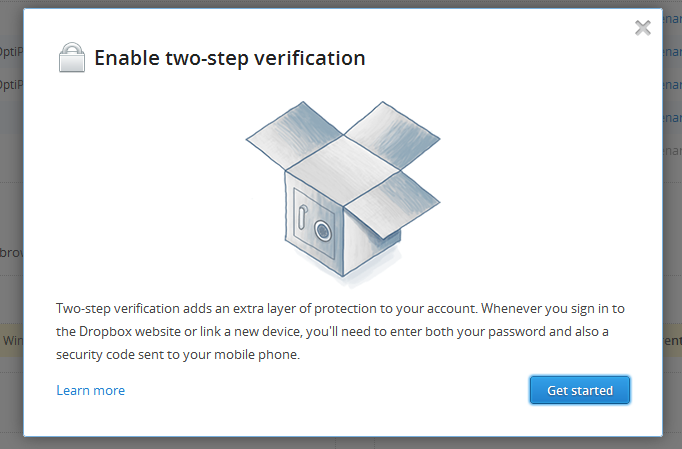
3. Click the "Get started" button in the popup overlay that shows up.
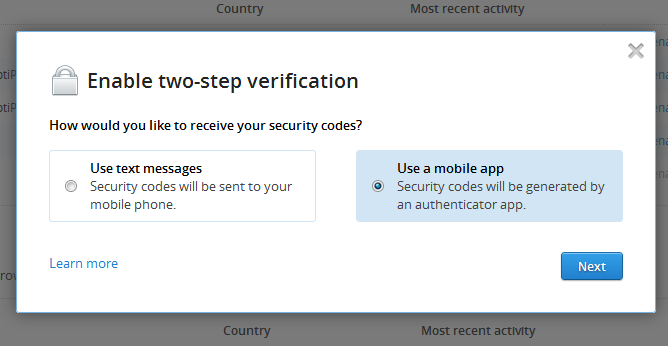
4. Select either "Use text messages" or "Use a mobile app" depending on your preferences.
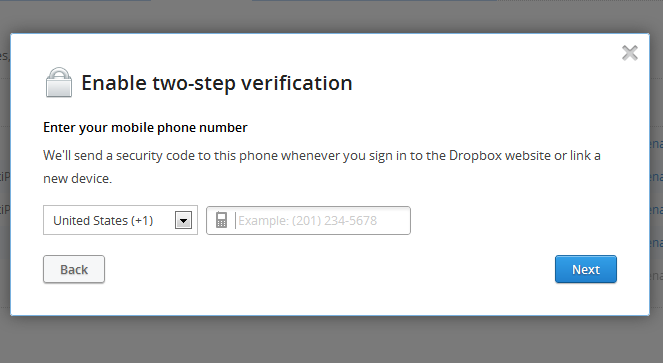
5.a - if you select "Use text messages" you'll be prompted to provide your phone number. If you're uncomfortable with that, select the second option.
- after you provide your phone number you'll get a text message with a 6-digit code.
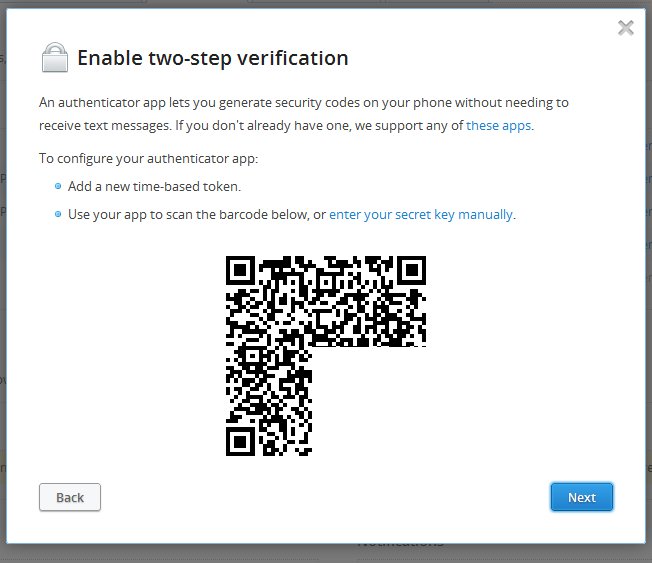
5.b - if you select "Use mobile app" you'll have to make sure you have any of the three supported apps.
- Dropbox works with Google Authenticator, used by Google and Lastpass for example, but also with Amazon's AWS MFA or the Authenticator app for Windows Phone 7. The Google app is the only one that works on Android, iPhone and Blackberry.
- you must register Dropbox with that app. You can do this either by scanning a QR code or manually.
- once you've registered Dropbox the app will generate a 6-digit code.
6. Enter the code and you'll receive an emergency backup code which you can use if you lose your phone to unlock Dropbox. Write it down, take a photo of it or otherwise make sure to keep it safe, you may need it in the future and you'll be glad you have it.