
NEWS CATEGORIES:


NEWS ARCHIVE >>
SOFTPEDIA REVIEWS >>
MEET THE EDITORS >>
Home / News / Microsoft / Tips & Tricks

Tips & Tricks


Restore the Windows Vista "Show Desktop" Icon

Compared to Windows XP, restoring Show Desktop in Windows Vista is less of a problem

By Marius Oiaga, Technology News Editor

19th of June 2007, 13:18 GMT

Adjust text size:


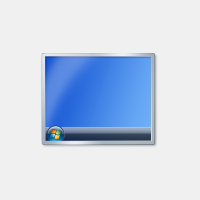
“Show Desktop” Icon
Enlarge picture
If you are like me, then you too are dependent on the functionality of the Show Desktop icon. I typically work with a multitude of applications, and Show Desktop manages to bring order to my desktop instantaneously, letting me streamline a formidable amount of simultaneously opened windows. It's as much an integer part of my workfow as Alt+Tab, and I simply could not manage without it. This is why
losing the icon manages to generate a decent amount of headaches. The fact of the matter is that Show Desktop is a unique presence on the Taskbar. Unlike all other icons in Windows Vista, managing Show Desktop is somewhat of a tricky business, long time Windows XP users know what I am talking about.

Well, in comparison to Windows XP, restoring Show Desktop in Windows Vista is less of a problem. All you have to do is know your way around the operating system. But not too much, since the new search functionality in Windows Vista will highlight a compelling result for Show Desktop. So the scenario is as follows: Show Desktop is lost and you are trying to find a solution. Open up an advanced search window, and on the Vista partition look for "Show Desktop". Just make sure to include non-indexed, hidden and system files. Alternatively, you could make your way to the Quick Launch folder in "C:UsersDefaultAppDataRoamingMicrosoftInternet ExplorerQuick Launch."

The 1 KB Show Desktop icon will be in the Quick Launch folder in all its splendor. What to do next? Well, it's rather simple and you have two ways of completing the task of restoring the icon to the Vista taskbar. First, you can copy the shortcut and navigate your way to C:Users and then to the folder with your user name followed by AppDataRoamingMicrosoftInternet ExplorerQuick Launch and paste the icon here. Sounds too complicated? Well, you will also be able to select the icon and drag and drop it on the Quick Launch area on the Vista taskbar.

TAGS:

Windows Vista | Quick Launch | Show Desktop
Read by 35,745 user(s) | Add comment | Link to this article TWEET THIS


Article rating:
Very Good (4.4/5) 33 vote(s)    

Subscribe to news | Print article | Send to friend

© Copyright 2001-2009 Softpedia
Contact:


SEARCH THE NEWS ARCHIVE :


Today's News
| Yesterday's News | News Archive


MORE RELATED ARTICLES:


Update - Windows Vista Expiration

Windows Anytime Upgrade Kills Windows Vista

Windows Vista Service Pack 1 - So What?

Side by Side Comparison: Windows Vista Starter, Home Basic, Home Basic N, Home Premium, Business, Business N, Enterprise and Ultimate

Windows Vista Training Camps

The Downsides of 64-bit Windows Vista

Microsoft's Windows Vista Propaganda, Sí Señor!

Windows Vista Mobile Device Center

User opinions:


Comment #1 by: Jojo on 28 May 2008, 21:23 GMT reply to this comment

thanks it was working 100%
thank you so much i restore it now

thanks
with love
Jojo


Comment #2 by: gz on 04 Jun 2008, 22:04 GMT reply to this comment

Very good post, works 100%. Thanks a lot!

I'am just wonderin' why does the icon disapeared???

Thanks

Comment #2.1 by: indy on 09 Jul 2008, 00:20 GMT

thanks a lot for this! I had been lookin for my llost show desktop icon for a long time!

indy


Comment #3 by: dreamer on 11 Aug 2008, 17:12 GMT reply to this comment

Work great . I like the drag click to restore.
Thanks


Comment #4 by: tony on 25 Sep 2008, 14:51 GMT reply to this comment

Thanks you were right on it. Thanks god for the computer age :-)


Comment #5 by: Anand on 15 Oct 2008, 13:26 GMT reply to this comment

hi...thanks for the wonderful help...actually i deleted the shortcut of show desktop accediently...thnks a lot...


Comment #6 by: Hisham Dali on 09 Feb 2009, 23:53 GMT reply to this comment

There is an easier way, press on start button, in search tab write "Show Desktop", it will appear in search result, just drag it to the task bar quick luanch.


Comment #7 by: DavidUK on 06 Mar 2009, 18:10 GMT reply to this comment

Cheers buddy, worked like a charm. Clear and Concise! *****


Comment #8 by: Asok on 10 Apr 2009, 10:17 GMT reply to this comment

Thanks very much i accidentaly deleted the icon from Quicklaunch and was pulling my hairout and got this simple trick. THANKSSSSSSS A LOT


Comment #9 by: abdel naser on 14 Aug 2009, 11:08 GMT reply to this comment

thanks alot it workd and shows shortcut in the folder.


Comment #10 by: Dan on 01 Sep 2009, 22:07 GMT reply to this comment

This fix works, is easy to follow. Thank you! After spending half aday on the MS support site with no result, it is nice to know that someone in the digital world can help!


Comment #11 by: raghavendra on 10 Sep 2009, 16:42 GMT reply to this comment

Thanks for the nice tip.


Comment #12 by: flip on 16 Sep 2009, 07:09 GMT reply to this comment

Unfortunately it doesn't work for me on my wife's notebook. Apparently it got accidently removed from the workstation entirely, because looking for ' show desktop' didn't return any search results. Is there a way to recreate this shortcut in Vista Home?


Comment #13 by: Brett on 15 Nov 2009, 15:07 GMT reply to this comment

Why not write:
"C:UsersDefaultAppDataRoamingMicrosoftInternet ExplorerQuick Launch"
Then people can just paste the address in the adress bar and it will bring them right to the folder. No searching/browsing to get there.

Share your opinion:

Your Name:
Your Email Address:
(will not be used for commercial purposes)
Solve this to prove you're not a bot: =
Your review/opinion:


Windows tabGames tabDrivers tabMac tabLinux tabScripts tabMobile tabHandheld tabGadgets tabNews tab

SUBMIT PROGRAM   |   ADVERTISE   |   GET HELP   |   SEND US FEEDBACK   |   RSS FEEDS   |   ENTER NEWS SITE   |   ENGLISH BOARD   |   ROMANIAN FORUM