
Softpedia
 

NEWS CATEGORIES:


NEWS ARCHIVE >>
SOFTPEDIA REVIEWS >>
MEET THE EDITORS >>
TRENDING TODAY
Home > News > Linux > Ubuntu Tips and Tricks

May 1st, 2011, 08:40 GMT · By

Installing Ubuntu 11.04

SHARE:

Adjust text size:

Ubuntu 11.04
Enlarge picture
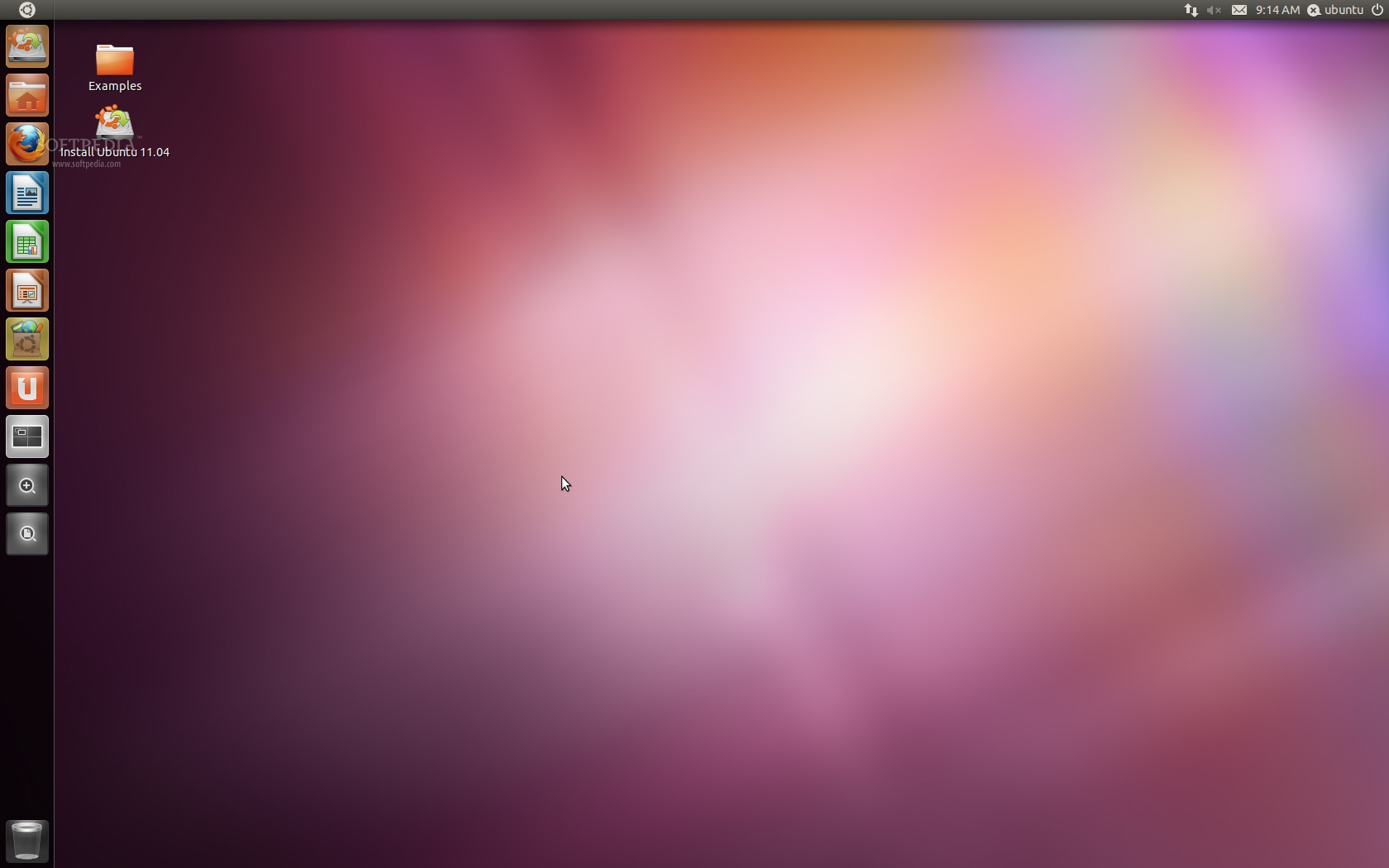
Ubuntu 11.04, also known as the Natty Narwhal, arrived on April 28th, 2011 and is the 14th release of the Ubuntu operating system.

Even if the Ubuntu 11.04 operating system includes a smarter installer, we've created the following tutorial to teach both Linux newcomers and existing Ubuntu users how to install the Ubuntu 11.04 operating system on their personal computer.

This tutorial is also addressed to people who have just heard about Ubuntu, those who have never installed Ubuntu before and want to test it, but don't know how!

The tutorial will make things very simple for you, but if you get stuck somewhere in the middle of the installation and you need help, do not hesitate to use our commenting system at the end of the article!

Requirements:

You will need the Ubuntu 11.04 Desktop ISO image that corresponds to your hardware architecture (i386 or amd64), and that can be downloaded from here. When the download is over, burn the ISO image with your favorite CD/DVD burning application (Nero, CDBurnerXP, Roxio) on a blank CD at 8x speed.

Reinsert or leave the CD in your CD/DVD-ROM device and reboot the computer in order to boot from the CD. Hit the F8, F11 or F12 key (depending on your BIOS) to select the CD/DVD-ROM as the boot device.

Wait for the CD to load...
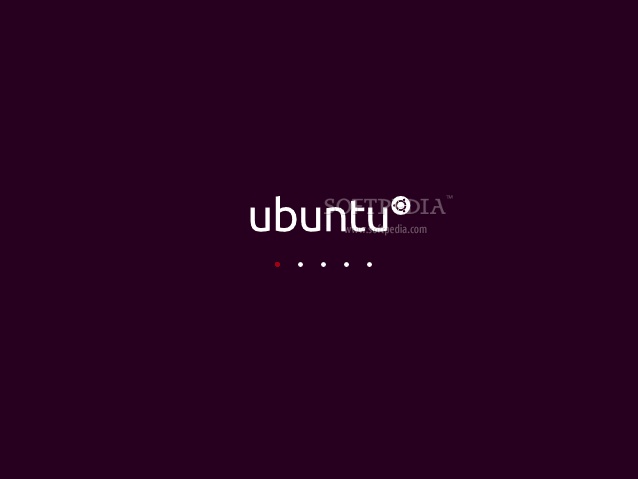
Review image

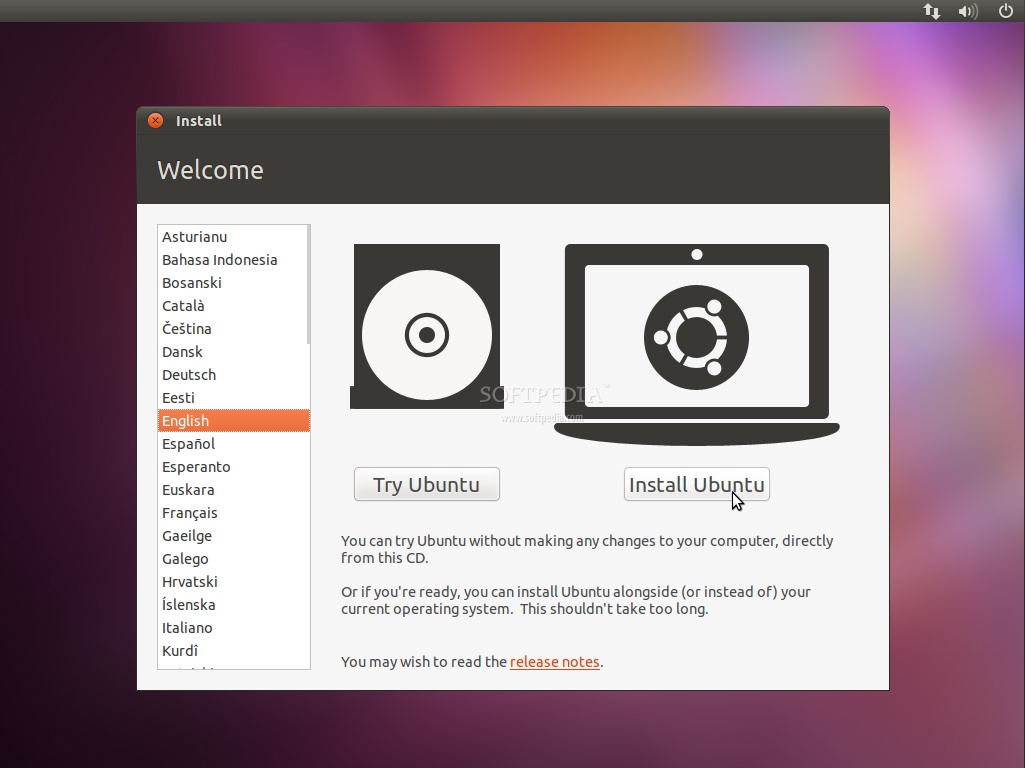
In a couple of minutes you will see the wallpaper and the installation wizard. Select your language and click the "Install Ubuntu" button to continue...

Review image

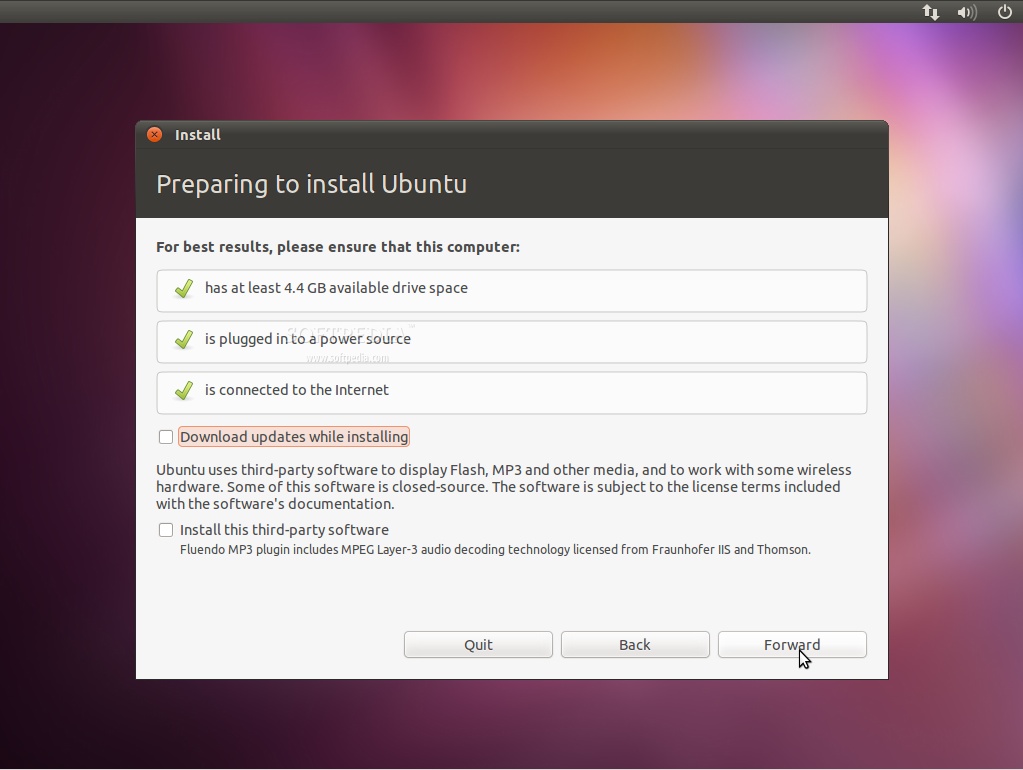
Preparing to install Ubuntu

Make sure you have all the listed requirements. Optionally, you can choose to download updates while installing and/or install third party software, such as MP3 support. Be aware, though, that if you select those options, the entire installation process will be longer!
Review image

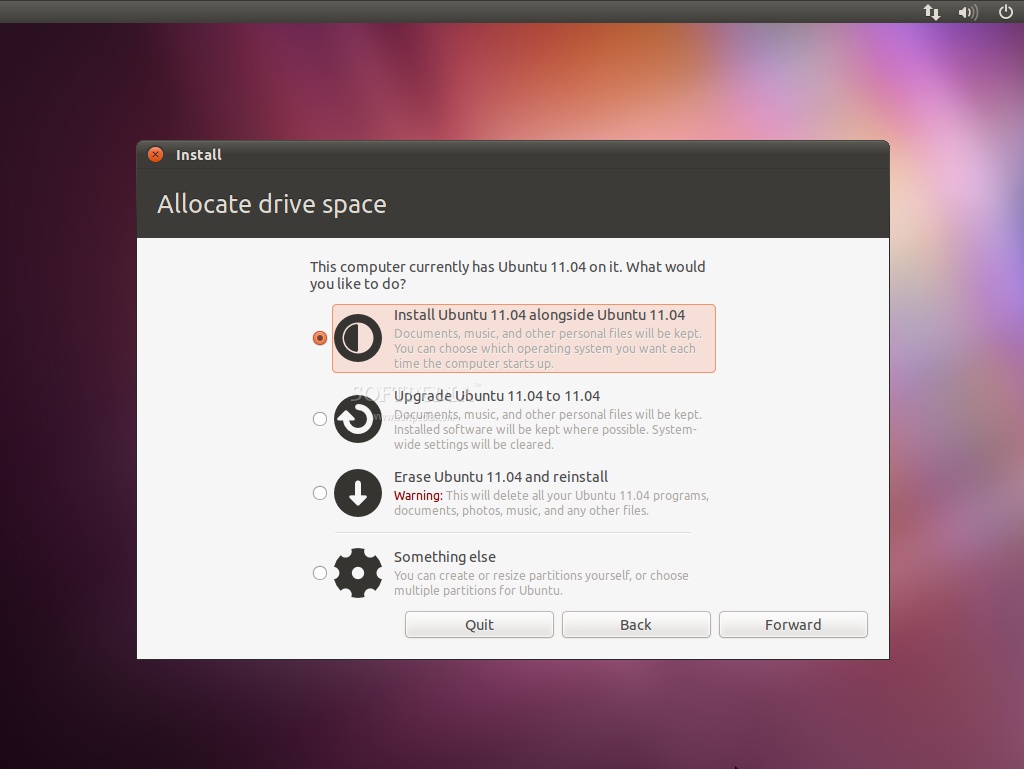
Allocate drive space

At this screen you have various options:
Review image

1. Install Ubuntu 11.04 alongside (other operating systems)

- Choose this option ONLY if you have another OS (e.g. Windows XP) and you want a dual boot system. You can choose which operating system you want each time the computer starts up.

Editor's Note:
Remember that, after the installation, the Windows boot loader will be overwritten by the Ubuntu boot loader!

2. Upgrade Ubuntu x.x to 11.04

- Choose this option ONLY if you have another Ubuntu OS (e.g. Ubuntu 10.10) and you want to upgrade it to Ubuntu 11.04. Your personal files will be saved, but you will have to reinstall most of your packages. The general system settings will be erased!

3. Erase and use the entire disk (Erase Ubuntu x.x and reinstall)

- Choose this option if you want to delete your existing operating system, or the hard drive is already empty and you want to let the installer automatically partition the hard drive for you. This is the option recommended for all users, especially those who want a machine with a single operating system on it.

4. Something else (advanced)

- This option is recommended ONLY for advanced users, to create special partitions or format the hard drive with other filesystems than the default one. But it can also be used to create a /home partition, which is very useful in case you reinstall the whole system.

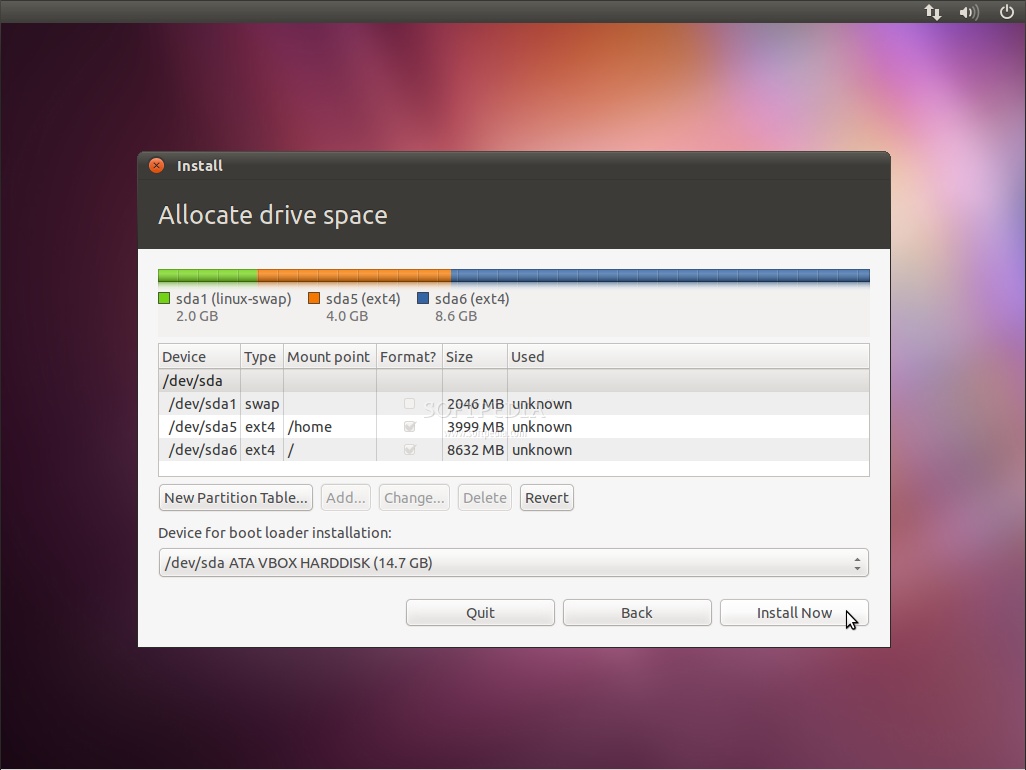
Here's how you do a manual partitioning with /home:

- Select the "Specify partitions manually (advanced) and click the "Forward" button;

- Make sure that the selected hard drive is the right one. /dev/sda is the first physical hard drive. /dev/sdb is the second hard drive in your machine. So, make sure that you know which is the one you want to format! Otherwise, you will lose ALL YOUR DATA on that hard drive;

- Let's say that the selected drive is empty (no other operating system or important data on it), but it has some partitions on it. Select each one of those partitions and click the "Delete" button. After a few seconds, it will say "free space." Do this with the other partitions from the selected hard drive, until they're all deleted and you have a single "free space" entry;

- With the "free space" entry selected, click on the "Add" button. In the new window, type 2048 in the "New partition size in megabytes" field and select the "swap area" option from the "Use as:" drop down list. Click the OK button and, in a few seconds, you'll notice a "swap" line with the specified size;

- With the "free space" line selected, click on the "Add" button. In the new window, select the "Primary" option, type a value between 30,000 and 50,000 (or whatever space you have left on the drive) in the "New partition size in megabytes" field and select /home as the "Mount point." Click the OK button and, in a few seconds, you'll notice an "ext4 /home" line with the specified size;

- With the "free space" entry selected, click on the "Add" button. In the new window, select the "Primary" option, type a value between 10,000 and 50,000 in the "New partition size in megabytes" field and select / as the "Mount point." Click the OK button and, in a few seconds, you'll notice an "ext4 /" line with the specified size.

This is how your partition table should look like...
Review image

WARNING: Be aware that all the data on the selected hard drive or partition will be ERASED and IRRECOVERABLE.

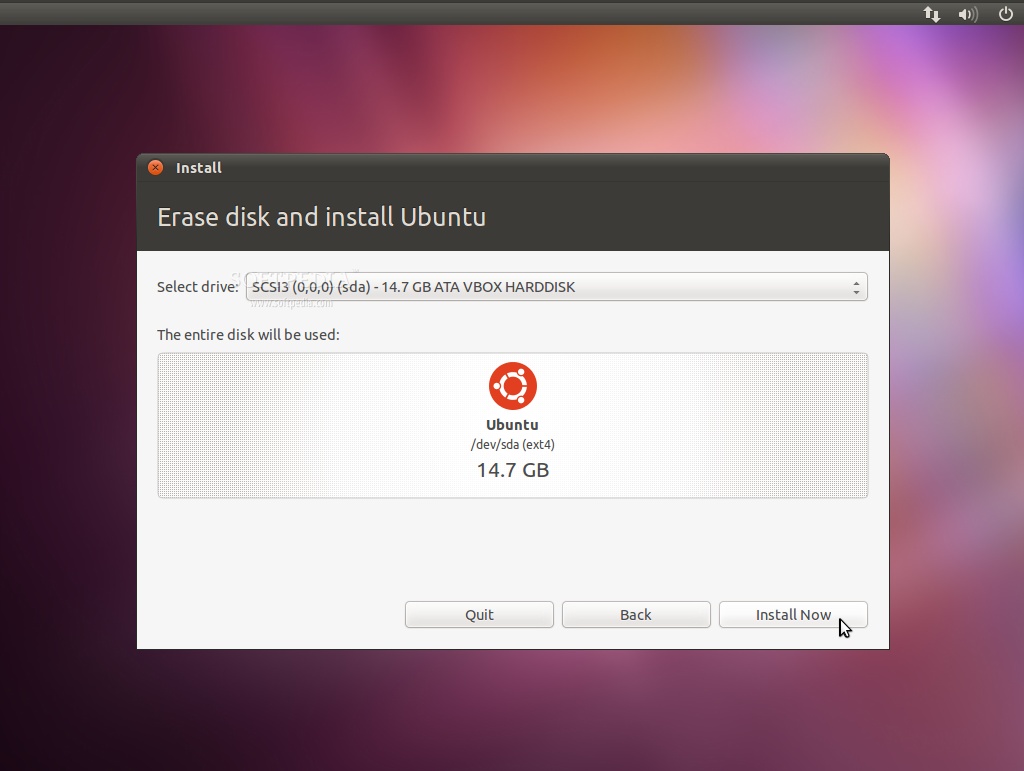
EXTREMLY IMPORTANT: Don't forget to choose where GRUB will be installed, from the "Device for boot loader installation" drop-down box, before you hit the "Install Now" button.

Click the "Install Now" button to continue with the installation...
Review image

Editor's note: At this point the hard drive will be erase and partitioned, the CD data will be copied to the hard drive, and you can relax and continue to input the following required information.

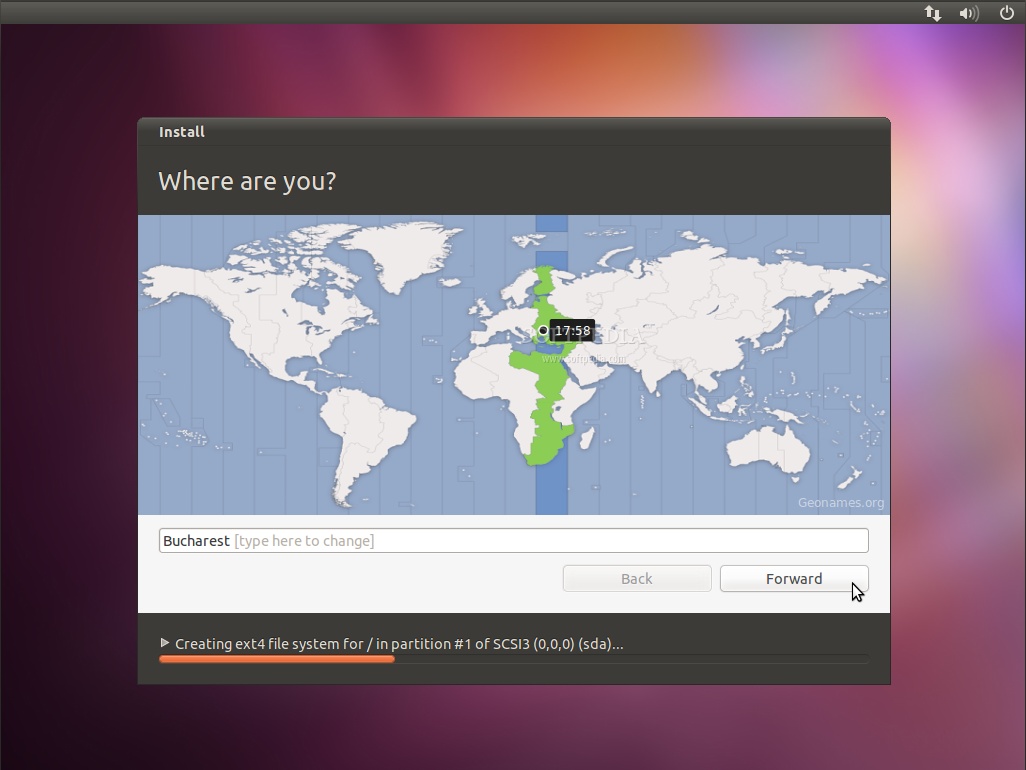
Where are you?

This screen will feature a map of the Earth. Upon the selection of your current location, the time for the final system will adjust accordingly. You can try to guess you exact location with the mouse on the map, or just type the town in the designated field. Click the "Forward" button after you have selected your desired location...
Review image

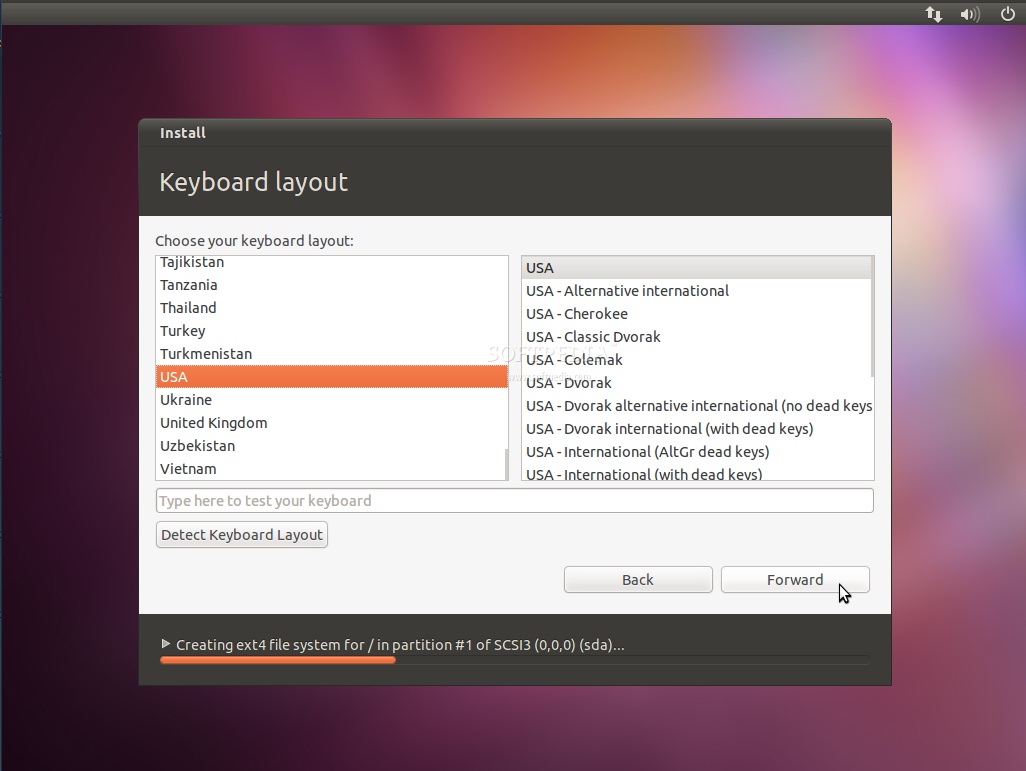
Keyboard layout

On this screen, you will be able to choose a desired keyboard layout. But the default automatic selection should work for most of you. You can also click the "Figure Out Keyboard Layout" button for better recognition of your keyboard's layout. Click the "Forward" button when you have finished with the keyboard configuration...
Review image

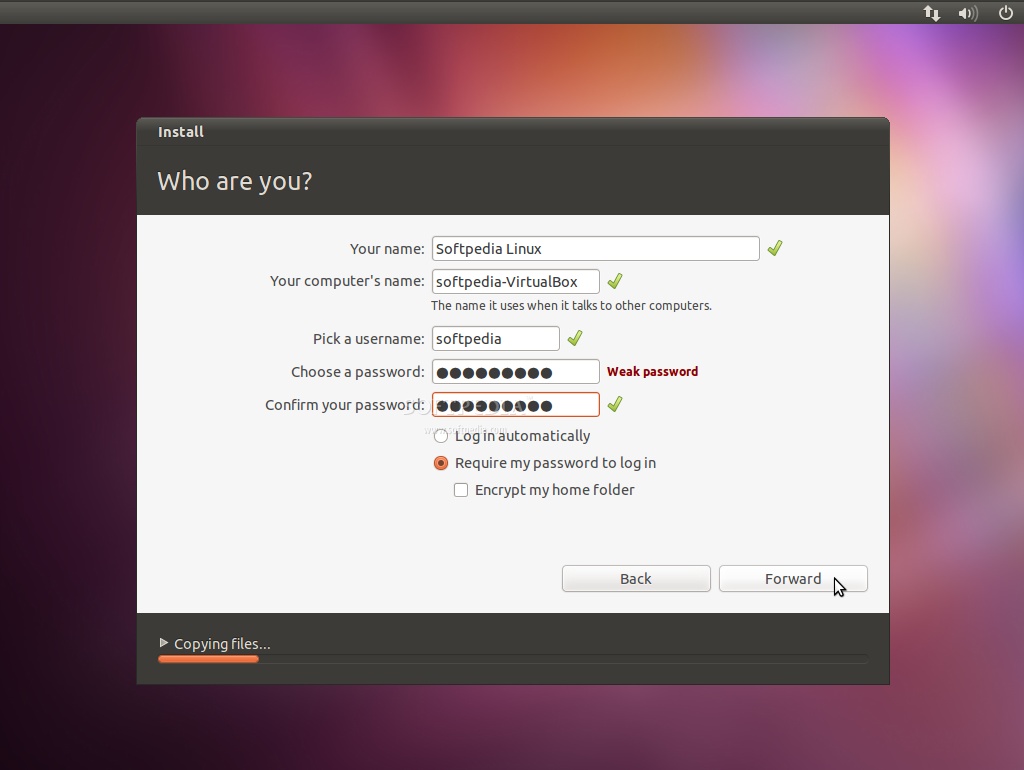
Who are you?

On this screen, you must do exactly what the title says. Fill in the fields with your real name, the name of the computer (automatically generated, but can be overwritten), the name you want to use to log in on your Ubuntu OS (also known as the "username," which will be required to log in to the system), and the password.

Also at this step, there's an option called "Log in automatically." If you check it, you will automatically be logged in to the Ubuntu desktop.

Other option, called "Encrypt my home folder," will encrypt your Ubuntu installation. Click the "Forward" button to continue...
Review image

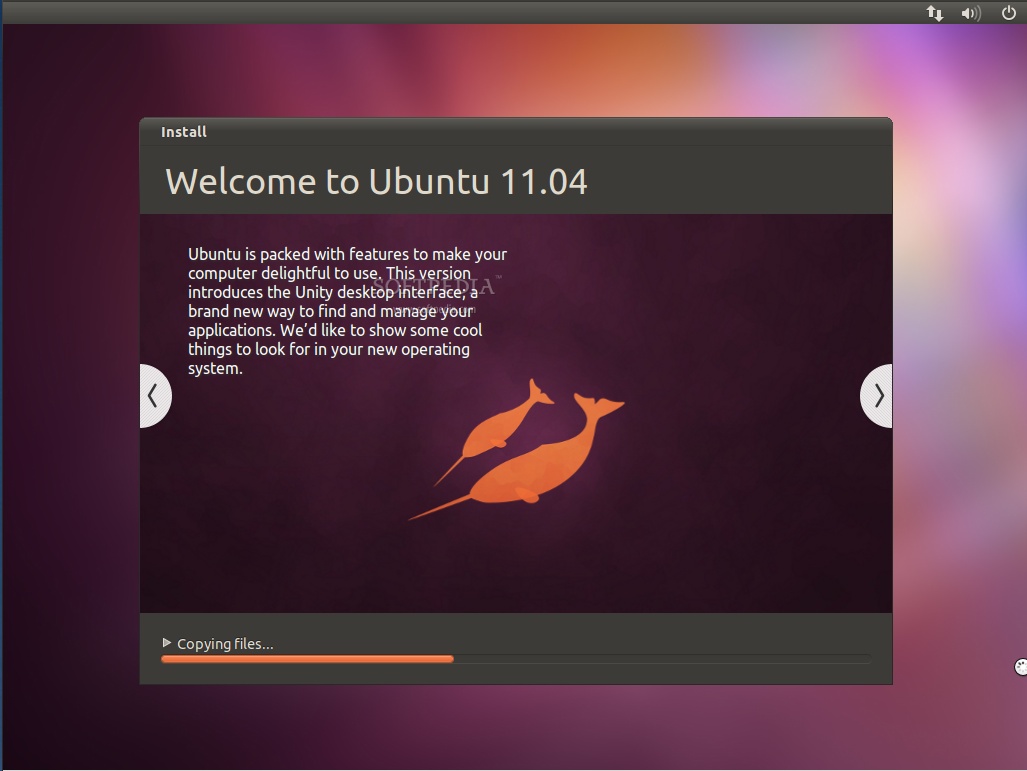
At this point the Ubuntu 11.04 (Natty Narwhal) operating system will be installed...

Review image

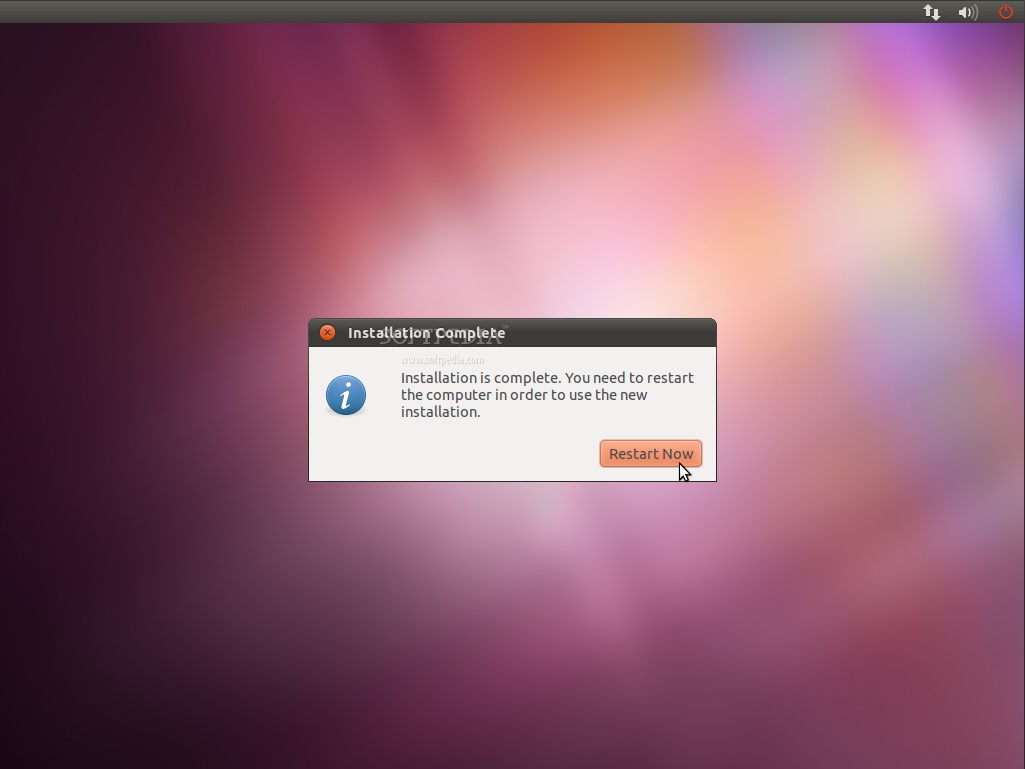
After approximately 10 to 15 minutes (depending on your computer's specs), a pop-up window will appear, notifying you that the installation is complete, and you'll need to restart the computer in order to use the newly installed Ubuntu operating system. Click the "Restart Now" button...

Review image

The CD will be ejected; remove it and press the "Enter" key to reboot. The computer will be restarted and, in a few seconds, you will see the Ubuntu boot splash...

Review image

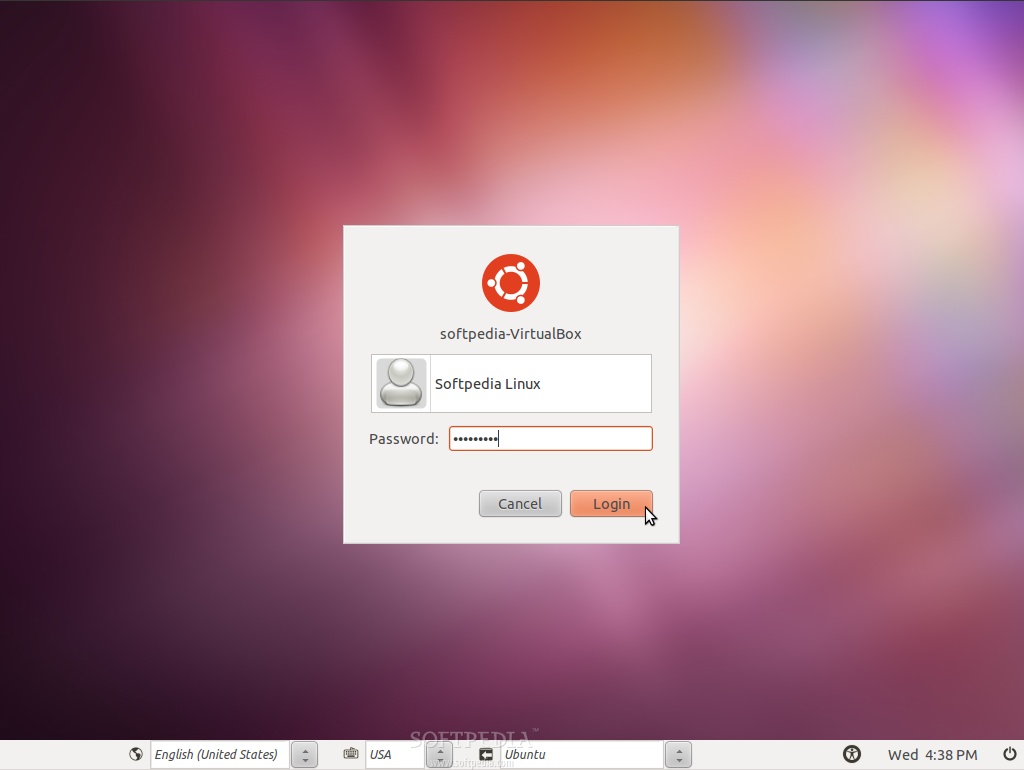
At the login screen, click on your username and input your password. Click the "Log In" button or hit Enter to log in...

Review image

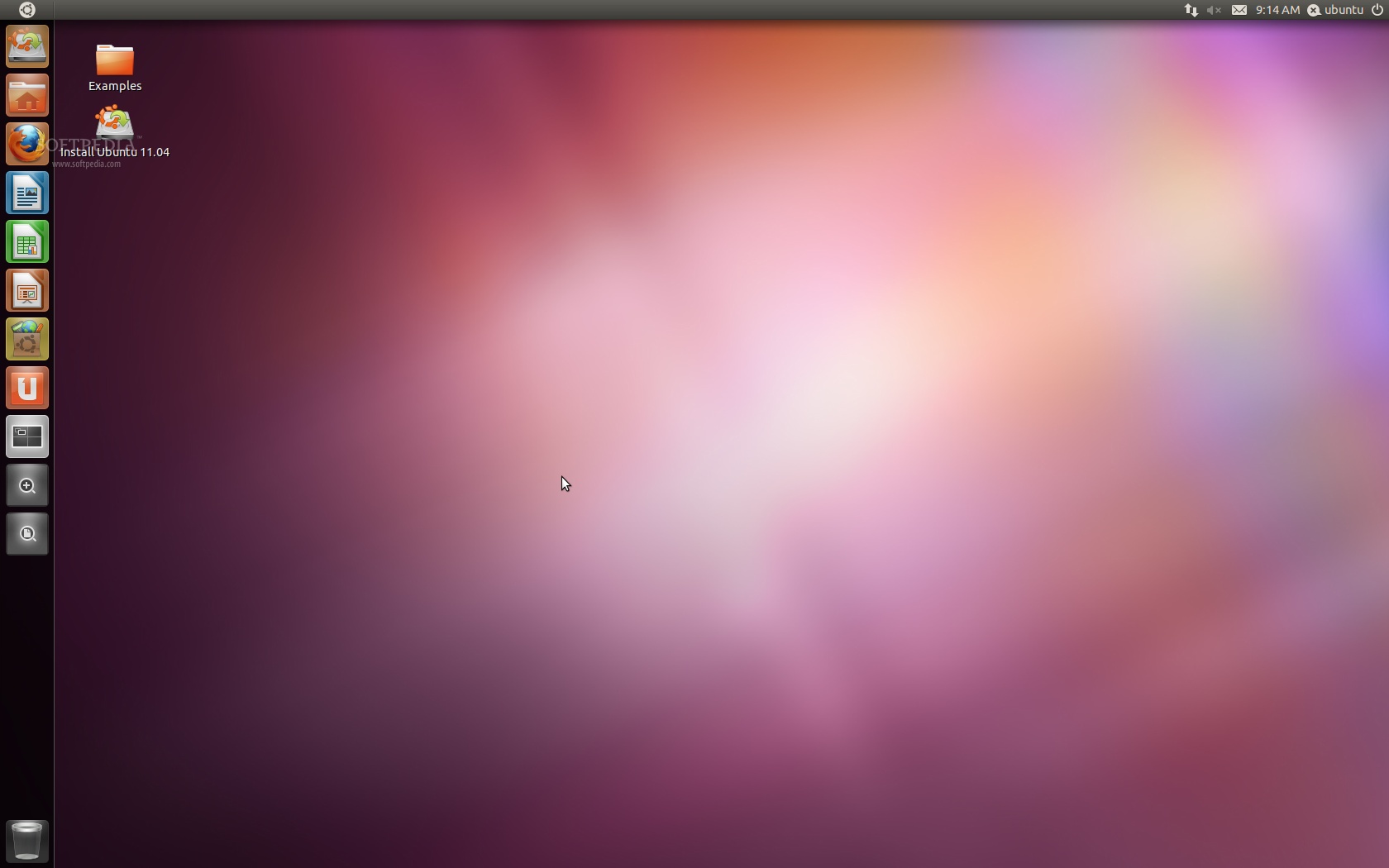
That it! Have fun using Ubuntu 11.04.

Review image


41,405 hits · 20 comments
Link to this article · Print article · Send to friend

MUST-READ RELATED ARTICLES:


New Nvidia Linux Driver Supports Ubuntu 11.04

Goodbye Ubuntu 6.06 LTS Server Edition

Fedora 15 Beta Has GNOME 3

Mandriva 2011 Beta 2 Switches to LibreOffice 3.3

Ubuntu 11.04 Beta 2 Is Available for Download

READER COMMENTS:


Comment #1 by: kennweeden on 01 May 2011, 23:29 UTC reply to this comment

What do i need to do to install my wireless firmware? I can't seem to figure it out?


Comment #2 by: cgs on 02 May 2011, 12:40 UTC reply to this comment

If you choose 'log in automatically' at install time, you will not have the login option for choosing a desktop, whether Unity or Gnome or whatever.

Comment #2.1 by: Marius Nestor on 05 May 2011, 14:18 GMT

Yeah, but you can logout anytime :) ...and choose another session!


Comment #3 by: candtalan on 02 May 2011, 12:49 UTC reply to this comment

The facility for advanced use, to install Ubuntu into the largest continuous space on the drive' is available in the Alternate CD.
I find this very useful because often it is a simple matter to delete an unwanted partition, being then left with a suitable unused (unformatted, unpartitioned) space on the drive.


Comment #4 by: Anonymous on 02 May 2011, 14:26 UTC reply to this comment

Sorry to say but this is an utterly bad release. Unity is immensely buggy, and a computer on which 10.10 worked perfectly won't run 11.04 - it constantly freezes while booting. This was the only Linux distro that had any chance of becoming big, but I don't see a bright future for it if they keep releasing distros with as many changes and as many bugs as this one. I am a developer and I wouldn't dare ship a product where stuff gets pushed in a couple of days before release. You can't develop quality software the way they did with this version... Too bad. I've tried to use Ubuntu many times, but the only thing I notice from one release to the next is that nothing changes in terms of quality - you never know if your computer will work after the next update or not. This is not how you do an OS. It's back to Windows/Mac. I'm never touching Linux again.


Comment #5 by: crk on 02 May 2011, 17:53 UTC reply to this comment

The last screenshot was taken on a LiveCD session. You were lazy!


Comment #6 by: aceh on 03 May 2011, 14:10 UTC reply to this comment

my record is 4:26 minutes on HP Slime


Comment #7 by: trobor on 05 May 2011, 09:43 UTC reply to this comment

its good, but the system after upgrade and restart is stuck on a * purple screen with ubuntu written on it and 5 dots. Can anyone help?

Comment #7.1 by: ridz on 03 Sep 2011, 17:50 GMT

I am having the same trouble, the computer hangs in the purple screen with ubuntu logo and 5 dots. A little help would be really appreciated...:-)

Comment #7.2 by: sam on 16 Sep 2011, 05:48 GMT

any help here ???


Comment #8 by: ServerMan on 05 May 2011, 20:32 UTC reply to this comment

Upgraded from 10.10 to this. I am sorry for it. My notebook worked and the wireless at least functioned. I do not like this new desktop.
Linux will NEVER beat out Windows and Mac on the desktop until they get a common standard and STICK to it..


Comment #9 by: mysorian on 27 May 2011, 20:12 UTC reply to this comment

I tried to install Ubuntu 11.04 on a i486 machine which had Red Hat Linux release 5.2 (Apollo) Kernel 2.0.36 on an i486=linux 5.2. I had forgotten the password but I managed to get to the BASH# and access the mnt folder. I have a cd with Ubuntu 11.04 on it. At BASH# if I try to install the system is saying insufficient arguments. --Install Help suggests a number of arguments. Which arguments should I use? Any link to useful info is appreciated.

Jayaram Krishnaswamy
http://hodentek.blospot.com


Comment #10 by: Youssef on 04 Jun 2011, 20:46 UTC reply to this comment

Hey everybody!!!

What if we want to install alongside a Pre-existing Windows 7??
Im getting an error message about a root folder...

please help??

Comment #10.1 by: Spanky on 22 Aug 2011, 00:03 GMT

The installer can do a dual-boot install, after Windows; as it says. You should check the Ubuntu site, for tips about the many versions of Windows, and see if there are any additional tips to consider; with the newest Windows, trouble-making systems.

It should go without saying, just drag your most important data, over to a flash drive, in your normal backup process, before you begin. You'll always need to do you backups, anyway.

The simple solution for Ubuntu's new, "Unity" madness, is to simply login, with, "Ubuntu Classic." After upgrading again, on-line, you will find you have one of the most complete initial installs, ever. Not that you can't add much more, and tweak it to your exacting needs. As far as adding the things that Linux Mint does, to Ubuntu, it's a trivial matter, and leaves you in the most, main-stream, Ubuntu community. Simple 24/7, on-line tweaking tips, are everywhere.

It's a mistake, not to put Ubuntu, on the best possible hardware you can muster. If you have odd hardware devices, that's rare, but you still may have some options.

If you have ever seen a mal-ware exploit, reported on your system, and have depended upon "cleaning" programs, that's wrong! Whe a program tells you it can't find a "virus" that does not mean you can't have one. You need a clean install. I recommend Ubuntu, to start. Eventually, a Debian "testing", with your own custom install.

Comment #10.2 by: Spanky on 21 Sep 2011, 22:06 GMT

Also, it's been the sneaky practice, to fill up new computers, with excessive partitions; taking up the legacy limit, of only 4 (non-extended) partitions. One may be a repair partition. One may be the, reinstall to original system, partition, etc... Without getting any more technical, just delete the reinstall partition, and the Ubuntu installer will then be able to give you sane install options, automatically. If your computer is over 4 months old, you are never better served, by trying the re-installer(partition), anyway. It becomes too old, to save any time. Conversely, Ubuntu is easy and fast, to install.


Comment #11 by: DunhamsDen on 28 Aug 2011, 17:18 UTC reply to this comment

Thanks for the help!

Comment #11.1 by: Blake on 25 Sep 2011, 01:12 GMT

Installed Ubuntu on my HP Pavillion DV6t and it will not let me boot into Windows 7 anymore and now its just stuck at error: unknown filesystem. grub rescue>


Comment #12 by: Rob on 15 Oct 2011, 14:54 UTC reply to this comment

I tried to install 11.04 on a blank HDD and it stalled at boot loader config.
Not a good intro to Linux/Ubuntu.
Rob


Comment #13 by: esenbe on 20 Nov 2011, 12:44 UTC reply to this comment

Very clear, precise, useful & well Written insyruction. Congarts. Would have been perfect if once more screen was shown showing hot the first screen would look when the computer restarted.

Thanks as this is what I was looking for. Esenbe: India

e


Comment #14 by: codemilan on 26 Feb 2012, 17:10 UTC reply to this comment

I have hard disk of 320gb capacity. currently Iam running windows 7. The HD consists of 5 partitions(c-primary windows7, d ,e ,f ,i) with ntfs file system. I want to install Ubuntu 11.04 beta in drive 'i', that have logical ntfs file system with 30 gb space. I choosed option 4 (something else) to proceed, but error message appeared saying "No root file system defined" for drive 'i'. How can I eliminate this problem and does 'option 4' of installation giude above can crash My entire HD. I want to have Windows & ubuntu in my computer without affecting windows & datas in other drive. Pls help me Iam new to Ubuntu and want to use it illustrated as above. thanks.

Copyright © 2001-2013 Softpedia. Contact/Tip us at

WindowsGamesDriversMacLinuxScriptsMobileHandheldNews

SUBMIT PROGRAM   |   ADVERTISE   |   GET HELP   |   SEND US FEEDBACK   |   RSS FEEDS   |   UPDATE YOUR SOFTWARE   |   ROMANIAN FORUM