 14 DAY TRIAL //
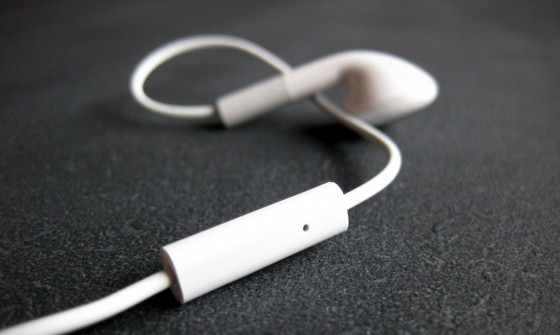
 Apple Earphones with Remote and Mic not only work with iPod and iPhone, but also with Apple computers, according to the Cupertino electronics giant.
A Support document on Apple’s newly-redesigned web site aims to teach Apple fans how to use “Apple Earphones with Remote and Mic” with their Mac.
For those wondering which Apple computers work with the microphone and volume controls that are included with the Apple Earphones with Remote and Mic, Apple clarifies:
“Any computer that displays "External microphone" in the System Profiler will work with the Apple Earphones with Remote and Mic.”
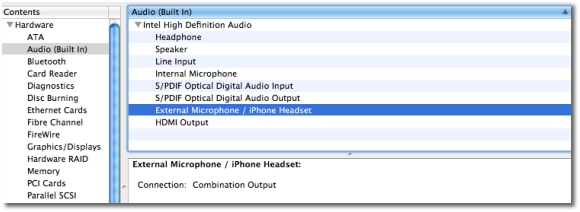
To confirm that your computer is eligible, “choose About This Mac from the Apple () menu and then click More Info. Select Audio (Built In) under the Hardware section,” Apple explains.
Now, let’s see if your system detects the earphones:
1. From the Apple () menu, choose System Preferences;
2. Then, from the View menu, choose Sound;
3. While your earphones are connected, click the Output tab;
4. According to Apple, the headphones should be listed as the output device;
5. Click the Input tab to confirm External microphone is selected as the input device.
Some systems will also allow users to employ their Mac’s external microphone.
Again, just choose View and Sound from the menubar with System Prefs open, and “If there is an ‘External microphone’ listed in the Input tab, your computer can use the microphone included with Apple Earphones with Remote and Mic,” Apple confirms.
The Support document informs that “the audio out to your earphones and the audio in to the microphone will switch automatically when your computer detects them.”
As such, users don’t need to do anything special to enable all these features.
Finally, Apple acknowledges that some users may experience problems in that the volume controls or microphone may not work after being plugged in.
The most likely cause for this is “you”, Apple says:
“You might have held down the volume control switch while plugging them in,” the Mac maker elaborates.
“This can cause the volume controls or microphone to function in unexpected ways.”
Apple’s resolution is: “Unplug the earphones from the computer and plug them in again, taking care not to press the volume control switch while doing so.”