
Softpedia
 

NEWS CATEGORIES:


NEWS ARCHIVE >>
SOFTPEDIA REVIEWS >>
MEET THE EDITORS >>
TRENDING TODAY
Home > News > Microsoft > Tips & Tricks

February 9th, 2013, 07:21 GMT · By

How to Remove All Pre-Installed Windows 8 Metro Apps

SHARE:

Adjust text size:

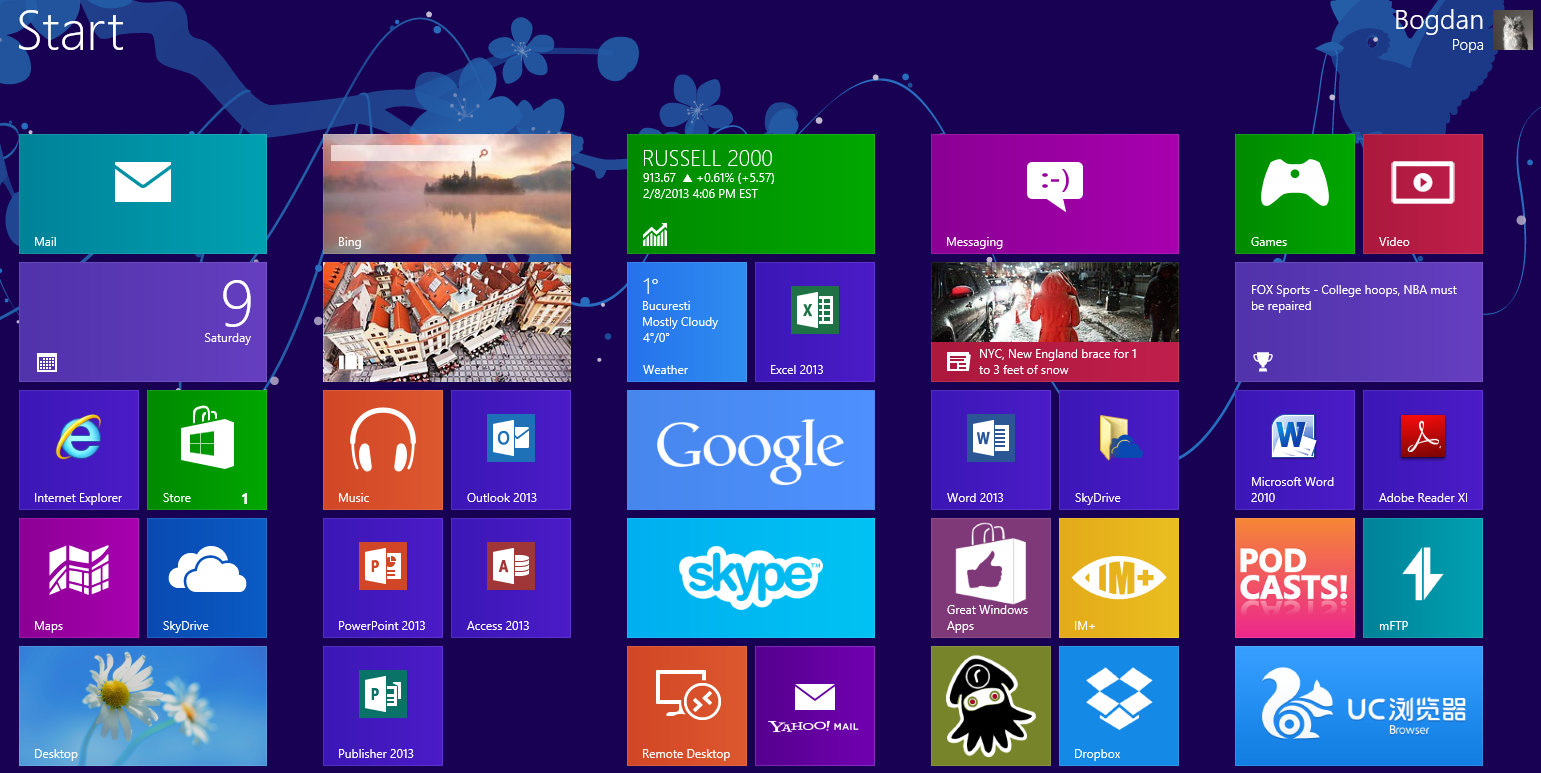
Some of the pre-installed Modern apps eat up a lot of space
Enlarge picture
As you probably know by now in case you’re a Windows 8 adopter, Microsoft offers its newest operating system with several pre-installed Metro/Modern apps.

Regardless if we’re talking about Sports, Bing, Photos, Messaging and Mail, all of them are considered to be the essential apps for the average Windows 8 computer user who wants to make the most of the Metro UI without launching the Store.

The problem with these apps is that some of them are pretty useless for the majority of users, so removing them is quickly becoming a priority for quite a lot of people.

In addition, they eat up a lot of space on your disks and given the fact that the available free space is one of the hottest topics these days for those interested in buying a Surface with Windows 8, it’s pretty important to get rid of them.

Uninstalling a specific app is usually just a matter of clicks because the “confusing” Start Screen allows users to simply right-click a Modern app and hit the “Uninstall” button at the bottom of the screen.

But in case you’re planning to remove all of them as fast as possible, here’s a trick found by Winaero. Basically, it all comes down to the integrated PowerShell that allows you to run a bunch of commands as administrator.

Launching the PowerShell is pretty simple. You can either access the Start Screen and type “PowerShell” or hit “Win Key + R” on the desktop, write down “PowerShell” and hit enter. Don’t forget that you need to launch the PowerShell with administrator privileges!
Review image


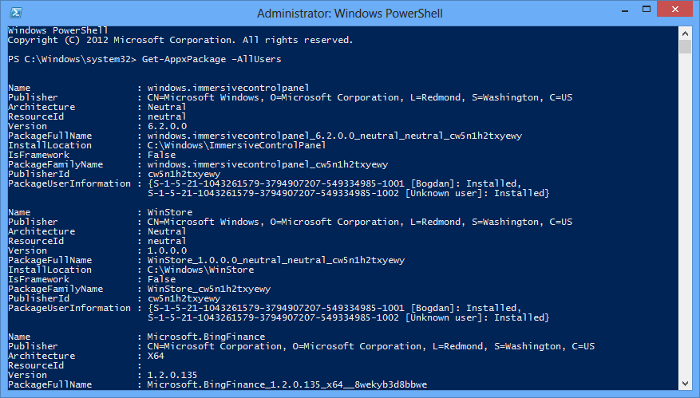
Once you’re there, simply write down the following command to check out the list with the installed Metro/Modern apps in case you removed some of them from the Start Screen:

CODE
Get-AppxPackage –AllUsers


If you wish to remove all currently installed apps, type the following line and hit enter:

CODE
Get-AppxPackage -AllUsers | Remove-AppxPackage


The problem with some of the pre-installed apps is that they re-appear whenever you create a new user account. All these apps are marked as “Stage” after typing the first command and in case you wish to stop them from getting re-installed, here’s another command:

CODE
Get-AppXProvisionedPackage -online | Remove-AppxProvisionedPackage –online


That’s it. Only three commands to get rid of useless Metro apps and free up some space. In case you’re looking into ways to re-install some of them, Microsoft has got you covered. Simply launch the Store and search for them, all apps are also available as separate downloads.


23,972 hits · 11 comments
Link to this article · Print article · Send to friend

MUST-READ RELATED ARTICLES:


Windows Blue to Bring Phone Apps on Windows 8

Microsoft Confirms Surface Pro Launch Party in Vegas

Surface with Windows 8 Pro Already Fails to Excite – Analyst

Pre-Orders Begin for Microsoft Surface with Windows 8 Pro

Every Single Version of Internet Explorer to Be Patched Next Week

READER COMMENTS:


Comment #1 by: Neostad on 25 Feb 2013, 21:44 UTC reply to this comment

I love you. Been looking for a fix like this for a long time.


Comment #2 by: Tronn on 14 Apr 2013, 05:00 UTC reply to this comment

I try this and get an Access is denied error in the shell. Any ideas how to get past this?

Comment #2.1 by: Dan M on 17 Apr 2013, 01:49 GMT

You will need to run Powershell as an administrator to get past the access is denied issue.


Comment #3 by: knucklehead on 23 Apr 2013, 14:39 UTC reply to this comment

cannot get upright space bar to work in powershell for the commands


Comment #4 by: EuroScept1C on 29 Apr 2013, 20:32 UTC reply to this comment

These commands are golden...

Even after a 'Windows Refresh' they don't come back. All rubbish gone! Thank you!


Comment #5 by: dnationsr on 06 May 2013, 08:39 UTC reply to this comment

thanks..this is great and only took seconds


Comment #6 by: Satan on 13 May 2013, 11:45 UTC reply to this comment

these dont work dude. the only one that worked is the first code to the start screen of powershell after that completely usless. when you do get the right codes let me know. until then these arent going to work.

Comment #6.1 by: Jesus on 23 May 2013, 10:20 GMT

lol..its not his fault that your too * to use your computer haha

Comment #6.2 by: Chris on 07 Jun 2013, 16:30 GMT

Make sure you're running the powershell as Administrator. When running the commands, you may see several IO errors in the powershell window, but ultimately, these commands work perfectly in a standard Windows 8 Home or Pro environment.


Comment #7 by: nzorov on 17 May 2013, 11:28 UTC reply to this comment

THANK YOU!


Comment #8 by: PanzerIV on 31 May 2013, 04:29 UTC reply to this comment

I don't get it why there's 12 that won't delete. I went from 855Mb to 360Mb though but still shouldn't it delete everything? When I type the second command here's what it does.
http://uppix.net/a/6/2/541dffd73d82b66558d527b5f0d06.jpg

When I typped the third one, I had no error at least.

Copyright © 2001-2013 Softpedia. Contact/Tip us at

WindowsGamesDriversMacLinuxScriptsMobileHandheldNews

SUBMIT PROGRAM   |   ADVERTISE   |   GET HELP   |   SEND US FEEDBACK   |   RSS FEEDS   |   UPDATE YOUR SOFTWARE   |   ROMANIAN FORUM