
Softpedia
 

NEWS CATEGORIES:


NEWS ARCHIVE >>
SOFTPEDIA REVIEWS >>
MEET THE EDITORS >>
Home > News > Linux > Ubuntu Tips and Tricks

February 10th, 2010, 22:21 GMT · By

How to Install KDE SC 4.4 on Ubuntu 9.10

SHARE:

Adjust text size:


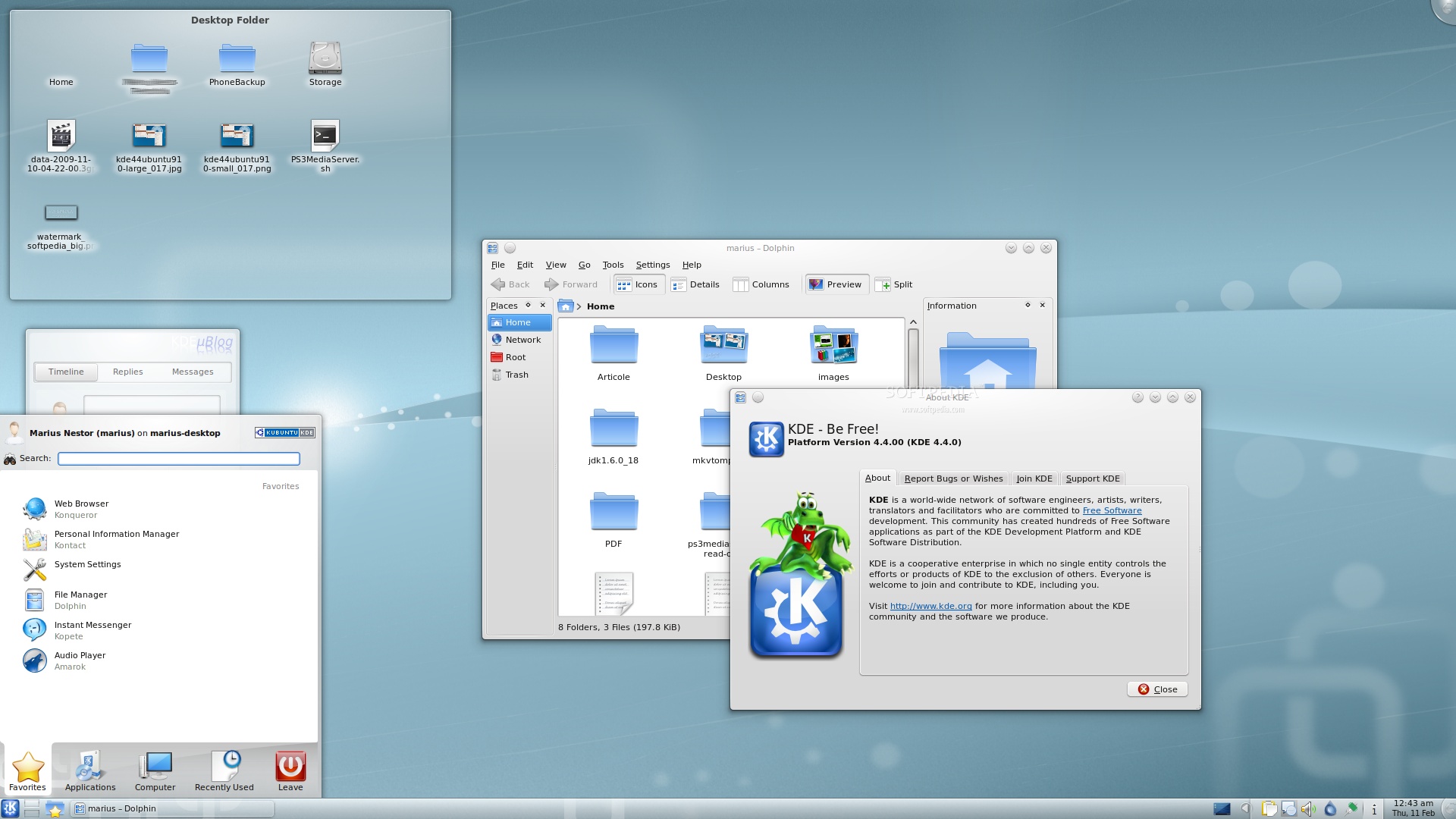
KDE SC 4.4.0
Enlarge picture
After another six months of hard work, the famous KDE Software Compilation (SC) suite reached version 4.4.0 on February 9th, 2010. With over 7,000 bugs squashed, over 1,400 new features, new applications, new effects, the KDE SC 4.4.0 is composed of the KDE Plasma Workspace, the KDE Applications and the KDE Development Platform and it introduces window tabbing, netbook interface, authentication framework and social networking support. With this said, the KDE SC 4.4.0 is still the most beautiful and modern desktop environment to date!

Today's tutorial is for those of you who don't want to wait until late April for the Kubuntu 10.04 (Karmic Koala) release, which will come with a default KDE SC 4.4.0 installation. With this guide, we will teach you, step by step, how to install the brand-new KDE SC 4.4.0 on your existing Ubuntu 9.10 (Karmic Koala) installation.

Editor's note: To eliminate the "terminal madness" for Linux beginners, we've used apt-url links in this tutorial. So, just click the links where it says "click the 'Install' button to install..." and a confirmation dialog will appear. Special thanks go to the Kubuntu developers for preparing the KDE SC 4.4 repos in such a short time, as usual!

Step 1 - Add KDE SC 4.4 Repositories

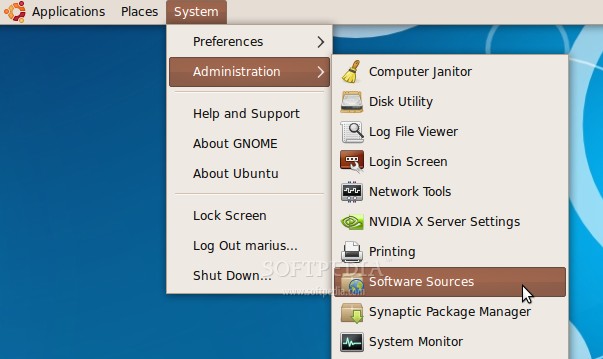
Go to System -> Administration -> Software Sources...
Review image
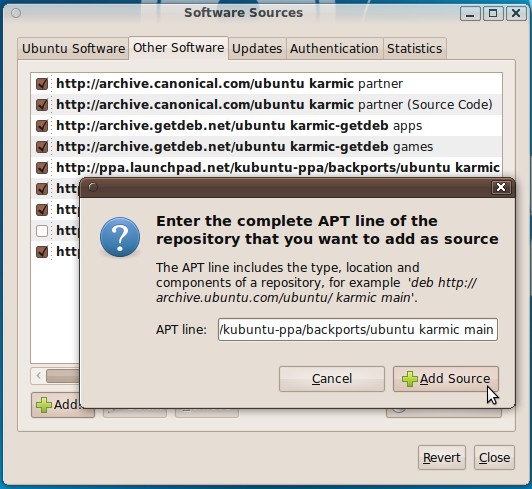
...enter your password, and the Software Sources window will appear. Click on the second tab, "Third-Party Software," then click the "Add" button and paste the following code in the new window that will appear...

deb http://ppa.launchpad.net/kubuntu-ppa/backports/ubuntu karmic main

Then, click on the "Add Source" button...
Review image

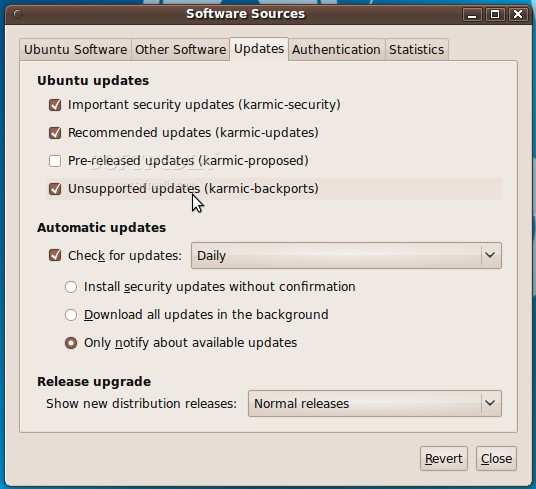
Go to the third tab, "Updates," and check the "Unsupported updates (karmic-backports)" option...

Review image

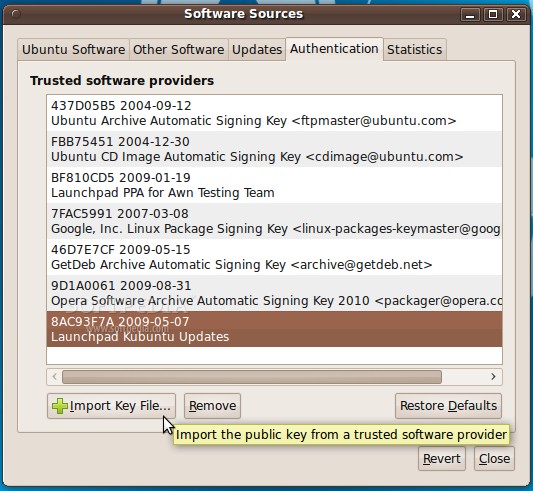
Right click HERE and choose the "Save Link As..." option, in order to save the key file on your desktop. Then, go to the fourth tab, "Authentication," click the "Import Key File" button, navigate to the location where you've just saved the key file (File System/home/YOURUSERNAME/Desktop) and double click it. You will immediately see a new entry called "8AC93F7A 2009-05-07 Launchpad Kubuntu Updates"...

Review image

Quick Note: Please replace "YOURUSERNAME" in the above path, with your username!

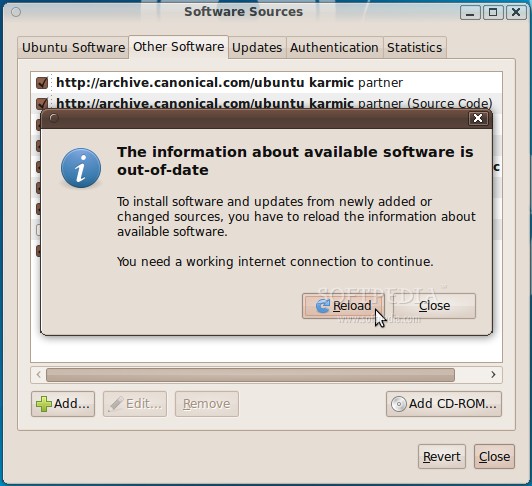
Then click on the "Close" button of the main window. It will ask you if you want to reload the information about available software, so click the "Reload" button and wait for the Software Sources window to close...
Review image

Step 2 - Install KDE SC 4.4

All you need to do now is click the link below...

Click here to Install KDE SC 4.4

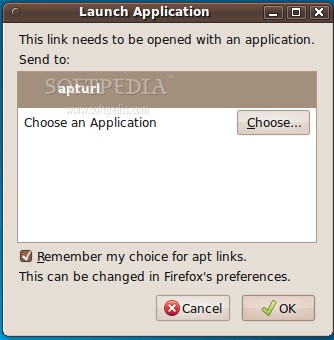
If you use Firefox, it will ask you with what you want to open the apt link. Choose the first option, apturl and make sure you also check the "Remember my choice for apt links." Click OK.
Review image

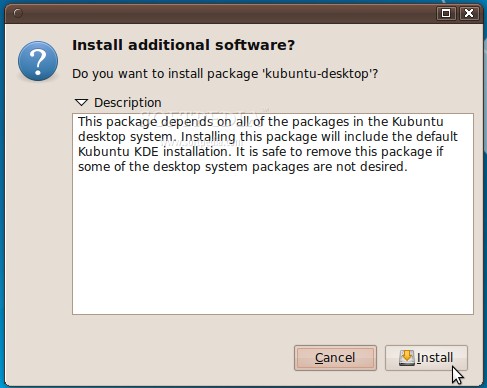
Then click the "Install" button on the new window, to install the KDE SC 4.4 packages (enter your password if asked)...

Review image

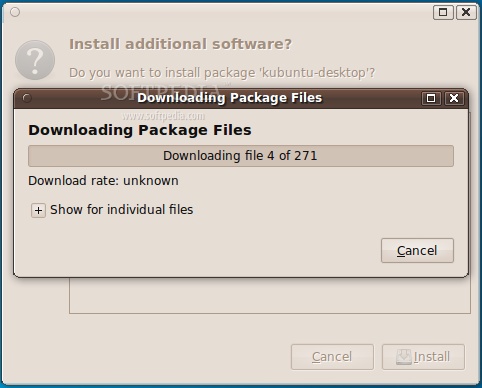
Wait for the KDE SC 4.4 packages to be downloaded...

Review image

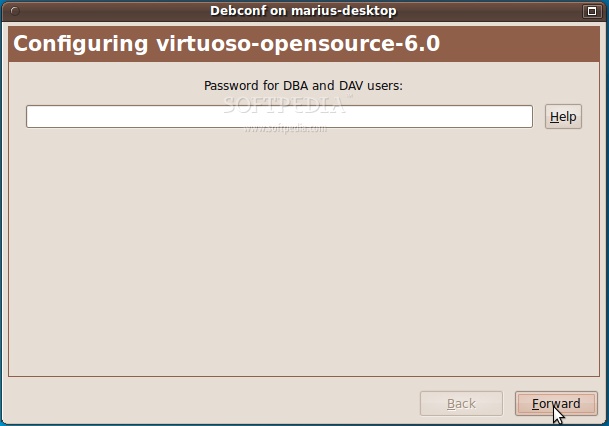
When the download is over, click the "Forward" button for Virtuoso configuration (or input the required password if you already have an older version of KDE installed)...

Review image

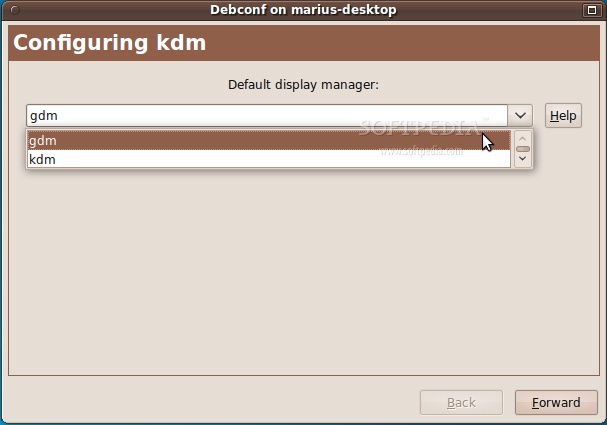
After that, you will be prompted to choose a display manager (GDM or KDM). Click on the "Forward" button if you want to keep Ubuntu's login screen (GDM), or select the KDM entry from the drop-down list to install KDE4's login screen. We strongly suggest you choose GDM here...

Review image

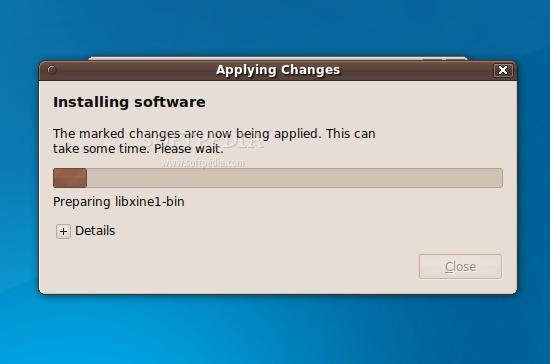
The installation will start...

Review image

...when the installation is over reboot the computer.

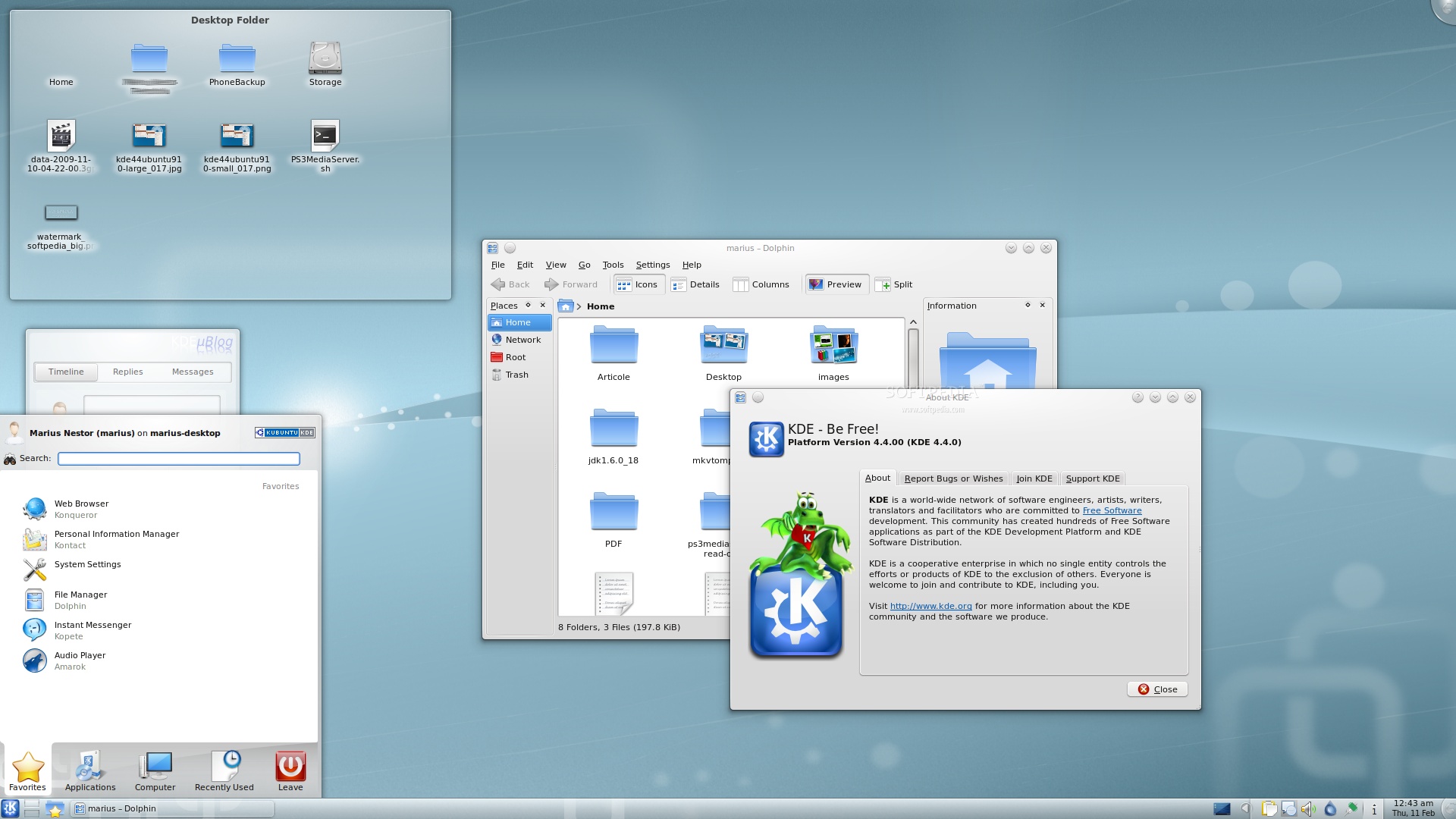
At the login screen, if you've chosen to keep Ubuntu's default login screen, go to Options -> Select Session menu and select the KDE entry. Input your username/password and voilà... KDE4 fun on your Ubuntu desktop!
Review image

Editor's note: If you have autologin enabled, you will not be able to select the KDE session. So you need to log out and select KDE from "Options -> Select Session."

Optional Step 1 - Restoring the Original Ubuntu Bootsplash

The KDE SC 4.4 installation will overwrite your current Ubuntu boot splash theme. If you don't like the blue Kubuntu splash and you want to restore Ubuntu's, follow the instructions below...

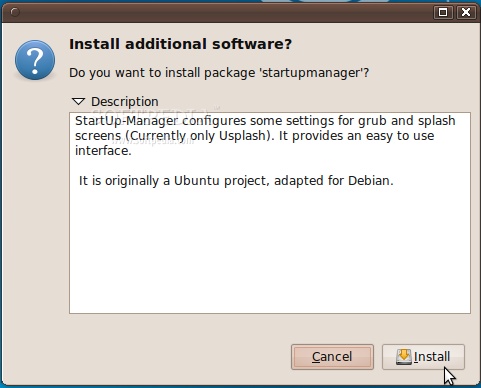
Click here to Install StartUp-Manager

Then click the "Install" button to install the packages (enter your password if asked)...
Review image

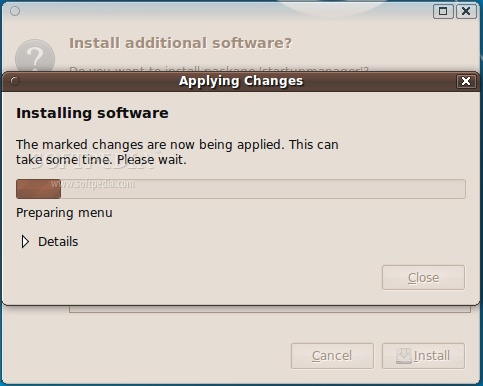
When the download is over, the installation will start...

Review image

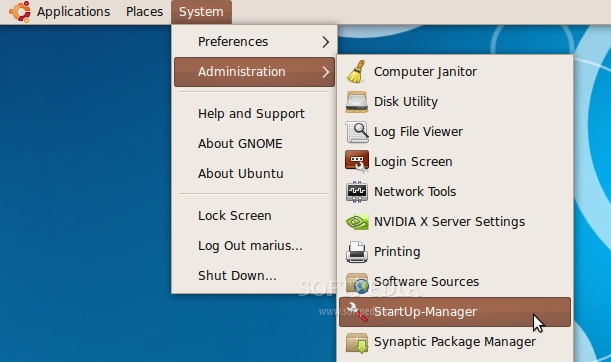
When the installation is over go to System -> Administration -> StartUp-Manager...

Review image

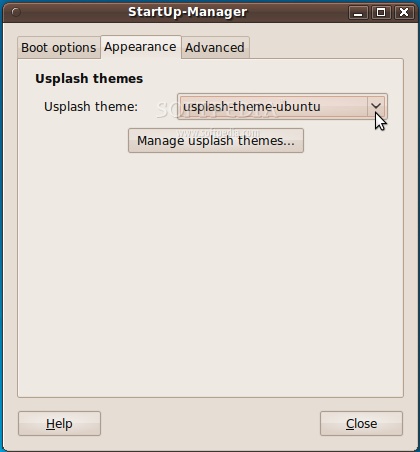
...enter your password if asked, and wait for StartUp-Manager to start. Then, go to the second tab, "Appearance," and select the usplash-theme-ubuntu entry from the "Usplash theme" section...

Review image
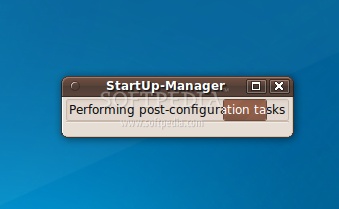
Click the "Close" button and wait for the application to apply the new settings...

Review image

...and you're done! If you reboot, you'll notice that Ubuntu's boot splash is back.

Optional Step 2 - Restoring the Original Ubuntu Menu

The KDE SC 4.4 installation will mess up your current Ubuntu menu. What does that mean? Well, all the KDE applications will "invade" your GNOME menu. If you don't like this and you want to restore Ubuntu's menu, follow the instructions below...

1. Click HERE to download Gnome Menu Extended. Get the "Ubuntu DEB ALL" file!
2. Save the file on your desktop.
3. Double click the file and install it (input your password when asked).

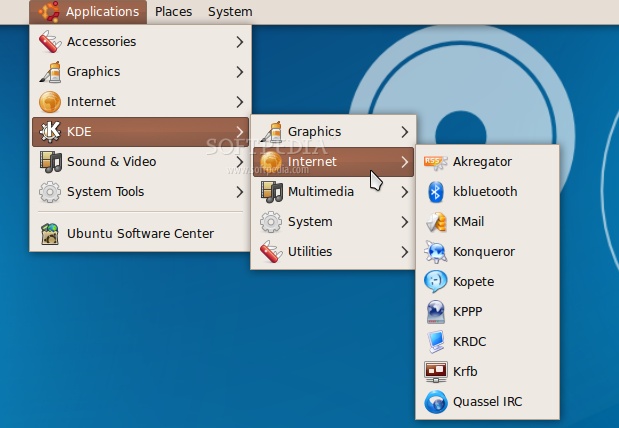
That's it! All the KDE applications will be stored in a single entry in the GNOME menu...
Review image

You can do the same thing on KDE, for the GNOME applications, if you download the K Menu Gnome software!

If you encounter any issues with the tutorial, do not hesitate to use our commenting system below.

TELL US WHAT YOU THINK:

38,562 hits · 24 comments · Link to this article · Print article · Send to friend · Subscribe to news

MUST-READ RELATED ARTICLES:


KDE Software Compilation 4.4.0 Released

Softpedia Linux Weekly, Issue 83

Available Now: Linux Mint 8 KDE Community Edition

Download and Test Mandriva Linux 2010.1 Alpha 2

10 Kernel Vulnerabilities in Ubuntu 6.06, 8.04, 8.10, 9.04 and 9.10

READER COMMENTS:


Comment #1 by: Luciano on 12 Feb 2010, 04:43 UTC reply to this comment

I just installed and hated, the fonts on my gnome now are just horrible, how can I remove it and restore my old settings and fonts?

Comment #1.1 by: Marius Nestor on 12 Feb 2010, 13:18 GMT

Open a terminal (Applications -> Accessories -> Terminal) and type the following commands:

sudo apt-get -y remove --purge kubuntu-desktop kdebase-runtime oxygen-cursor-theme gtk2-engines-qtcurve

...hit Enter after you type or paste the above command and wait for the packages to be removed.

I also suggest that you restart your computer after this procedure!


Comment #2 by: M8R-didia8 on 13 Feb 2010, 00:49 UTC reply to this comment

Does NOT work. It shows me sth like Unable to resolve...blah blah.... and does NOT install KDE window manager at all.... KDE sucks as usual.

Comment #2.1 by: Eruaran on 13 Feb 2010, 13:36 GMT

I just updated Kubuntu and Arch to KDE SC 4.4 and its great! Its the best KDE release ever. Now, how can you say "KDE sucks as usual" right after you just said, "does NOT install KDE window manager at all"... If KDE SC 4.4 wasn't installed, how can you say KDE sucks? More like Ubuntu sucks.

Comment #2.2 by: AnT on 13 Feb 2010, 18:40 GMT

This in fact has nothing to do with KDE. It is just that Ubuntu developers are very bad at packaging KDE software so their packages are mostly broken. For a true KDE experience you should look at some better Linux distributions like Mandriva and openSUSE.


Comment #3 by: John Williams on 14 Feb 2010, 00:27 UTC reply to this comment

I followed the guide carefully and got to where KDE was about to install when I got a message about "broken packages". I'm stumped. Can anyone help?


Comment #4 by: Jim Lang on 14 Feb 2010, 15:11 UTC reply to this comment

I have a problem with the tutorial. It may be fine for people who were previously using the Gnome desktop but how about for those of us who want to upgrade from kde 4.3?

Comment #4.1 by: Marius Nestor on 17 Feb 2010, 09:20 GMT

In order to upgrade an existing KDE 4.3 installation, when you arrive at "Step 2 - Install KDE SC 4.4" ... open your Update Manager application and update the system :)


Comment #5 by: jerickson15 on 15 Feb 2010, 06:15 UTC reply to this comment

my packages is broken to.. i need help..


Comment #6 by: jerickson15 on 15 Feb 2010, 06:21 UTC reply to this comment

people i need your help. what you think about freespire, if it is a good operating system..


Comment #7 by: Sagar on 15 Feb 2010, 13:23 UTC reply to this comment

What is approximate size of downloads?

Comment #7.1 by: Marius Nestor on 17 Feb 2010, 09:02 GMT

Around 150 MB


Comment #8 by: jess on 15 Feb 2010, 23:39 UTC reply to this comment

I tried and as usual got an error from firefox. Apt is not associated with ....... Can't continue, don't know how to fix it. It would be nice to have "what if's" good luck getting help

Comment #8.1 by: Marius Nestor on 17 Feb 2010, 08:43 GMT

Please install the apturl package with Synaptic, or from the command-line by pasting:

sudo apt-get -y install apturl

Also, make sure that you have the Ubuntu Firefox Modification add-on installed, in Firefox. The add-on is called ubufox and it can be installed with Ubuntu Software Center or Synaptic.


Comment #9 by: Marius Nestor on 16 Feb 2010, 08:57 UTC reply to this comment

For those of you with the "broken packages" error... you should know that I've tested the tutorial on two machines and it worked very well.

All that I can suggest is to use one of the alternate methods below:

1. Go to Applications -> Accessories -> Terminal and paste the following command, in the terminal window:

sudo apt-get -y install kubuntu-desktop

... hit Enter, and wait for the packages to be installed.

2. Go to Applications -> Ubuntu Software Center, search for kubuntu-desktop and install it.

Good luck!


Comment #10 by: Gerry Williams on 16 Feb 2010, 23:21 UTC reply to this comment

I followed the instructions and every thing went fine.
A very fine desktop, though a bit confusing at first.


Comment #11 by: blucat on 19 Feb 2010, 19:59 UTC reply to this comment

This worked great. The only problem I have is there is no shutdown or restart option. I have to logout of KDE and login to Gnome to shutdown. Anyone know how to solve this problem?


Comment #12 by: Arbitrabbit on 23 Feb 2010, 01:33 UTC reply to this comment

Really good guide, thanks for this.

I had the same issue of broken packages mentioned by many people here. To solve it, I had to install language-selector-qt (sudo apt-get install language-selector-qt) after which kubuntu-desktop installed without problem. (sudo apt-get install kubuntu-desktop)


Comment #13 by: h4x0rmx on 26 Feb 2010, 05:00 UTC reply to this comment

I was able to install it successfully a couple of tries, but I can't login. I get an error 'Configuration file "/home/user/.kde/share/config/ksmserverrc" not writable. Please contact your system administrator'
Any idea of how to solve this problem?

Comment #13.1 by: bl33d on 26 Feb 2010, 19:04 GMT

@h4x0rmx

CTRL+ALT+F1

Then login (obviously)

Then

sudo rm -r -f .config .kde

Then reboot :)


Comment #14 by: Benjamin Hardy on 03 Mar 2010, 06:04 UTC reply to this comment

Some packages could not be installed. This may mean that you have
requested an impossible situation or if you are using the unstable
distribution that some required packages have not yet been created
or been moved out of Incoming.
The following information may help resolve the situation:

The following packages have unmet dependencies:
kubuntu-desktop: Depends: software-properties-kde but it is not going to be installed
Recommends: apport-kde but it is not going to be installed
Recommends: apturl-kde but it is not going to be installed
Recommends: jockey-kde but it is not going to be installed
Recommends: k3b but it is not going to be installed
Recommends: kpackagekit but it is not going to be installed
Recommends: kubuntu-firefox-installer but it is not going to be installed
Recommends: plasma-widget-facebook but it is not going to be installed
Recommends: plasma-widget-googlecalendar but it is not going to be installed
Recommends: plasma-widget-kubuntu-qa-feedback but it is not going to be installed
Recommends: plasma-widget-networkmanagement but it is not going to be installed
Recommends: printer-applet but it is not going to be installed
Recommends: system-config-printer-kde but it is not going to be installed
Recommends: update-notifier-kde but it is not going to be installed
Recommends: usb-creator-kde but it is not going to be installed
Recommends: userconfig but it is not going to be installed
E: Broken packages


Comment #15 by: tatiana on 30 Mar 2010, 00:00 UTC reply to this comment

hi...

I new in ubuntu 9.10 but I love ......

I want kde but the netword config . I can do.. If is possible tell me how I can do that???


hola
me gusta mucho ubuntu 9.10 eso si cuando tengo sonido

me gustaria probar el kde pero el problema de la configuracion de internet me freno su uso si alguien tiene un dato de como hacerlo por favor dejeme saberlooo


Comment #16 by: Anand on 15 May 2010, 11:51 UTC reply to this comment

Thanks, the installation procedure worked beautifully, but with one hitch.

The KDE mouse pointer has now become the default in GNOME too. And I am unable to change it, the change cursor options are not working at all. Even downloaded an app for it from software centre and still it doesn't work.

How can I have the Gnome cursor in Gnome and KDE cursor in KDE??


Comment #17 by: TN on 22 May 2010, 00:07 UTC reply to this comment

Thanks for the guide. The problem I am having now is I have no sound in KDE. Sound works fine in Gnome. Any advice? Thanks.

Copyright © 2001-2012 Softpedia. Contact/Tip us at

WindowsGamesDriversMacLinuxScriptsMobileHandheldNews

SUBMIT PROGRAM   |   ADVERTISE   |   GET HELP   |   SEND US FEEDBACK   |   RSS FEEDS   |   UPDATE YOUR SOFTWARE   |   ROMANIAN FORUM