
 14 DAY TRIAL //
 The following tutorial will teach Ubuntu users how to install the latest Beta release of the popular Mozilla Firefox web browser on their systems.
We have decided (yes, finally!) to make an universal tutorial for all the Beta releases of the Firefox web browser. So, here it is guys! You can bookmark it as a reference for future releases of the application.
The current Beta channel contains Mozilla Firefox 16, which will feature initial support for web apps, Acholi localization, JavaScript improvements, a new developer toolbar, CSS3 animations, transforms, gradients & transitions, Opus support, implemented reverse animation direction, per tab reporting in about:memory, error count for Web Console, and a new command-line.
The Beta release of Mozilla Firefox is supported and can be installed on the following Ubuntu operating systems: Ubuntu 12.10 (Quantal Quetzal), Ubuntu 12.04.1 LTS (Precise Pangolin), Ubuntu 11.10 (Oneiric Ocelot), Ubuntu 11.04 (Natty Narwhal) and Ubuntu 10.04 LTS (Lucid Lynx).
WARNING: We should warn you that the stable release of Mozilla Firefox that you have installed on your Ubuntu machine will be replaced by this Beta version. You have been warned!
Step 1 - Add the Firefox Beta repository
No matter what Ubuntu operating system (see above supported OSes) you are running, open a terminal and paste the following command:
sudo add-apt-repository ppa:mozillateam/firefox-next
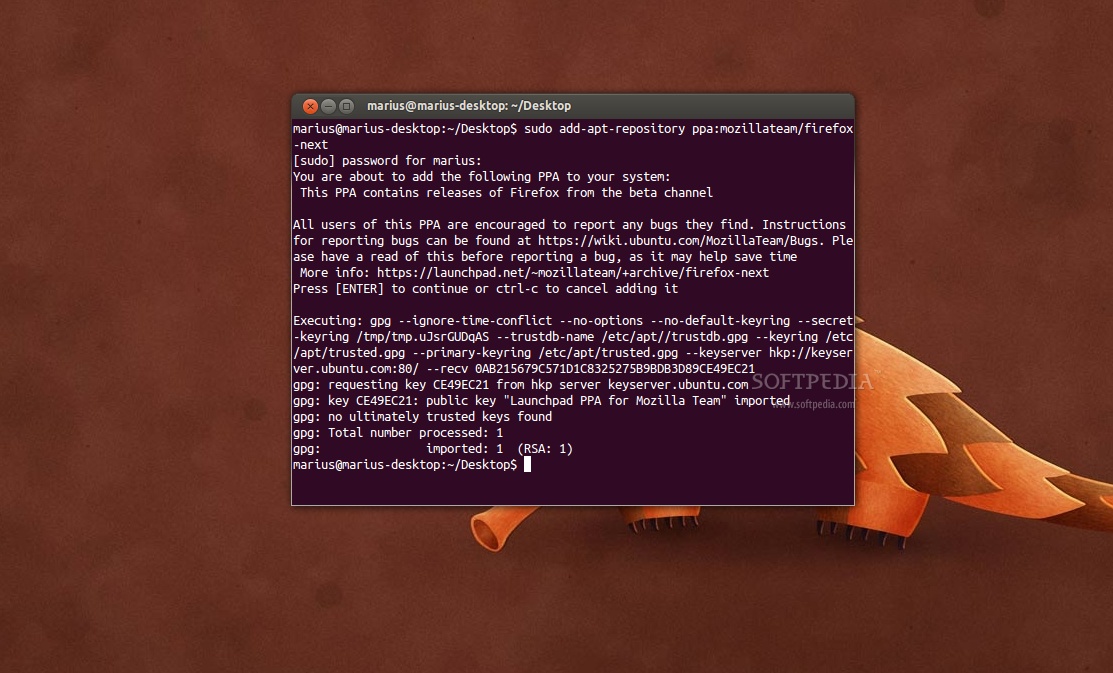
Don't close the terminal window! Proceed to the next step.
Step 2 - Install Firefox Beta on Ubuntu
Now paste the following command in the same terminal window:
sudo apt-get update && sudo apt-get install -y firefox
Wait for the installation to finish and close the terminal window.
That's it! The new Mozilla Firefox Beta web browser is now fully installed in your Ubuntu machine. You'll need to restart Firefox for the changes to take effect.
In time, your Mozilla Firefox web browser will automatically upgrade to newer Beta releases, as they are published by Mozilla, so make sure you update your system regularly.
If you have problems with the tutorial, do not hesitate to comment below!