
NEWS CATEGORIES:


NEWS ARCHIVE >>
SOFTPEDIA REVIEWS >>
MEET THE EDITORS >>
Home / News / Linux / Other Tips, Tricks and Tutorials

Other Tips, Tricks and Tutorials


How to Fix Windows 7 Sharing in VirtualBox

Workaround for Shared Folders in VirtualBox with Windows 7

By Marius Nestor, Linux Editor

30th of September 2009, 17:01 GMT

Adjust text size:


Network shared folder in Windows 7, on VirtualBox
Enlarge picture
In my last tutorial about VirtualBox (the free virtualization software from Sun Microsystems) I offered a solution to fix the USB support, a problem that I think is fixed now, but... I have recently encountered another issue: sharing folders with a Windows 7 guest machine!

The issue:

So, what's not working? Well, you set the folder(s) in the "Shared Folders" section of the virtual machine's settings dialog and they will NOT appear in Windows 7, like it works with Windows XP.

The solution:

Like many of you out there, I've searched and searched on the Internet for a solution to this issue, which I've also noticed to be quite popular (why should it be? you create something on the virtual machine and you want to save it, right?), and many guides are incomplete or they point you in the wrong direction. Therefore, I present today  a step-by-step tutorial (with screenshots) to this very simple-to-fix issue (you won't believe how simple it was in the end).

For this tutorial, we've used VirtualBox 3.0.6 and Windows 7 Ultimate, on an Ubuntu 9.10 Alpha 6 machine. The following steps assume that you do NOT have any shared folders added to your Windows 7 virtual machine. If you already have set the folders, just follow the last three steps!

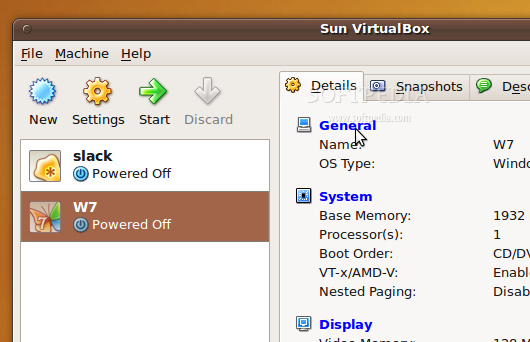
1. Open VirtualBox, and with the Windows 7 virtual machine selected in the left side, click the 'General' button on the "Details" tab.
Review image

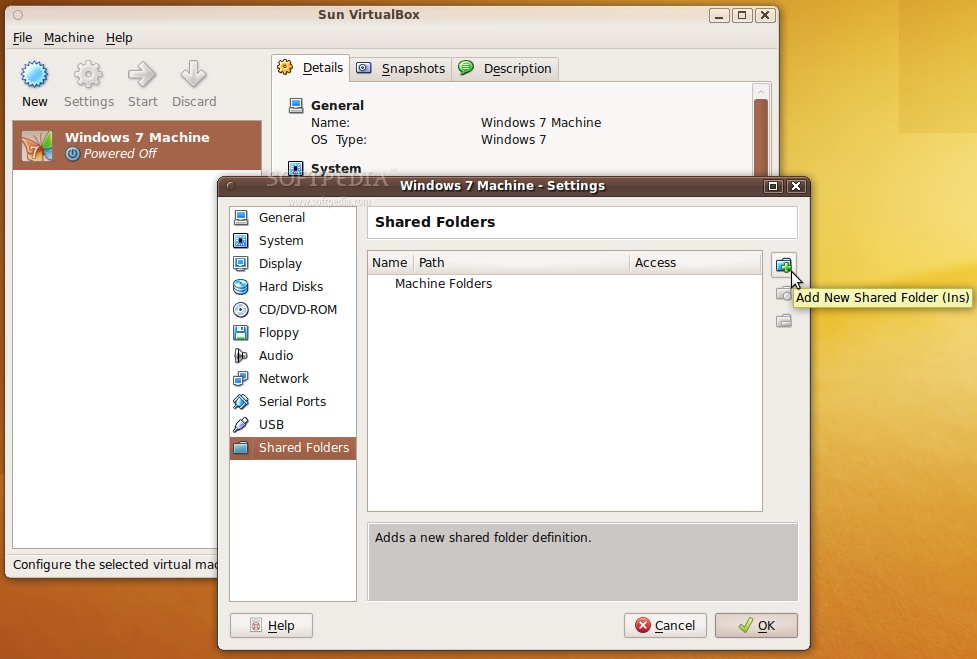
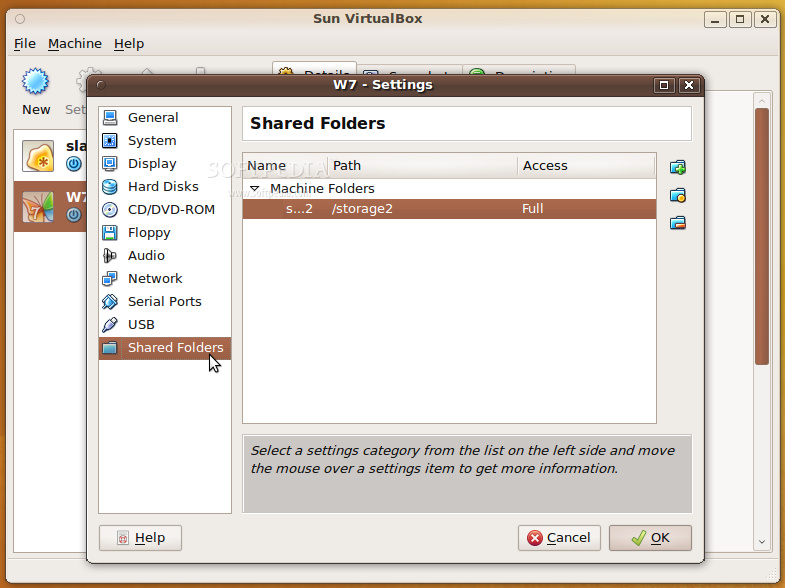
2. In the settings window that appears, click the "Shared Folders" entry (last one) and then click on the little folder icon with a + on it (on the right) to add a new shared folder...

Review image
Review image

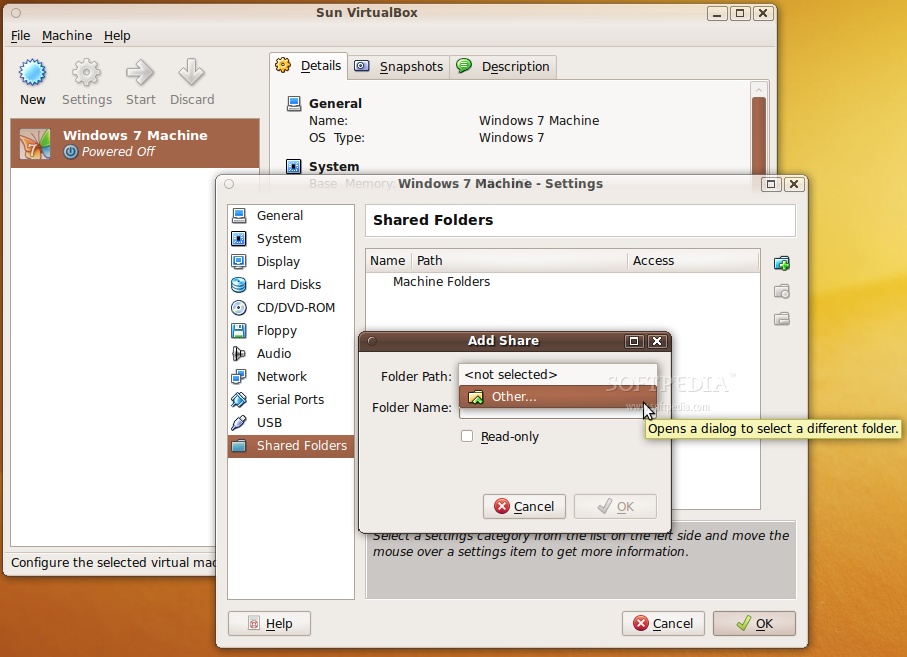
3. A new dialog appears, called Add Share. Click the arrow on the "Folder Path" field and select 'Other.' Search for the folder you want to share with the Windows 7 virtual machine and click OK...

Review image

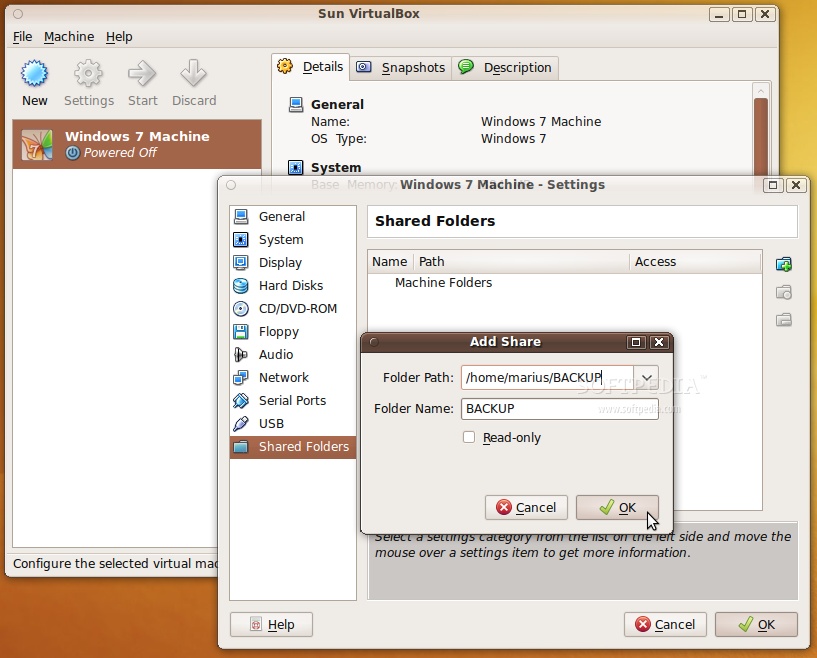
4. You will now see the full path to the folder you want to share and you can give it a name or just leave it as it is. Click OK to close the "Add Share" dialog...

Review image

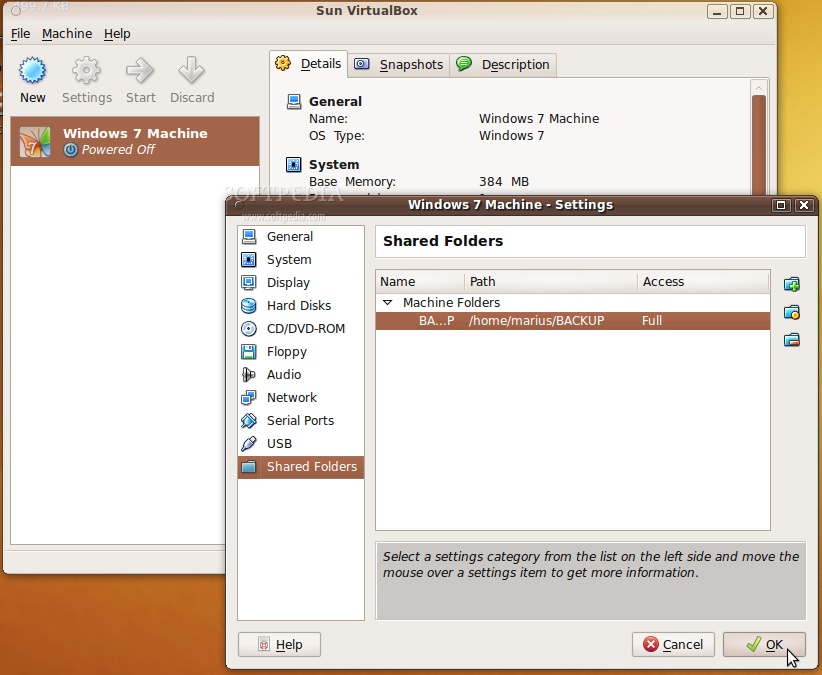
5. You will now see the folder in the "Shared Folders" section. Click OK to close the settings dialog...

Review image

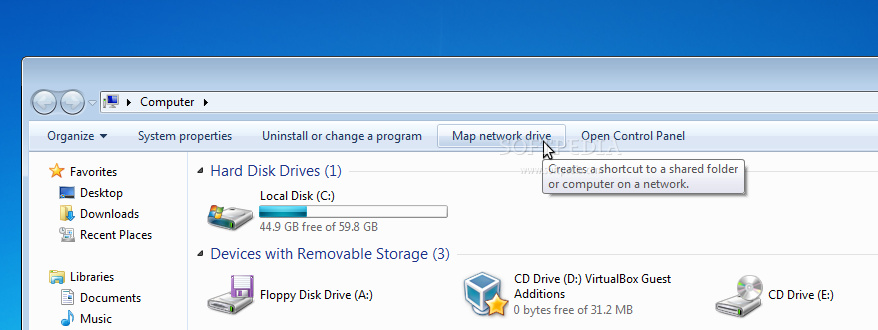
6. Now, start the Windows 7 virtual machine. When the system is fully loaded, open My Computer and click on the "Map network drive" button...

Review image

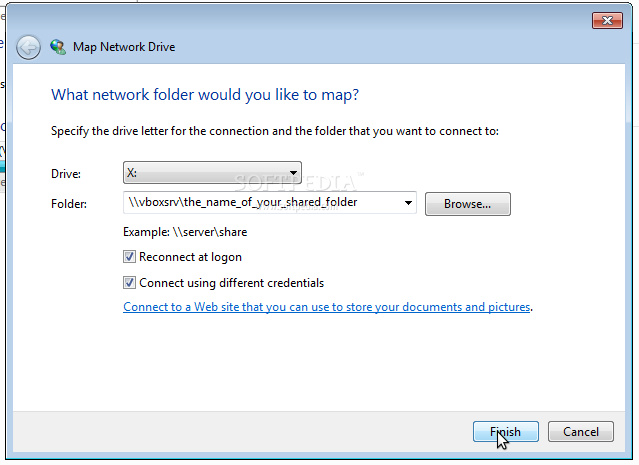
7. In the new window that appears, select a driver letter on the "Drive" field (any letter you want from the list), and... here is the big secret... type \\vboxsrv\ followed by the name of your shared folder, in the "Folder" field!

Also, don't forget to check the "Connect using different credentials" option either.
Review image

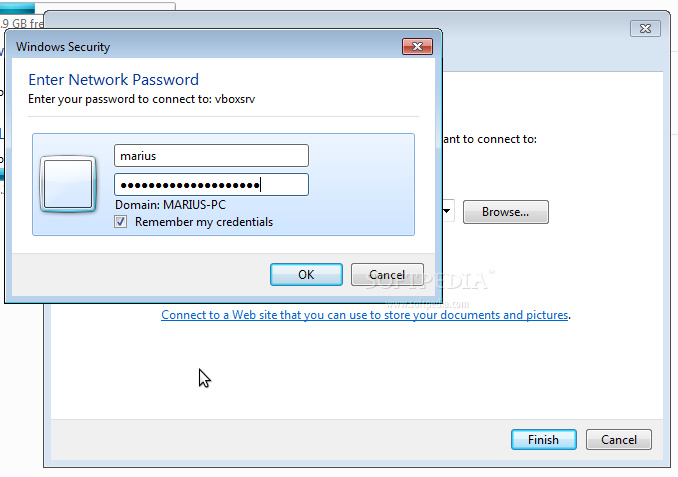
After this, click the "Finish" button and you will be prompted to insert the username and password of your Linux machine. Check the "Remember my credentials" option and click the OK button...

Review image

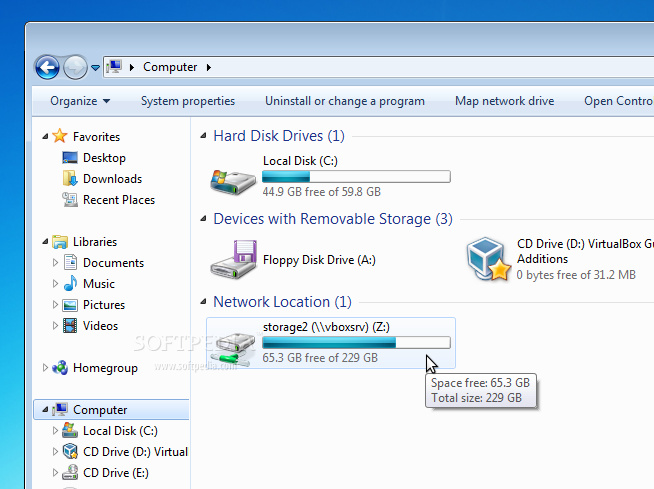
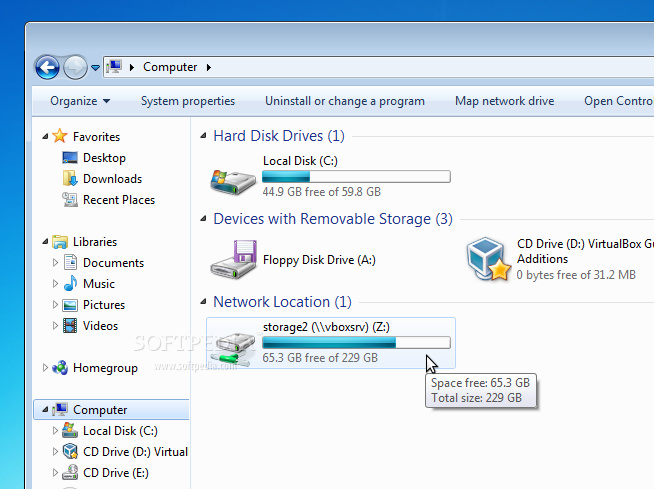
You can see your shared folder in the My Computer window, under the Network Location section... and it also shows how much space is left on the drive...

Review image

Simple, wasn't it?!

TAGS:

Windows 7 | Shared Folders | VirtualBox | Ubuntu | Linux
Read by 7,384 user(s) | Add comment | Link to this article TWEET THIS


Article rating:
Very Good (4.6/5) 11 vote(s)    

Subscribe to news | Print article | Send to friend

© Copyright 2001-2009 Softpedia
Contact:


SEARCH THE NEWS ARCHIVE :


Today's News
| Yesterday's News | News Archive


MORE RELATED ARTICLES:


How to Fix VirtualBox USB Support

VirtualBox 3.0.0 for Linux Brings 3D and OpenGL 2.0 Support

Mandriva Linux 2010.0 Beta Has Plymouth

Calculate Linux Desktop 9.9 Has KDE 4.3.1

Softpedia Linux Weekly, Issue 64

The Final Artwork of Ubuntu 9.10

Ubuntu 10.04 LTS Release Schedule

Ubuntu 9.10's New Wallpapers and More

User opinions:


Comment #1 by: bubuzzz on 30 Sep 2009, 18:51 GMT reply to this comment

well, sorry... but this is still the old way to set the share folder. I did this way in my guest XP


Comment #2 by: falkTX on 01 Oct 2009, 08:45 GMT reply to this comment

What the heck??

Have you ever looked at the VBox GUI... in the shared folders... it ALREADY SAYS HOW TO DO THIS.

"net use X: \vboxsvrshared"
(where "X" is the drive to use and "shared" is the name of the shared folder)

The manual also talks about this...
And that's where people should look for help in the first place
The explanation/"fix" is already there!

Comment #2.1 by: Marius Nestor on 01 Oct 2009, 12:04 GMT

Those are just some commands and newbies have no idea what to do with them.


Comment #3 by: mc on 05 Oct 2009, 07:15 GMT reply to this comment

why would anyone need that on the pc?

If you really need to run some windows software in VM do you really need windoze 7?


Comment #4 by: Al on 14 Oct 2009, 00:23 GMT reply to this comment

Thanks for this. The manual is too difficult for some (me) to follow completely and that grumpy-ass Sasquatch just bitches at people with questions and occasionally gives an inadequate answer. They would do well to answer noobs questions with complete info and patience rather than pointing them back to FAQs and the manual, which most people with questions have already consulted. You made the abstract concrete here, thanks again.


Comment #5 by: Bruno on 04 Nov 2009, 20:34 GMT reply to this comment

You saved me! Thanks!


Comment #6 by: Larrxi on 18 Nov 2009, 14:48 GMT reply to this comment

Thanks! It is sad that you have to have Windows 7 installed to get Windows 7 on a usb stick to install from it.


Comment #7 by: Ryan on 19 Nov 2009, 02:13 GMT reply to this comment

Some people need to learn the golden rule. I too looked all over for this. Thanks for posting it!

Share your opinion:

Your Name:
Your Email Address:
(will not be used for commercial purposes)
Solve this to prove you're not a bot: =
Your review/opinion:


Windows tabGames tabDrivers tabMac tabLinux tabScripts tabMobile tabHandheld tabGadgets tabNews tab

SUBMIT PROGRAM   |   ADVERTISE   |   GET HELP   |   SEND US FEEDBACK   |   RSS FEEDS   |   ENTER NEWS SITE   |   ENGLISH BOARD   |   ROMANIAN FORUM