
Softpedia
 

NEWS CATEGORIES:


NEWS ARCHIVE >>
SOFTPEDIA REVIEWS >>
MEET THE EDITORS >>
TRENDING TODAY
Home > News > Microsoft > Tips & Tricks

October 5th, 2012, 22:01 GMT · By

How to Correctly Install and Run Mozilla Firefox Metro on Windows 8

SHARE:

Adjust text size:

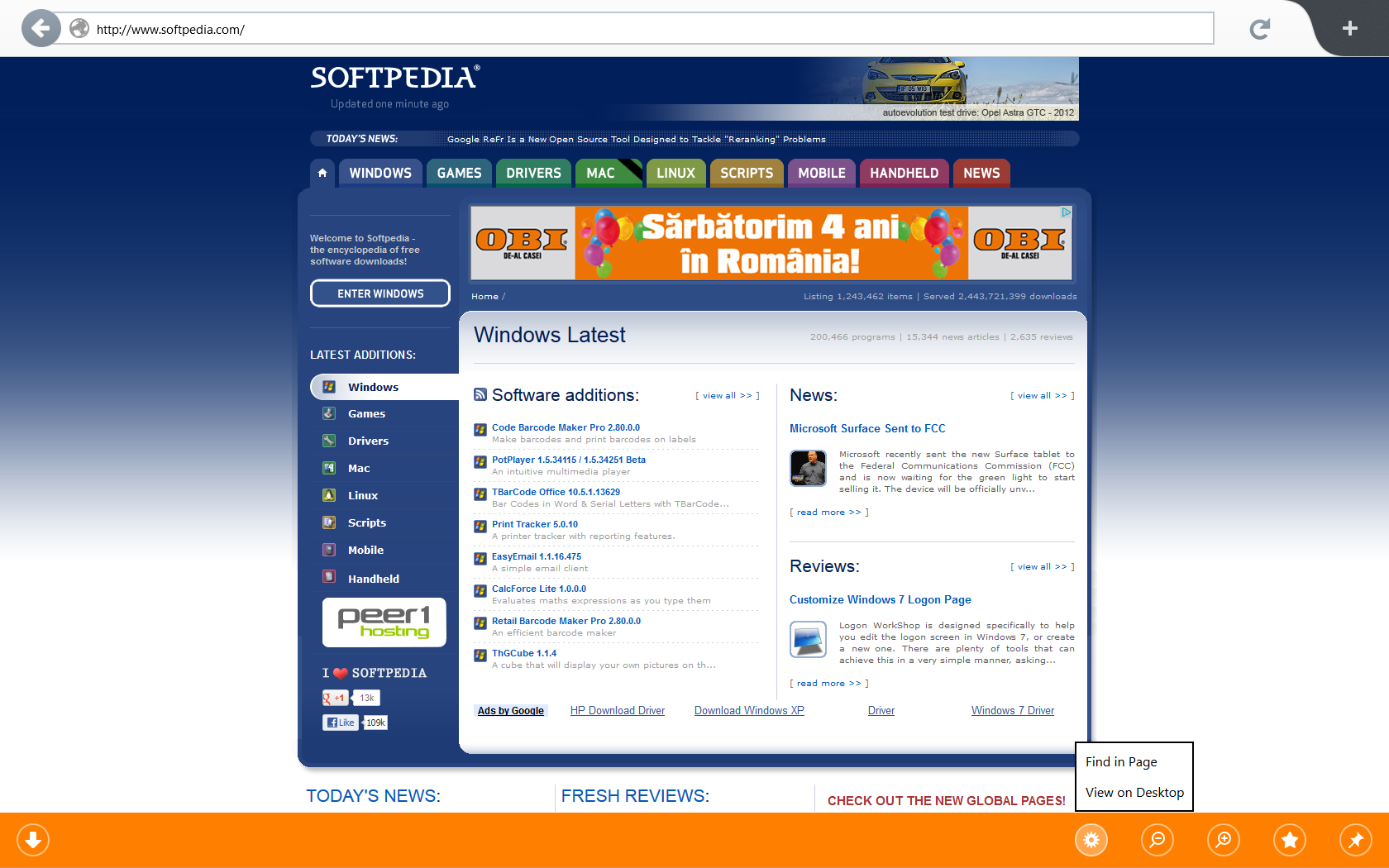
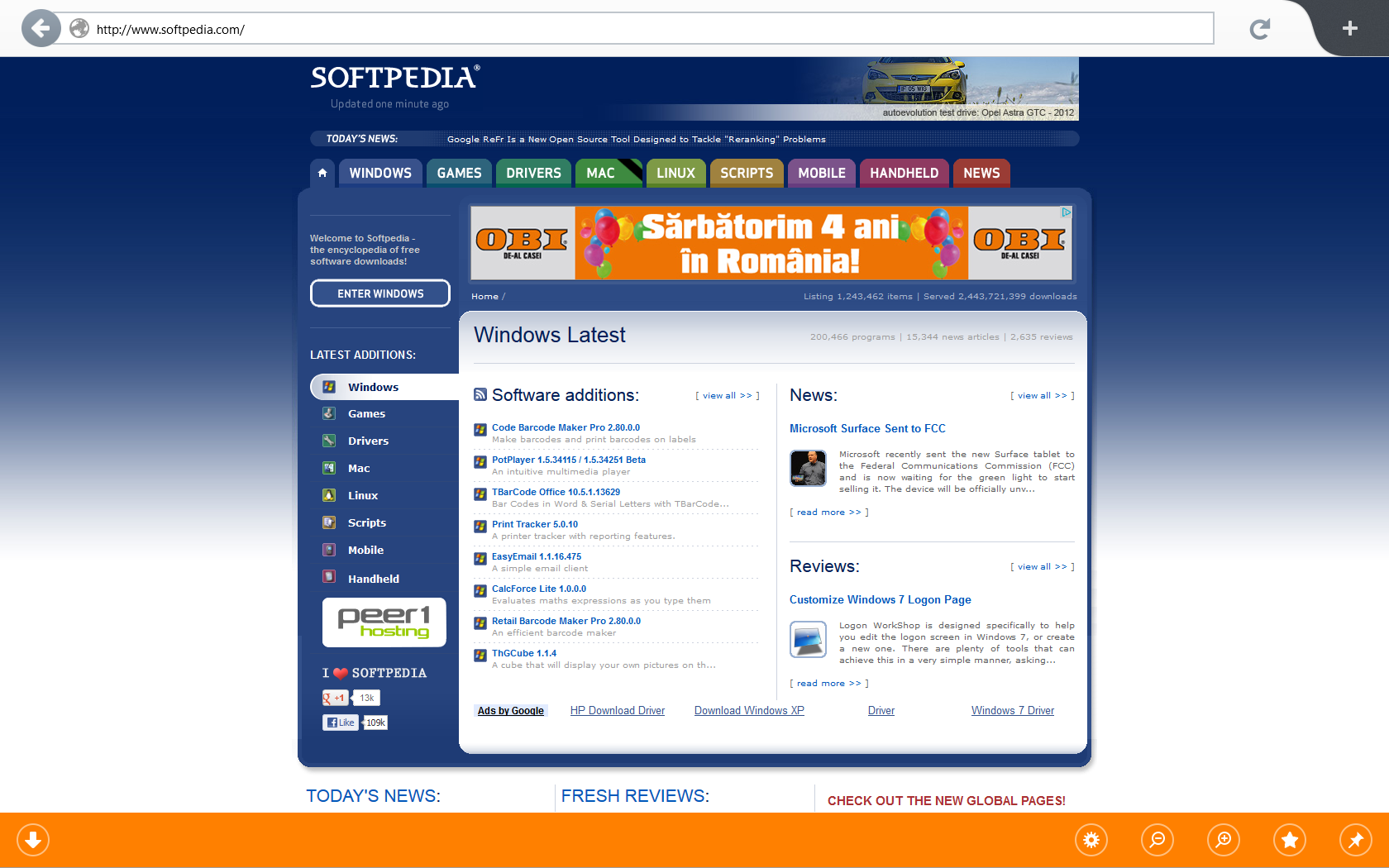
This is the new Firefox Metro on Windows 8
Enlarge picture
Mozilla today released a Metro preview of its popular browser Firefox, obviously aimed at Windows 8 users who enjoy Microsoft’s brand
new Modern Apps technology.


Truth is, the Nightly Firefox is only a preview, so it’s not recommended to set it as you default browser, but Windows 8 early adopters may want to have a look at the latest flavor of an otherwise excellent application.

Downloading the preview and running it on a Windows 8 machine should be enough, but we’ve received reports that some users can’t make the browser work. What’s more, some of the workstations here at the Softpedia labs could not run the Metro Firefox for Windows 8 at all.

The problem is always the same: it seems to install fine, it even places a shortcut in the Windows 8 Start Screen, but whenever you click its icon, you’re instantly switched to the Start Screen. Instead of the Metro version, the shortcut launches the standard desktop version.

Because we’ve heard that so many people encounter problems when trying to run the Metro Firefox, we’ve created this tutorial to lend you a hand and thus help all Windows 8 fans get a taste of the new browser before its official debut. Mozilla hasn’t said anything about the final version of Firefox for Windows 8, so keep in mind that this is an incomplete, unstable and sometimes very slow build.
Review image
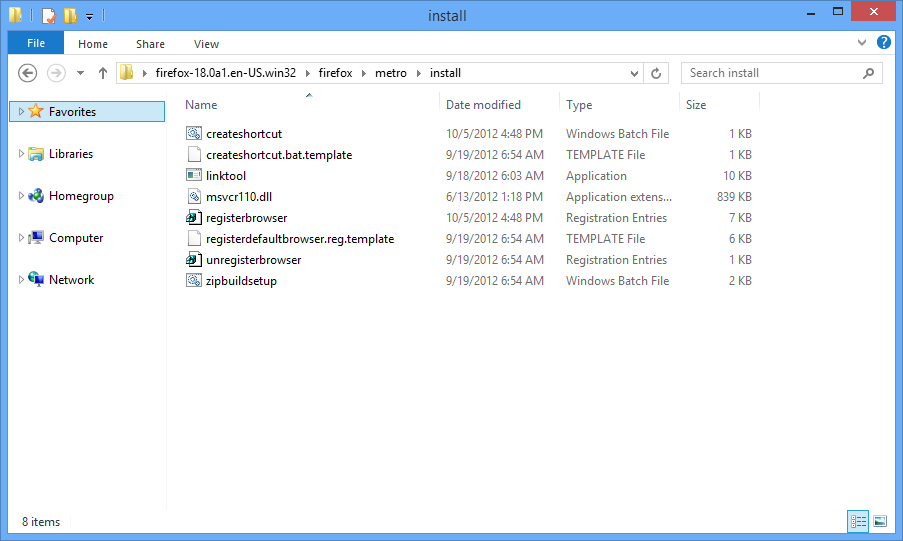
The "install" folder holds all the files you will need to successfully configure Mozilla Firefox on Windows 8.


Step 1: Download the Nightly build of Metro Firefox and extract all files on the desktop. The package is also available on Softpedia, so click here to get it (keep in mind that it’s version 18.0a1 Nightly that we need).

Step 2: Go over to the extracted files and browse to Firefox\metro\install.

Step 3: Double click “zipbuildsetup” and click “Run” to allow the process to launch. You will see a “Command Prompt” window that will automatically close after a few seconds.

Step 4: The same “install” folder holds a file called “registerbrowser.” Launch it and wait. It will modify the Windows 8 registry, so if you have any app that could block this change, make sure you disable it. A confirmation message should appear when the process is completed.

Step 5: Once again, in the “install” folder you shall find another file called “createshortcut.” This one will add the Firefox Nightly shortcut in the Start Screen and will allow you to launch the browser in Metro mode. Double-click it and wait for a few seconds. Some Windows 8 workstations may need a separate file called “msvcr110.dll,” so in case the file asks you for it, use Google and download it.

Review image Review image
Keep in mind that the Nightly build of Mozilla Firefox isn't quite stable, so it's not recommended to use it as your everyday browser. It sometimes crashes all of a sudden, so it's only good for testing.


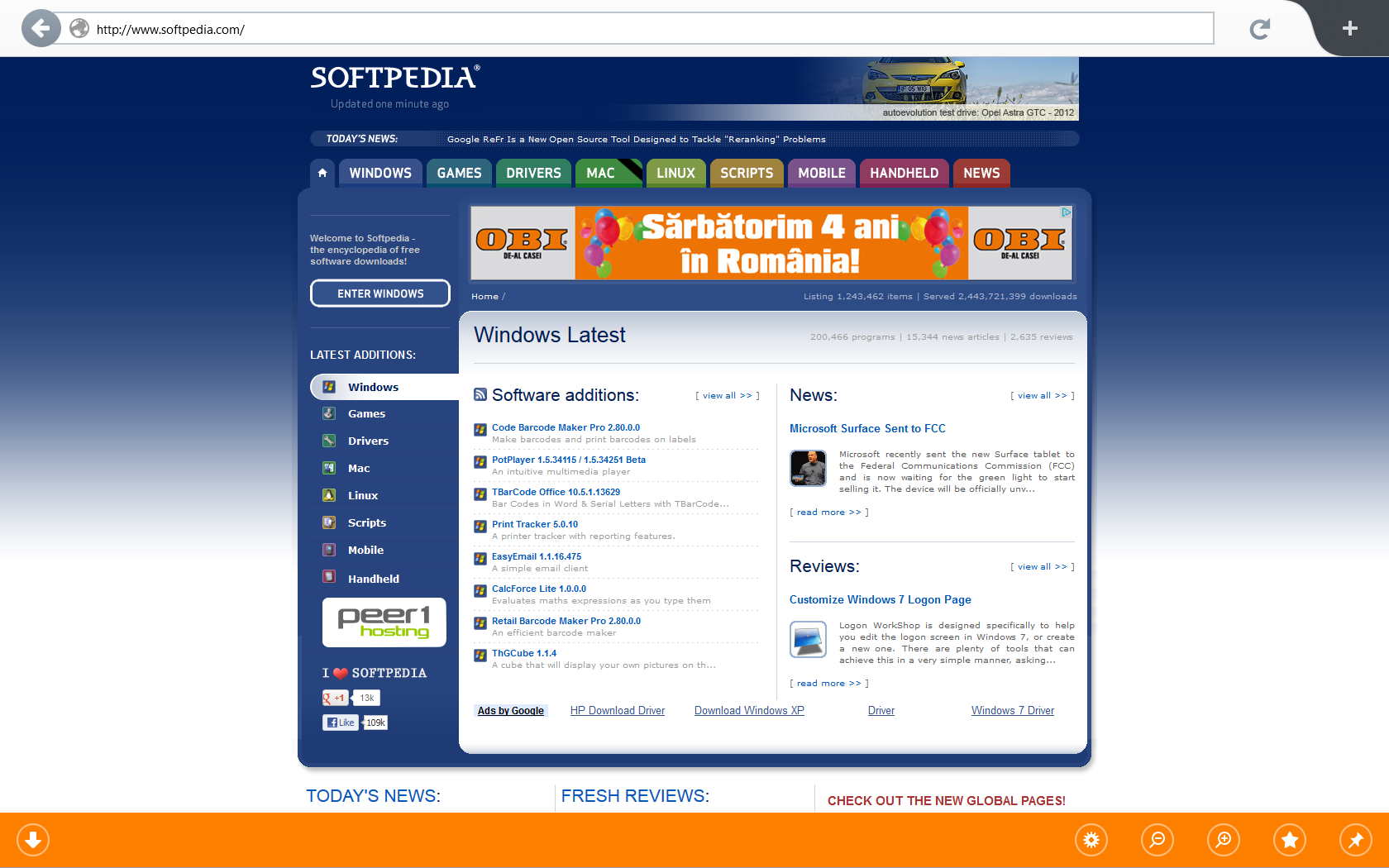
And… that’s all. Remember that in order to run Firefox in Metro mode, you need to set the Nightly build as your default browser. There’s no need to uninstall the stable release of Mozilla Firefox because the Nightly version installs in a different location, so it’s enough to launch it and use the “Set as default” option.

Review image Review image
In order to make the Metro Firefox launch on Windows 8, you need to set it as your default browser. Otherwise, the browser may fail to load, so you'll have to launch the desktop version and make the aforementioned adjustment.


While the Metro Firefox comes with no customization options, it’s still a good way to use a different browser in Metro mode, other than the built-in Internet Explorer. Firefox Nightly is sometimes slow and fails to respond properly, so give it some time before it loads a specific page. If you wish to remove it, simply go to “Add/Remove Programs” and uninstall it completely. Afterwards, set the stable Firefox or whatever browser you are using as the default app to handle online surfing.


14,186 hits · 7 comments
Link to this article · Print article · Send to friend

MUST-READ RELATED ARTICLES:


Firefox Metro Preview Available for Testing

Microsoft Holds Event to Play Classic Atari Games in Internet Explorer

Firefox 16 Almost Ready for Release

Top Advertisers Urge Microsoft to Shut Down Internet Explorer 10’s “Do Not Track”

Download Mozilla Firefox with Modern UI for Windows 8

READER COMMENTS:


Comment #1 by: UTPD on 06 Oct 2012, 02:43 UTC reply to this comment

Thank you very much.


Comment #2 by: Kumar on 06 Oct 2012, 07:11 UTC reply to this comment

there is no metro\install after extraction

Comment #2.1 by: Mircea on 06 Oct 2012, 09:14 GMT

Same here, the version that can be downloaded now dosn't have that folder. Can Softpedia upload the version they have with that folder inside?

Comment #2.2 by: Bogdan Popa on 06 Oct 2012, 10:11 GMT

You were right, the download link was actually for the EXE version. We've updated the download link with the ZIP package, so click the link included in the article to download the right version. Thank you!

Comment #2.3 by: Ernest on 04 Nov 2012, 14:25 GMT

The download link is grabbing the latest version off mozilla's ftp servers and not the zip package as you've mentioned.


Comment #3 by: gigi on 06 Oct 2012, 10:38 UTC reply to this comment

The easiest way is to not use windows 8 ...


Comment #4 by: RP on 17 Mar 2013, 14:05 UTC reply to this comment

Wow But It's too late already
So mozilla just do it as fast as you can

Copyright © 2001-2013 Softpedia. Contact/Tip us at

WindowsGamesDriversMacLinuxScriptsMobileHandheldNews

SUBMIT PROGRAM   |   ADVERTISE   |   GET HELP   |   SEND US FEEDBACK   |   RSS FEEDS   |   UPDATE YOUR SOFTWARE   |   ROMANIAN FORUM