
Softpedia
 

NEWS CATEGORIES:


NEWS ARCHIVE >>
SOFTPEDIA REVIEWS >>
MEET THE EDITORS >>
TRENDING TODAY
Home > News > Linux > Other Tips, Tricks and Tutorials

March 18th, 2011, 18:41 GMT · By

How to Boot ISO Images from Your Hard Drive

SHARE:

Adjust text size:

UNetbootin
Enlarge picture
The following tutorial will teach you how to easily boot any ISO image of a Linux distribution directly from your hard drive. We've tested the tutorial on the Ubuntu 10.10 (Maverick Meerkat) and the current development version of the upcoming Ubuntu 11.04 (Natty Narwhal) operating systems.

Would you like an easy method to test ISO images of various Linux distributions? Look no further, as we have the perfect guide for this. All you need is a software called UNetbootin. Follow the instructions below, carefully!

UNetbootin is an application that gives users the possibility to create a bootable USB drive, without the need of burning a CD. It can also install ISO images on your hard disk drive.

Step 1 - Install UNetbootin

Simply click on the link below to install Unetbootin on an Ubuntu machine. If you use another Linux operating system, just download the Unetbootin binary from here and run it as root.

Install UNetbootin


After installation, you will find UNetbootin under Applications -> System Tools -> UNetbootin. It will ask for your password every time it's opened.

Step 2 - Use UNetbootin to write ISO images to HDD

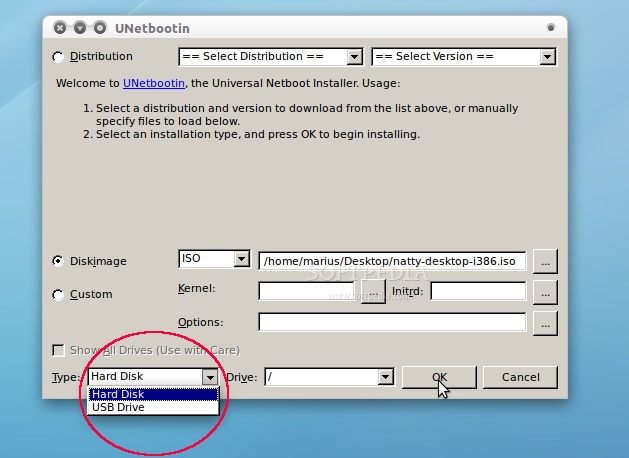
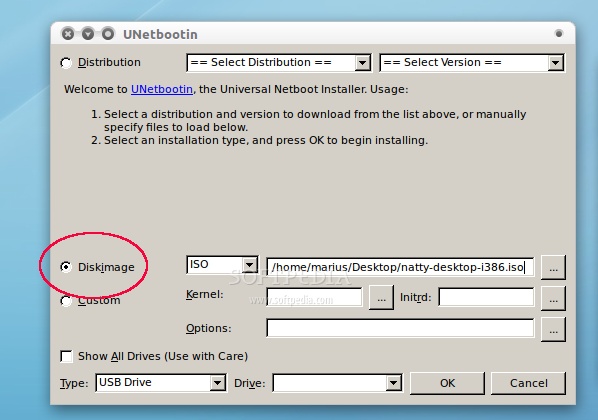
Open UNetbootin, select the "DiskImage" option and choose the ISO image you want to test/boot.
Review image

Select the Hard Disk option from the "Type" section and click the "OK" button.

Review image

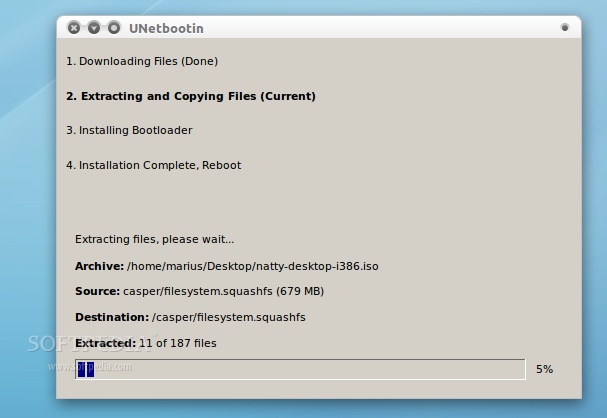
Wait for the ISO image to be written on the hard drive. It will take a few seconds!

Review image

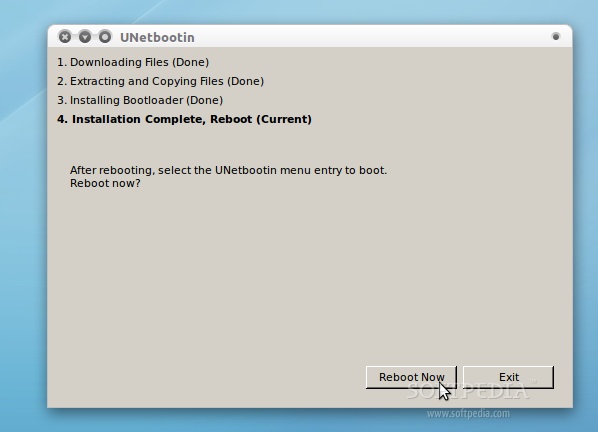
Click the "Reboot Now" button to restart your computer, in order to boot from the newly created image.

Review image

VERY IMPORTANT! When the computer reboots, you will have to enter the GRUB boot loader (hold the SHIFT key in Ubuntu). Once you are in the GRUB boot loader, choose the UNetbootin entry to test your ISO image. That's it!

Step 3 - Install another ISO image (remove existing ISO image)

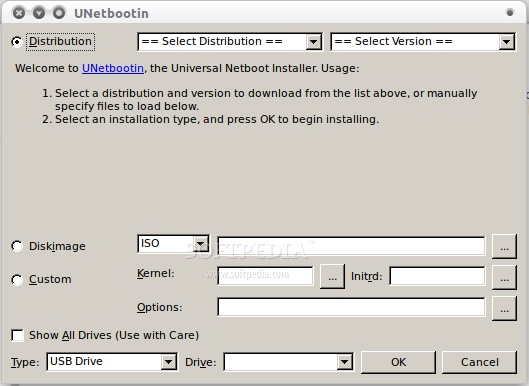
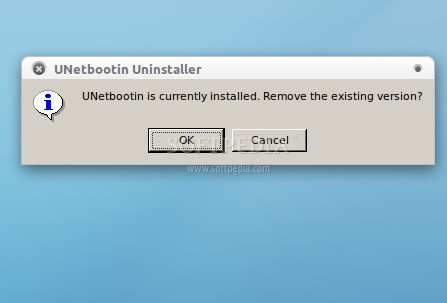
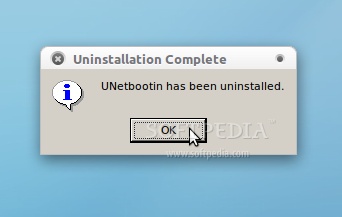
Of course, at some point you will want to test another ISO image, or just remove the last one. For this, all you have to do is to open UNetbootin. It will automatically prompt you to remove the last ISO image written on the hard drive.
Review image

Review image

If you have problems with the tutorial, do not hesitate to comment below!


48,988 hits · 21 comments
Link to this article · Print article · Send to friend

MUST-READ RELATED ARTICLES:


How To Play Dragon Age 2 on Ubuntu

Mandriva 2011 Beta 1 Screenshot Tour

Ubuntu 11.10 Release Schedule

Linux Kernel 2.6.38 Brings Support for AMD Fusion

Ubuntu 11.10 a.k.a. Oneiric Ocelot

READER COMMENTS:


Comment #1 by: etch04 on 20 Mar 2011, 16:57 UTC reply to this comment

will this tip work with the windows version of unetbootin

-sent via mobile

Comment #1.1 by: Marius Nestor on 24 Mar 2011, 10:47 GMT

I don't think so...


Comment #2 by: bob on 21 Mar 2011, 04:33 UTC reply to this comment

I have a 2gb usb with chrome os on it, how do I get rid of it, I used the some other tool by ubuntu to burn the image to the disk... what should I do...

Comment #2.1 by: Marius Nestor on 24 Mar 2011, 10:45 GMT

Format the USB drive first! (right-click -> Format...)


Comment #3 by: Roland on 21 Mar 2011, 15:29 UTC reply to this comment

Wow, is Step3 ever NOT intuitive! Why would the prompts ask to remove an application (itself), when they mean to remove an OS? Looks to me like UNetbootin has a big usability bug. BTW, when Unetbootin installs an ISO to my drive, what exactly is it doing? Is it putting files in /boot, only? And grub2 should *always* put up a menu if there's more than one OS available. Does it do that in this case?

Comment #3.1 by: Marius Nestor on 24 Mar 2011, 10:44 GMT

You're right on the "Step 3" :) Let's hope that it will be fixed soon ;)

UNebootin puts the ISO files on your / (not /boot) and it modifies GRUB.

About GRUB2: it dosen't!

Comment #3.2 by: motsteve on 26 Mar 2011, 07:13 GMT

Won't do grub2. Whoah! I can't remember the last time I used grub1. It had to be at least a year ago. I guess using this trick on Ubuntu 10.10 is senseless. My grub2 menu has several distros including Windoz 7, so I'll forego the experiment. :-)

Thanks for putting up the tip though.


Comment #4 by: cjnoatia on 22 Mar 2011, 09:53 UTC reply to this comment

i m on Windows. So how do i enter grub boot loader ??

Comment #4.1 by: Marius Nestor on 24 Mar 2011, 10:02 GMT

You don't! This is for Linux users only.


Comment #5 by: Martin on 22 Mar 2011, 17:35 UTC reply to this comment

that's cool, should be faster than from a USB stick :)

Comment #5.1 by: Marius Nestor on 24 Mar 2011, 09:57 GMT

Yes! Much, much faster :)


Comment #6 by: saneman on 25 Mar 2011, 18:21 UTC reply to this comment

Can this help with Parallels desktop and if so how?


Comment #7 by: simon@syd on 31 Mar 2011, 23:01 UTC reply to this comment

So, hang on, this wont write over everything on that partition? Did I miss something?

Comment #7.1 by: Marius Nestor on 01 Apr 2011, 11:51 GMT

No! It will add the contents of the ISO on your root partition... files that will be erased later if you choose so.


Comment #8 by: Albertde on 06 May 2011, 13:35 UTC reply to this comment

I do not want to use unetbootin. I want to find a method to copy just the kernel and initial root file system to a USB flash drive and then somehow direct the installation from an iso image on my hard disk to another partition.

I wish Linux distros would stop thinking three things: (1) their distro is the only one on my hard disk (so after installation I can't find my other Linux distros - Fedora-based distros are especially guilty of this), (2) everyone has windows and (3) everyone has a CD/DVD burner installed on their computer or if not, can boot from a USB flash drive.


Comment #9 by: ianstump on 16 May 2011, 23:14 UTC reply to this comment

hi... I have done the exact steps, but when i restart, the UNETBOOTIN line in the grub, is not there... any ideas? Im running UBUNTU 11.04


Comment #10 by: jay on 24 Oct 2011, 13:50 UTC reply to this comment

its not working for BT5. its just got stuck at 39%.
is their any alternative??

Comment #10.1 by: deadlybreakdown on 04 Nov 2011, 15:55 GMT

same here..

Comment #10.2 by: Drats on 12 Jan 2012, 23:35 GMT

Ever hear of PATIENCE?

I saw the above comment but decided to try it anyway. YES it paused at 39% for what seemed like forever, but it did move on and finish. ( I do not remember how long it took, but I started it and went away, came back a few times, then it moved on. Could have been hours.)

After a reboot and clicking on UNETBOOTIN line in the startup menu it worked. Only problem I had was that the mouse pointer was not pointing where it was clicking. Managed to open a terminal and did it all from the terminal window.


Comment #11 by: SM!LY on 27 Jan 2012, 14:35 UTC reply to this comment

I want to format my computer using .iso file.Without any cd,dvd,usb or flash.Can I format my computer with it.

Comment #11.1 by: Marius Nestor on 27 Jan 2012, 14:43 GMT

No, you can't!

Copyright © 2001-2013 Softpedia. Contact/Tip us at

WindowsGamesDriversMacLinuxScriptsMobileHandheldNews

SUBMIT PROGRAM   |   ADVERTISE   |   GET HELP   |   SEND US FEEDBACK   |   RSS FEEDS   |   UPDATE YOUR SOFTWARE   |   ROMANIAN FORUM