 14 DAY TRIAL //
 We’ve already shown you a very simple way to add some shutdown and reboot tiles on the Windows 8 Start Screen, but here’s another quick way to bring these popular power controls at one-click distance.
The idea is pretty much the same. Because of the lack of a Start button, some of the users actually don’t know how to access the Windows 8 power controls, although the “Alt + F4” keyboard combination still does the job from the desktop.
On the other hand, there are some users who instead choose to log out from the Start Screen and then use the available power controls to shut down or reboot the OS.
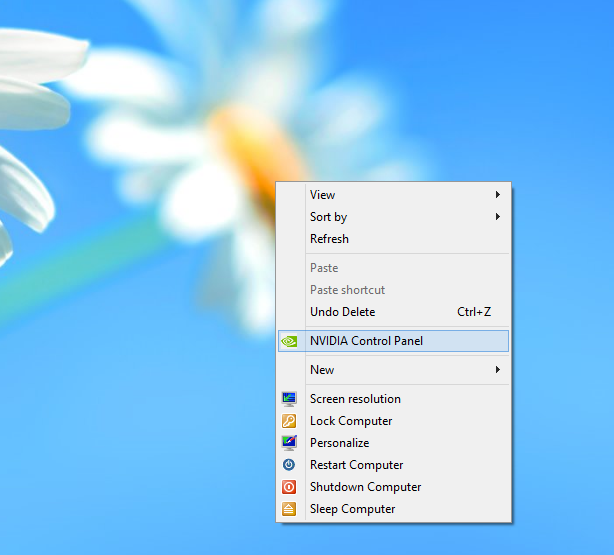
Well, this new trick actually brings the most popular power options right on your right-click menu, so whenever you wish to lock, restart, sleep or shut down the computer, simply right click on your desktop and you’re good to go.
Once again, the configuration process shouldn’t take more than a few seconds because you’re only required to copy the following code in a text document and change its format to .reg. Double-click this .reg file to add the changes to the Windows Registry and that’s it.
Although it won’t do any harm to your OS, make sure you create a registry backup before applying the changes, just to be on the safe side. The new options appear on the desktop exclusively, so it shouldn’t affect your overall experience with Windows 8.
So here’s the code you need to copy to a new text document (but don’t forget that you have to rename it before launching it in order to make the registry modifications):
[HKEY_CLASSES_ROOT\DesktopBackground\Shell\Lock Computer]
"icon"="shell32.dll,-325"
"Position"="Bottom"
[HKEY_CLASSES_ROOT\DesktopBackground\Shell\Sleep Computer]
"icon"="shell32.dll,-331"
"Position"="Bottom"
[HKEY_CLASSES_ROOT\DesktopBackground\Shell\Restart Computer]
"icon"="shell32.dll,-221"
"Position"="Bottom"
[HKEY_CLASSES_ROOT\DesktopBackground\Shell\Shutdown Computer]
"icon"="shell32.dll,-329"
"Position"="Bottom"
[HKEY_CLASSES_ROOT\DesktopBackground\Shell\Lock Computer\command]
@="Rundll32 User32.dll,LockWorkStation"
[HKEY_CLASSES_ROOT\DesktopBackground\Shell\Sleep Computer\command]
@="rundll32.exe powrprof.dll,SetSuspendState 0,1,0"
[HKEY_CLASSES_ROOT\DesktopBackground\Shell\Restart Computer\command]
@="shutdown.exe -r -t 00 -f"
[HKEY_CLASSES_ROOT\DesktopBackground\Shell\Shutdown Computer\command]
@="shutdown.exe -s -t 00 -f"