
|
|
|
|
December 15th, 2009, 15:05 GMT · By Filip Truta
How to Rename Your Wireless Apple Mouse, Magic Mouse |
|
|
|
|
SHARE:
Adjust text size: 
|
|
|
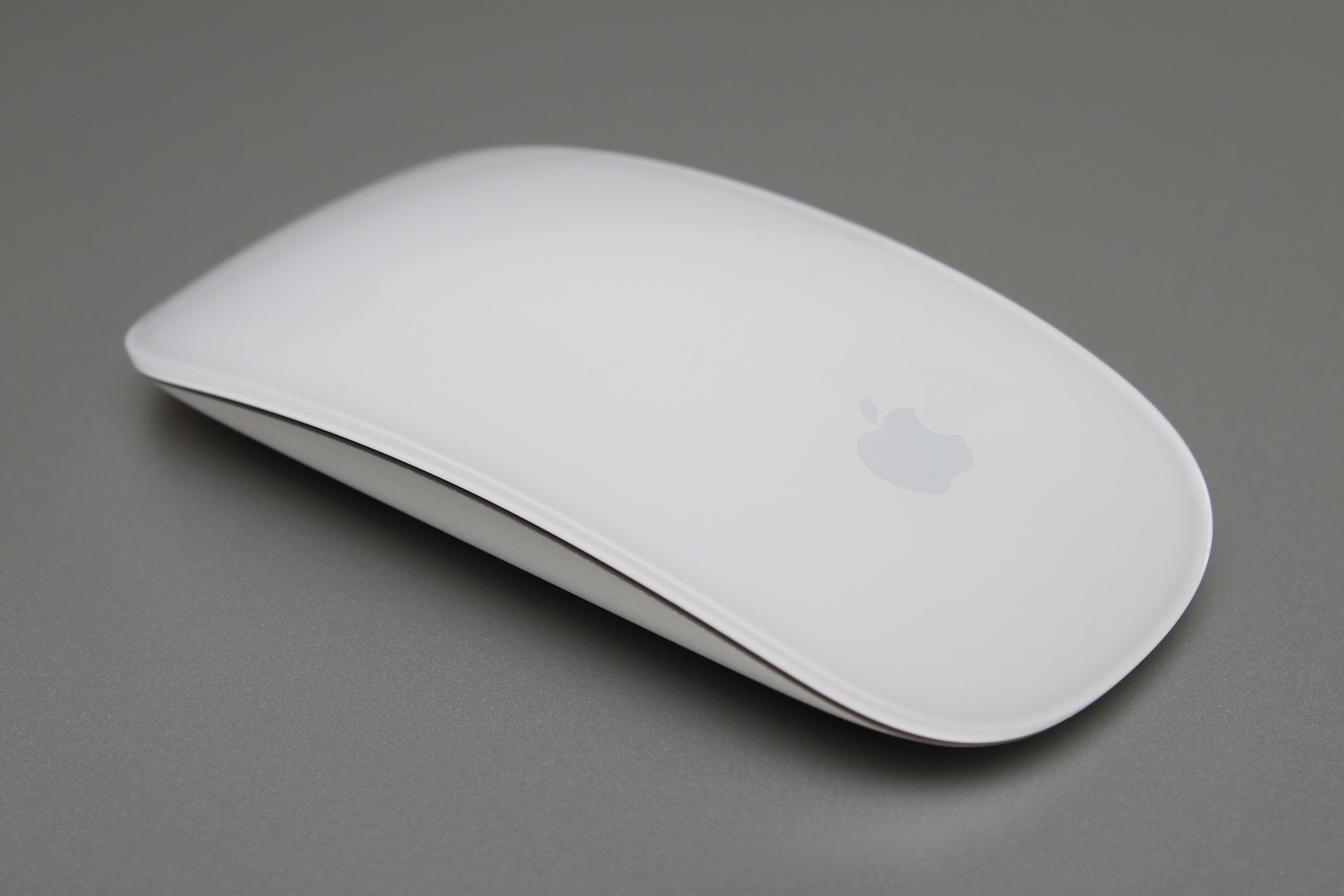
As many of you should know, Apple has recently launched a new, Multi-Touch capable mouse - the Magic Mouse. The older mouse didn’t leave the scene as the new one arrived, although Apple is heavily promoting the new peripheral. The two mice have something in common - they’re Bluetooth-capable and work with Mac OS X wirelessly.
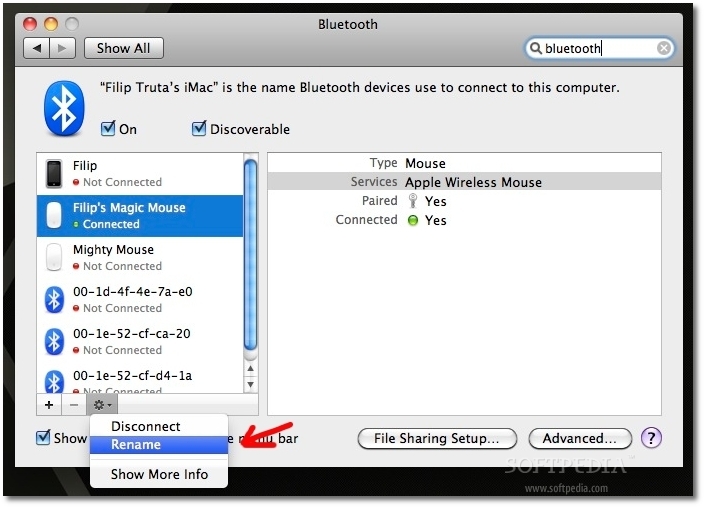
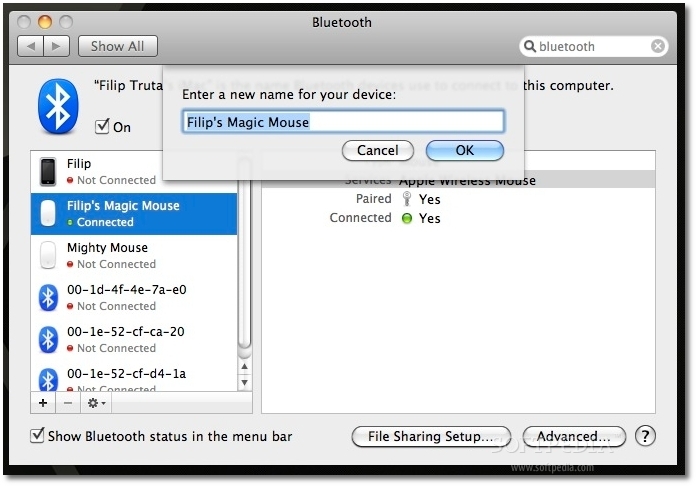
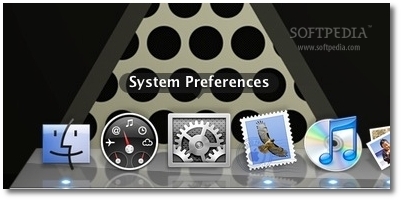
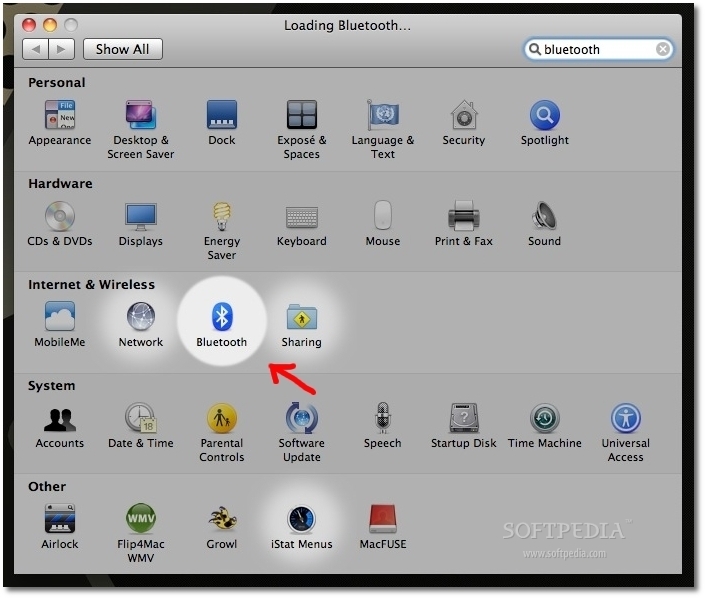
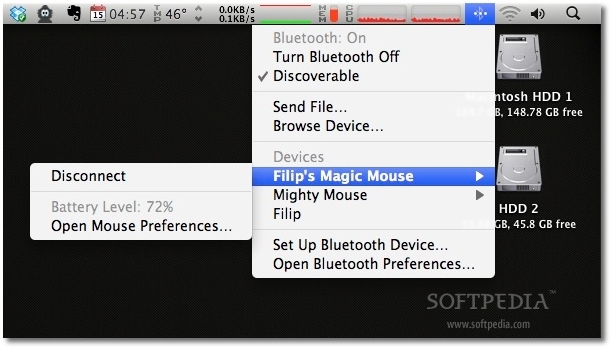
Wireless mice are great to use. You feel completely free to handle them any way you want. With Apple mice, the functionality goes above that of traditional mice. They’re even allowed to have their own name, like “John’s Mouse,” or “My Super-Cool Mouse.” But how do you give your mouse a name, or how do you change the name of an Apple wireless mouse, in case you’re the not the first person to use it? This short tutorial will let you in on that secret. Upon setting up your wireless Apple mouse (whether it’s the former Mighty Mouse, or the new, exquisite Magic Mouse), Mac OS X pairs the device to the computer you’re going to use it with, and automatically assigns it a name. The name is assigned based on your computer’s name (root directory). However, if you want to change it, you can. Here's how. (don't forget to click on the images for a larger view) 1. With your wireless mouse connected and working, launch System Preferences. 2. For one reason or another, Apple decided not to include the option to rename your paired devices at first glance. So, instead of choosing “Mouse,” choose “Bluetooth.” It should be on the third row down, between “Network and “Sharing.” 3. Once in Bluetooth prefs, select the mouse you want to rename and click the small cogwheel, located under the list of paired devices (the cogwheel is found throughout Mac OS X and typically hides more options). 4. As shown above, select “rename.” A drop-down menu will appear containing a field where you can write down the new name of your mouse - as shown in the screenshot below. 5. Hit OK, and close System Prefs. That’s it! You can now check out your rodent’s new name by clicking on the Bluetooth icon in the menubar, located at the top right side of your Mac’s screen. Be sure to leave a comment if this tutorial was of any help.
|
|
|
|
TELL US WHAT YOU THINK:
|
43,092 hits
· 118 comments
· Link to this article
· Print article
· Send to friend
· Subscribe to news
|
MUST-READ RELATED ARTICLES:
READER COMMENTS: |
| Comment #1 by: Jack Brannen on 31 Dec 2009, 14:31 UTC | reply to this comment | My cogwheel menu doesn’t have a “rename” option for my mouse (though it does for my cell and keyboard). What should I do? |
| Comment #1.1 by: chay on 11 Feb 2011, 03:30 GMT | Hey i had the same problem. you just need to reinstall mac osx |
| Comment #1.2 by: BEN on 01 Jul 2011, 16:43 GMT | Great help, thanks! |
| Comment #3 by: Daniel on 25 Jan 2010, 23:34 UTC | reply to this comment | Thank you, my mouse is 2 nd hand from the apple store and they never bother to change the older name... |
| Comment #4 by: Kris on 30 Jan 2010, 18:44 UTC | reply to this comment | Why haven't you done as you said? Quote: ... "or how do you change the name of an Apple wireless mouse, in case you’re the not the first person to use it? This short tutorial will let you in on that secret."
I'm not the first person to use it, and you don't have a solution for that! |
| Comment #4.1 by: dre imac on 27 Aug 2010, 21:34 GMT | read it again. i found it super easy to use. |
| Comment #5 by: GrahamSJZ on 01 Feb 2010, 18:02 UTC | reply to this comment | Spot On - saved me lots of time (not sure I would have found it) - Many Thanks Graham |
| Comment #6 by: KimGordon on 25 Feb 2010, 05:02 UTC | reply to this comment | If none of the basics work it's probably because your computer doesn't have the magic mouse update. Search for magic mouse update 1.0; that should unlock all of the functions including renaming the mouse. |
| Comment #9 by: Julie Farr on 12 Apr 2010, 16:29 UTC | reply to this comment | Very helpful! Exactly what I was looking for |
| Comment #10 by: Bruce on 22 May 2010, 01:50 UTC | reply to this comment | Very helpful! Exactly what I was looking for. Is this in the imac help somewhere. I couldn't find it. Thanks |
| Comment #11 by: Al on 29 May 2010, 18:37 UTC | reply to this comment | That was super! I always wondered what those cog wheels were for. Thanks! |
| Comment #13 by: Francis Lubbe on 22 Jul 2010, 23:17 UTC | reply to this comment | This works perfectly.
Thank you. |
| Comment #15 by: Theo on 08 Aug 2010, 01:55 UTC | reply to this comment | That was very helpful .........Thanks so much |
| Comment #18 by: Du Fly on 14 Aug 2010, 18:22 UTC | reply to this comment | Awesome! Very easy to follow and did what it said it could do. |
| Comment #19 by: New User Tyler on 21 Aug 2010, 16:49 UTC | reply to this comment | Excellent. A relatively new user to MAC, bought my MM off Amazon |
| Comment #20 by: Endo on 23 Aug 2010, 03:46 UTC | reply to this comment | Perfect! Easy as.... renaming your keyboard! |
| Comment #22 by: dre imac on 27 Aug 2010, 21:35 UTC | reply to this comment | Perfect! had someone elses name on the mouse an di would not have figurd it out |
| Comment #23 by: Luke on 29 Aug 2010, 11:02 UTC | reply to this comment | Thanks a lot - nicely made tutorial... |
| Comment #25 by: Gordon on 15 Sep 2010, 01:56 UTC | reply to this comment | Thank you. That was a well-hidden change option. |
| Comment #27 by: budski on 18 Sep 2010, 00:57 UTC | reply to this comment | Thanks! That was easy. Very good tutorial and very bad apple interface. |
| Comment #29 by: ;) on 22 Oct 2010, 16:40 UTC | reply to this comment | pretty lame of apple to not include the mouse rename options in the mouse preferences pane. useful lil tut. :) |
| Comment #30 by: kms on 28 Oct 2010, 05:25 UTC | reply to this comment | This was a great help - easy to follow :) |
| Comment #31 by: giorgioventuri on 19 Nov 2010, 09:41 UTC | reply to this comment | Great stuff. It was that easy |
| Comment #37 by: ie on 13 Jan 2011, 00:37 UTC | reply to this comment | Perfect directions, clear and accurate. Thanks! |
| Comment #38 by: ATB on 14 Jan 2011, 15:21 UTC | reply to this comment | Thank you! This tutorial helped me solve something that has been bothering me for a very long time! |
| Comment #39 by: clk on 18 Jan 2011, 22:17 UTC | reply to this comment | random question, but was that an iphone icon at the top, thanks alot for the tips though, it was very useful, but now i'm interested in connectin my laptop to my iphone via usb? or is my 'isight' (pun intended) just bad?? |
| Comment #40 by: TurkeyBeauwinkle on 26 Jan 2011, 20:38 UTC | reply to this comment | Excellent - Thanks very much!!! |
| Comment #41 by: matze on 01 Feb 2011, 12:43 UTC | reply to this comment | thank u very helpful.
pics are perfect too! |
| Comment #43 by: Normy on 05 Feb 2011, 21:04 UTC | reply to this comment | Your easy to follow steps worked great! Thanks |
| Comment #46 by: jeffr on 12 Feb 2011, 17:49 UTC | reply to this comment | Thanks, so simple, appreciate theinfo |
| Comment #47 by: JWebb on 22 Mar 2011, 00:58 UTC | reply to this comment | Thanks! This took all of 5-10 seconds at the most. |
| Comment #48 by: Crow on 25 Mar 2011, 17:55 UTC | reply to this comment | Thanks alot, Just got my imac and hated it was listed as my full name.. |
| Comment #52 by: Allan on 09 May 2011, 19:43 UTC | reply to this comment | Thank you very much, love the visuals! |
| Comment #54 by: Jonathan on 20 May 2011, 14:21 UTC | reply to this comment | Cheers to you for sharing this important information. It allowed my human handler to help me avoid the pending identity crisis and inevitable years of subsequent (and expensive) therapy that I thought were my certain fate - ever since that time his co-worker "accidentally" re-named me. |
| Comment #57 by: Diane on 03 Jun 2011, 14:41 UTC | reply to this comment | Awesome! Thank you, thank you, thank you! |
| Comment #58 by: Punty on 11 Jun 2011, 01:01 UTC | reply to this comment | Thank you very much. As usual, it's only obvious after someone shows you how!
Steve, Auckland NZ |
| Comment #59 by: anja on 13 Jun 2011, 09:03 UTC | reply to this comment | Thanks, that was super easy and worked as described - now it's my mouse;) |
| Comment #62 by: dragon on 17 Jun 2011, 21:26 UTC | reply to this comment | Excellent appreciate the assistance!
Very helpful. |
| Comment #64 by: Me on 25 Jun 2011, 14:57 UTC | reply to this comment | Obvious, but only after being told. Thanks |
| Comment #65 by: Blakey on 29 Jun 2011, 09:26 UTC | reply to this comment | Straight to the point and competely helpful. Thanks from Australia. |
| Comment #66 by: Chef on 07 Jul 2011, 01:11 UTC | reply to this comment | thank you, just like swimming, so easy once you know how. |
| Comment #72 by: NotAPartyGirl on 24 Jul 2011, 01:09 UTC | reply to this comment | That was exactly what I needed to know! Thanks so much! |
| Comment #73 by: Hugh Briss on 25 Jul 2011, 21:39 UTC | reply to this comment | Thanks for making it so simple. Bought a Magic Mouse from someone on Amazon, and wanted to change the name from his to mine. Took less than a minute with your tutorial. |
| Comment #74 by: Ramses on 26 Jul 2011, 17:25 UTC | reply to this comment | Thank you so much. The nameless mouse was driving me nuts and I could't find where to change it. Again thank you!!!!!!! |
| Comment #77 by: Tutor on 19 Aug 2011, 02:12 UTC | reply to this comment | Simple, succinct and clear. Bought my MM used. This tutorial worked well. Thanks for it! |
| Comment #78 by: ToffeGast on 22 Aug 2011, 15:12 UTC | reply to this comment | Thanx for the info. I'm new on the iMac and this was very helpfull information. |
| Comment #82 by: Robbocop on 06 Sep 2011, 14:33 UTC | reply to this comment | Perfect and worked fine for me. One thing: sounds obvious but the Mouse has to be showing "Connected"for this to work. If not connected it might show in the list but you get an "Update Name" instead of a "Rename" option which seems to do nothing. |
| Comment #83 by: MeToo2047 on 13 Sep 2011, 12:31 UTC | reply to this comment | Thank You,
easy to understand, easy to do!
Well done. RD |
| Comment #85 by: Jack on 24 Sep 2011, 00:26 UTC | reply to this comment | Thank you!
Easy instructions which worked perfectly |
| Comment #87 by: Shane on 29 Sep 2011, 10:21 UTC | reply to this comment | Thank you for the help sheet. I truly appreciate it. Saved us a lot of time. Awesome! |
| Comment #88 by: irish on 04 Oct 2011, 12:43 UTC | reply to this comment | thanks much. im a new mac user. that was really helpful |
| Comment #89 by: Jefe on 07 Oct 2011, 15:16 UTC | reply to this comment | THANK YOU!!! I looked everywhere to try and find this solution. It helped out a ton! |
| Comment #91 by: Isaac on 27 Oct 2011, 13:00 UTC | reply to this comment | THANKS it helped a lot =) God Bless you |
| Comment #93 by: JimC on 03 Nov 2011, 15:30 UTC | reply to this comment | Thanks, so simple to correct, if you know where to look |
| Comment #96 by: DTW on 07 Nov 2011, 14:59 UTC | reply to this comment | Thank you for the insight and advice, it was as easy as pie to change the name with your help. |
| Comment #97 by: jack on 08 Nov 2011, 05:32 UTC | reply to this comment | It was a very help full tip. Thank You. |
| Comment #98 by: jafman on 09 Nov 2011, 12:44 UTC | reply to this comment | thanks. worked perfectly. i'd been wasting time with the keyboard settings when i should have gone to bluetooth settings. thanks again. |
| Comment #99 by: edu on 10 Nov 2011, 00:49 UTC | reply to this comment | Thanks! Bought a mighty mouse secondhand and didn't really like having someone else's name on it |
| Comment #100 by: FIEKIE88 on 10 Nov 2011, 09:38 UTC | reply to this comment | AWESOME, SO SIMPLE YET SO HARD TO FIND IF YOU NEW TO MAC, 100 THUMBS UP!!!!! LOL |
| Comment #103 by: johnloy on 28 Nov 2011, 05:04 UTC | reply to this comment | very good instruction... thanks!!! |
| Comment #104 by: Tiffany on 29 Nov 2011, 00:46 UTC | reply to this comment | Thanks for posting this! I missed the cog wheel in the corner. I bought my magic mouse used and was sick of seeing "gene's mouse" when I connected it. |
| Comment #105 by: LT on 17 Dec 2011, 19:17 UTC | reply to this comment | Extremely helpful and saved me lot's of time....much appreciated. |
| Comment #106 by: Riley Higgins on 27 Dec 2011, 01:20 UTC | reply to this comment | didn't work :( found another way though:
1: System Preferences
2: Keyboard and Mouse
3: Bluetooth
4: Change Name of Mouse there :) |
| Comment #107 by: RonnieT on 02 Jan 2012, 19:24 UTC | reply to this comment | This information is incorrect. When using MAC OS X as of 02-01-12 |
| Comment #110 by: LANDO italy on 19 Jan 2012, 18:20 UTC | reply to this comment | GREAT!!! I RESOLVED MY PROBLEM VERY EASILY THANKS TO THIS TUTORIAL! |
| Comment #113 by: Moused Up on 06 Feb 2012, 20:32 UTC | reply to this comment | Great! Had to wade through three other google searches and their articles to find you though. |
| Comment #115 by: Di on 10 Feb 2012, 21:13 UTC | reply to this comment | Brilliant .... thanks. It worked first time and I renamed the Keyboard at the same time!!!!! Cheers!!!!!! | |
Copyright © 2001-2012 Softpedia. Contact/Tip us at 
|
|