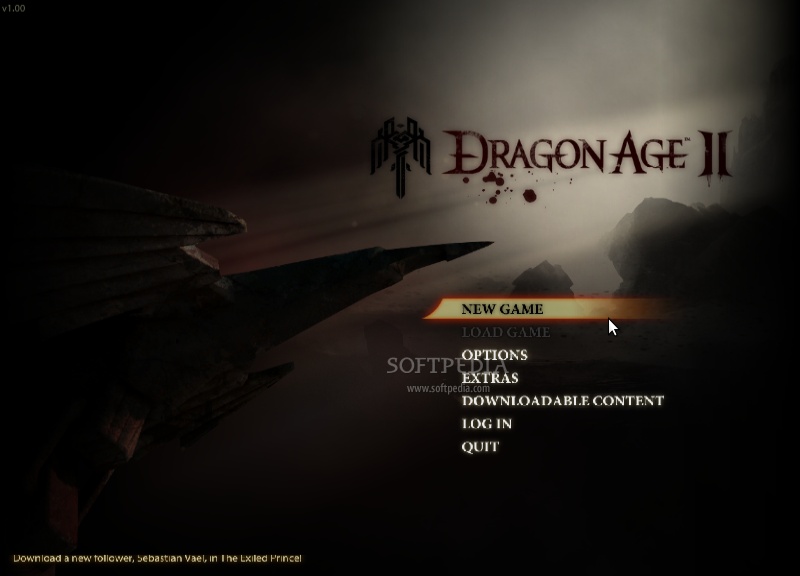
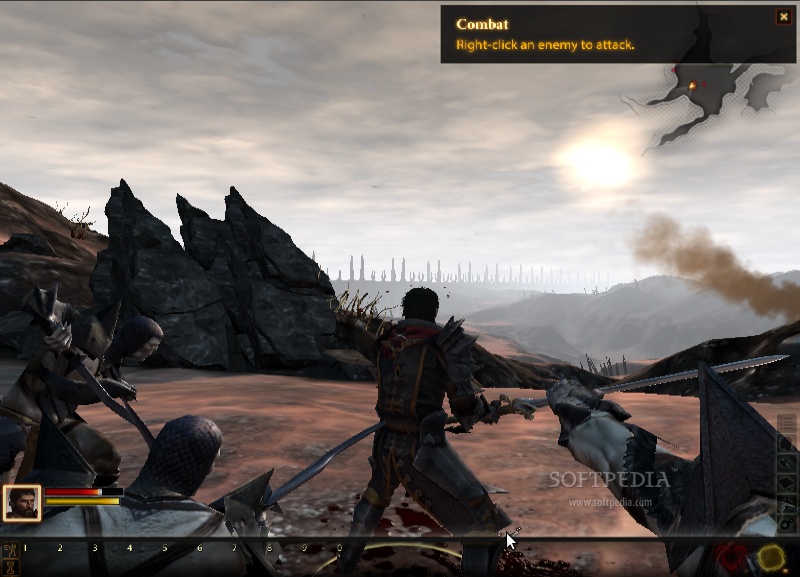
The following tutorial will teach you how to install the famous Dragon Age 2 role-playing game on a Linux platform, especially a Debian-based one, such as Ubuntu.
We've tested the tutorial on the Ubuntu 10.10 (Maverick Meerkat) and the current development version of the upcoming Ubuntu 11.04 (Natty Narwhal) operating systems.
According to Wikipedia, Dragon Age 2 is the sequel to BioWare's Dragon Age series of role-playing video games and was released on March 8, 2011 in North America and March 11, 2011 in Europe. For more details, please check the official wiki page.
What do you need to get started? Weel, two things...
1. A recent Ubuntu/Debian-based Linux distribution (e.g. Ubuntu 10.10 or Ubuntu 11.04)
2. Latest version of PlayOnLinux
3. A DVD disc with Dragon Age 2 or the Steam Store/Digital Download version.
Step 1 - Install and configure PlayOnLinux
- Download the latest version of PlayOnLinux from here. Save the file on your desktop.
- Double click the file to install it.
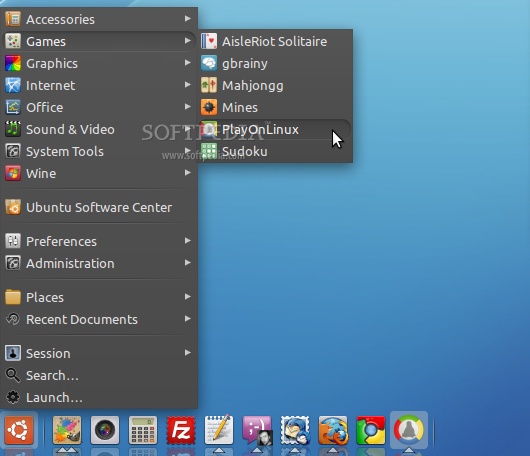
- Once installed, you can run PlayOnLinux from the Applications -> Games -> PlayOnLinux menu entry...
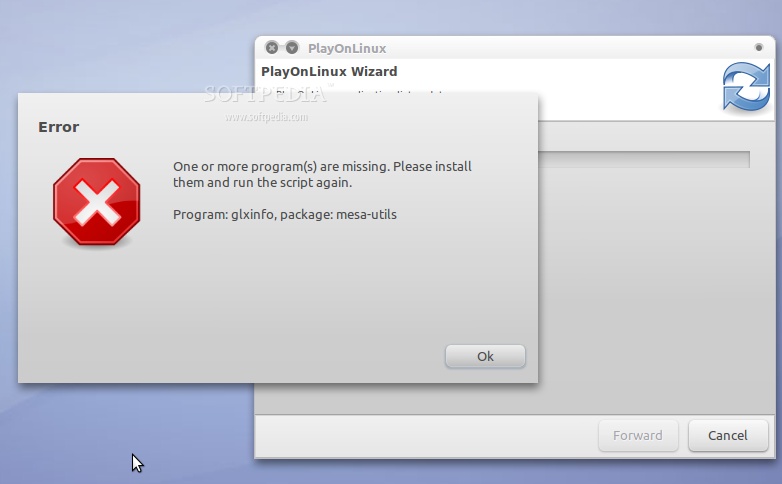
When the program will start for the first time, it will ask you to install a few things. Such as: mesa-utils and Microsoft fonts. If you don't have the mesa-utils package installed the following warning dialog will appear...
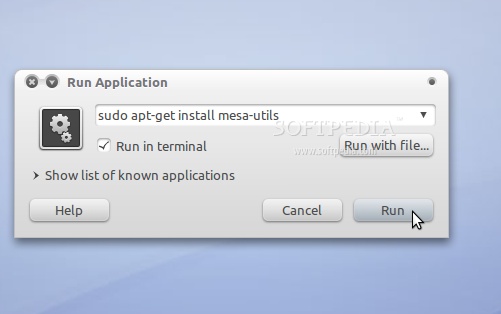
To install mesa-utils, hit the ALT+F2 key combination, check the "Run in Terminal" options and paste the following code in the run field:
sudo apt-get install mesa-utils
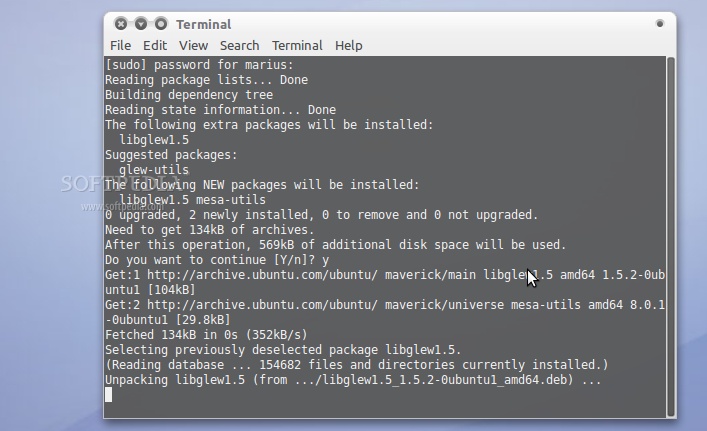
A terminal window will open, type your password and hit the Enter key. Type y when asked and the terminal will close automatically when the mesa-utils packages has been installed...
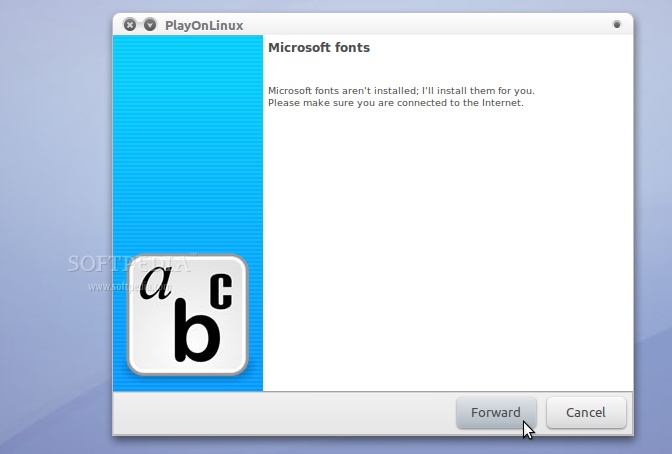
PlayOnLinux will ask you to install some Microsoft fonts, so click the "Forward" button when the installation dialog will appear...
That's it!
Step 2 - Install and configure Dragon Age 2
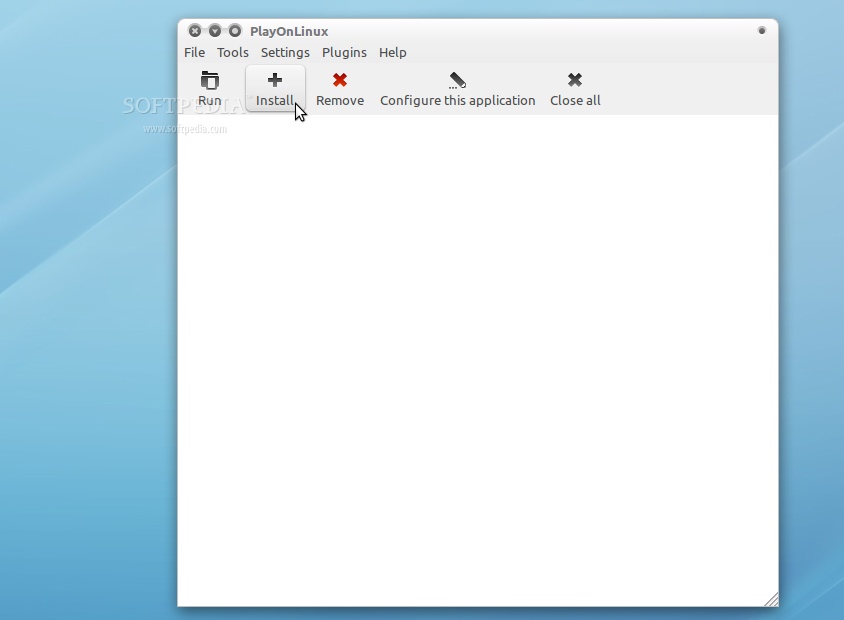
Insert the DVD disc with Dragon Age 2 into your DVD-ROM device and click on the "Install" button on PlayOnLinux...
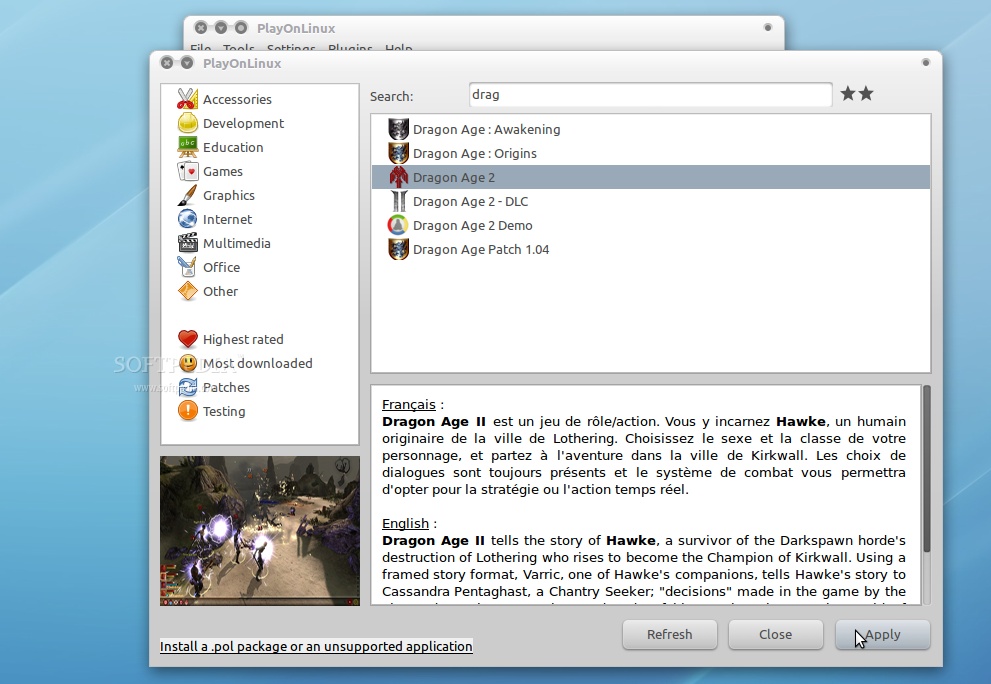
Search for Dragon Age 2, select it and click the "Apply" button...
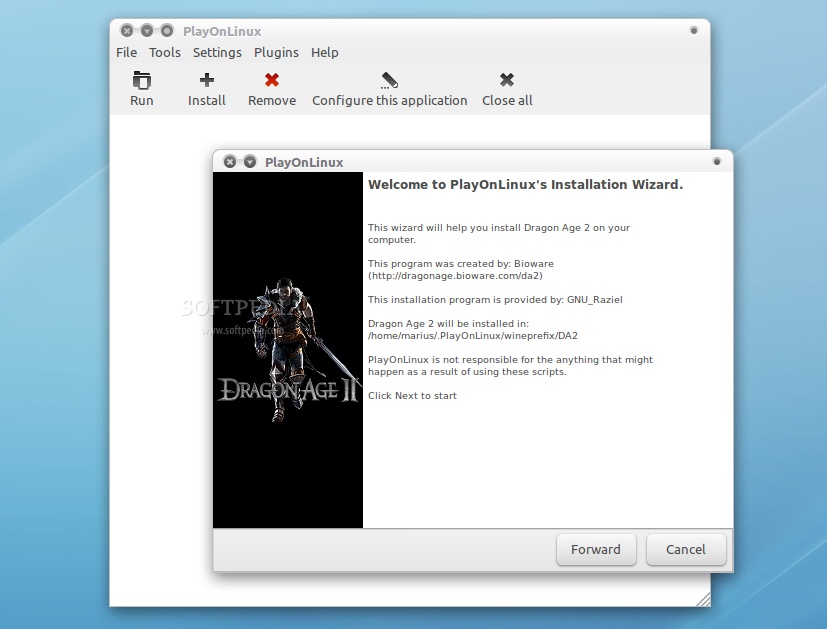
An installation wizard will appear. Click on the "Forward" button to continue...
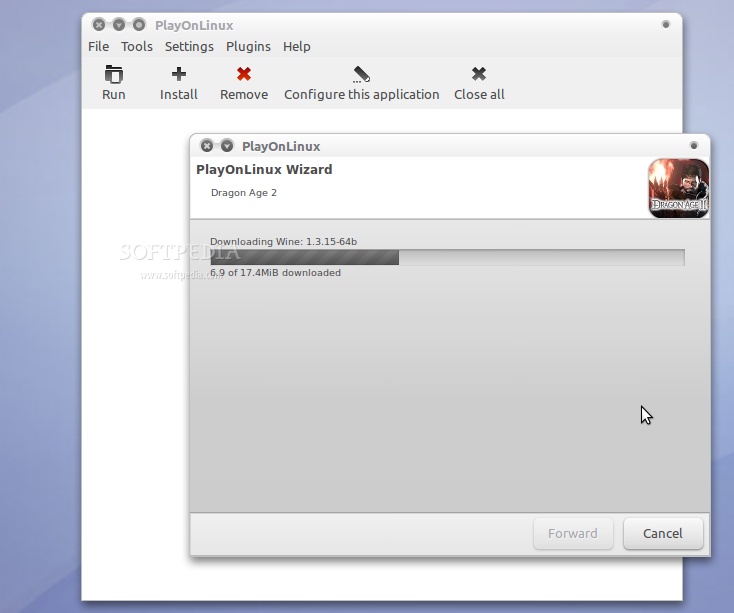
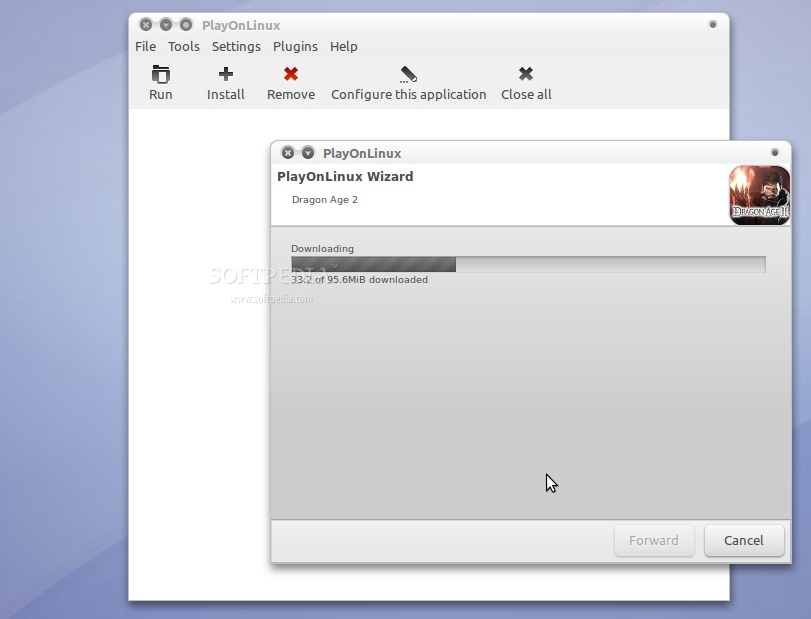
Wait for PlayOnLinux to download and install the latest development version of Wine, click the "Forward" button when done...
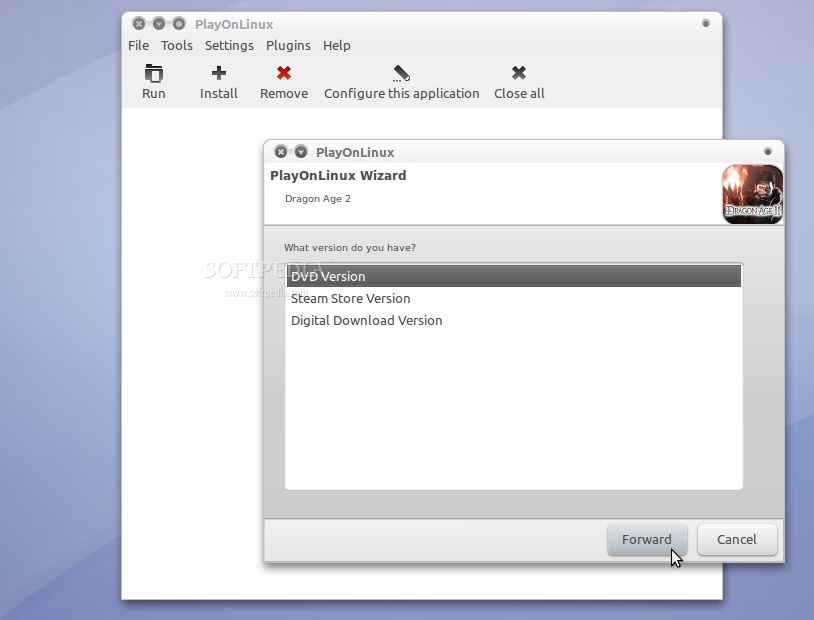
Choose the version of Dragon Age 2 that you have purchased...
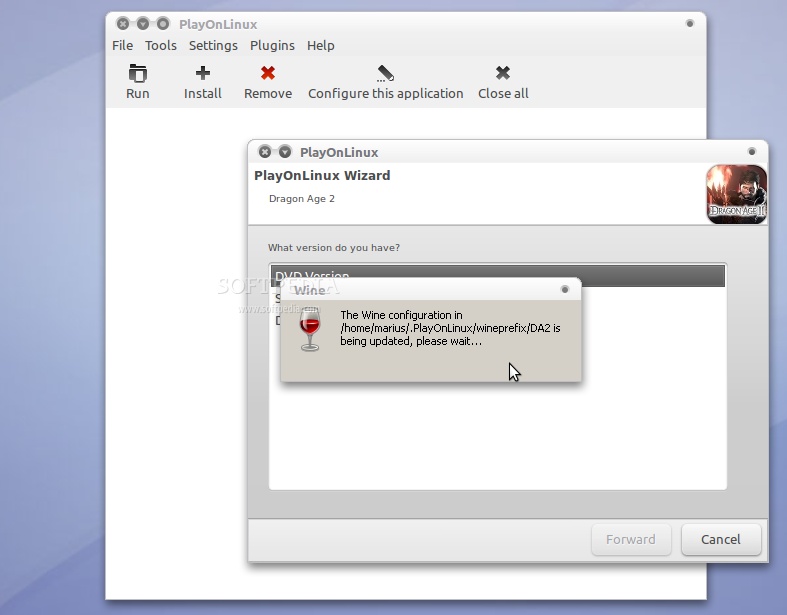
Wait for Wine to be updated...
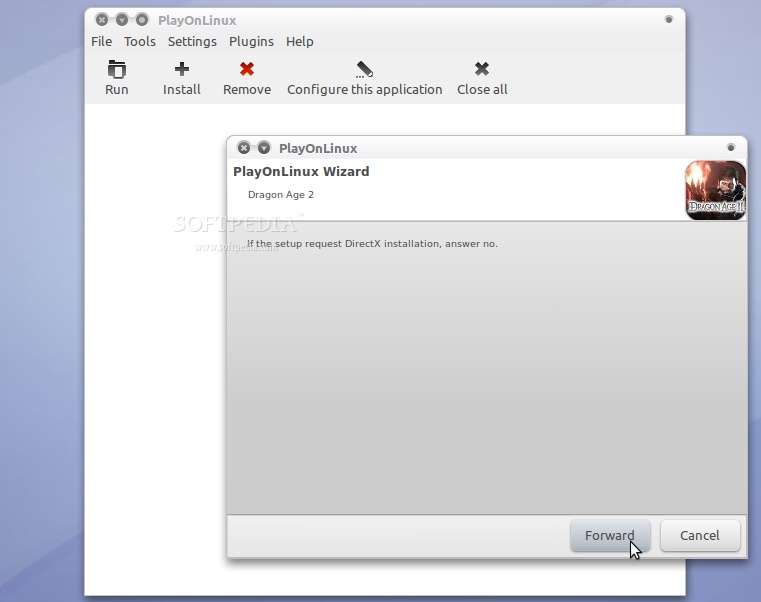
Read the Direct X warning and click the "Forward" button to continue...
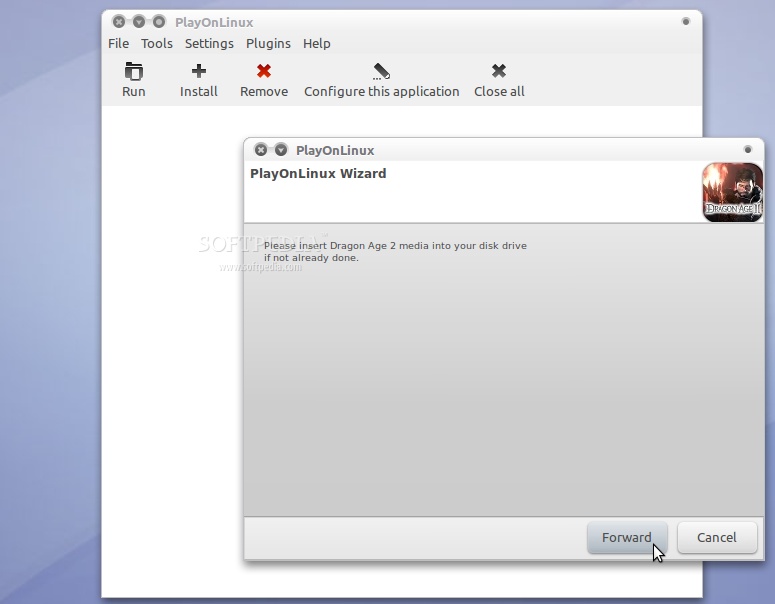
Insert the disc in your DVD unit (for the DVD version) and click the "Forward" button to continue...
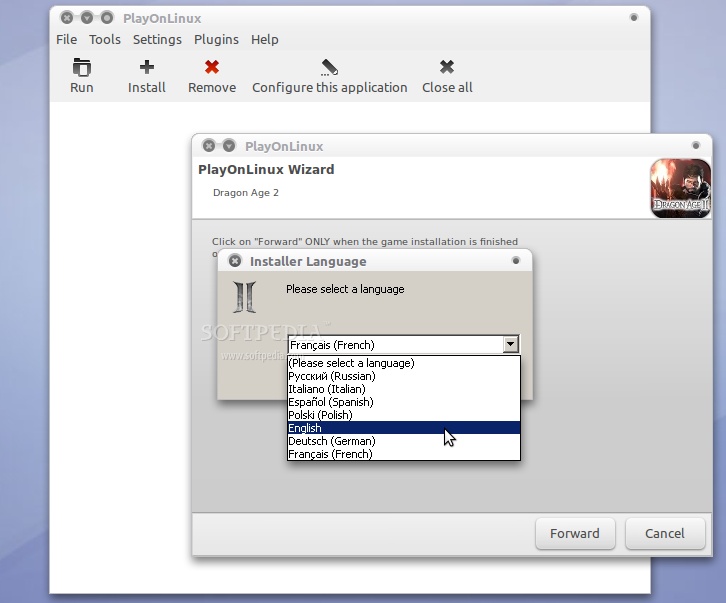
The Dragon Age 2 installer will appear, choose the language for the installation and click the "OK" button...
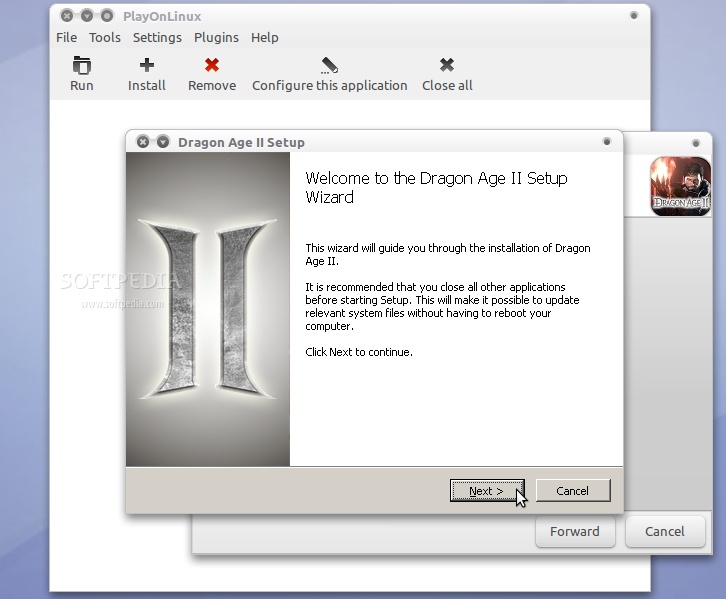
Click "Next" on the Dragon Age 2 installer...
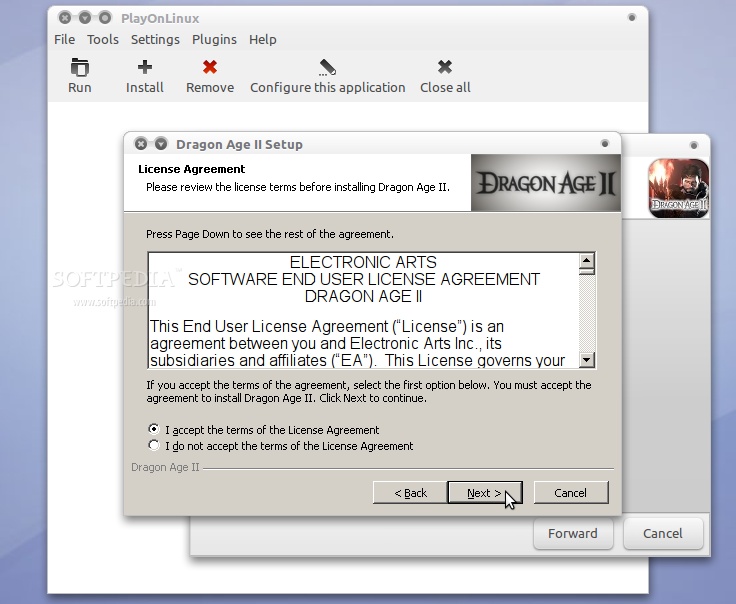
Accept the license and click "Next"...
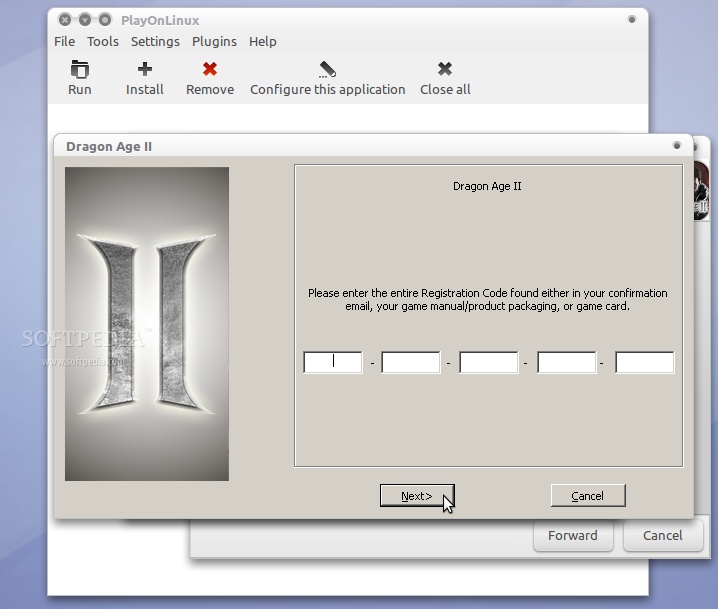
Type the serial number and click "Next"...
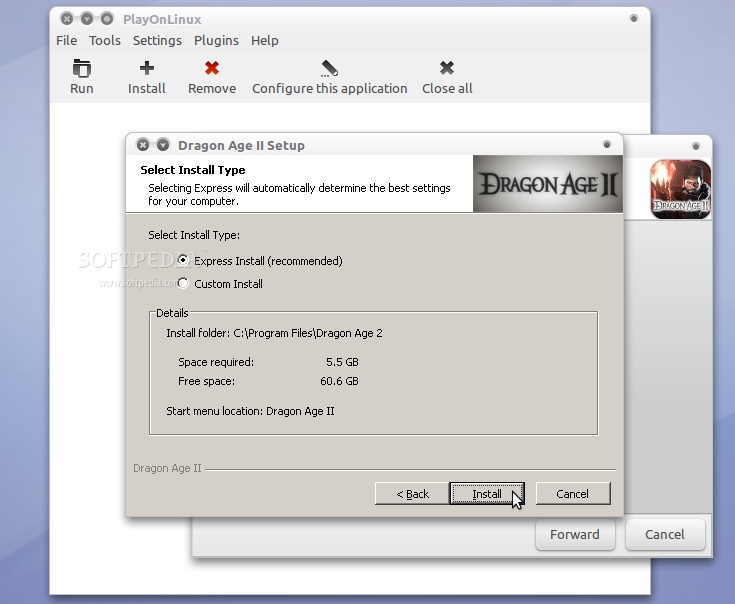
Click the "Install" button to install Dragon Age 2 on Ubuntu...
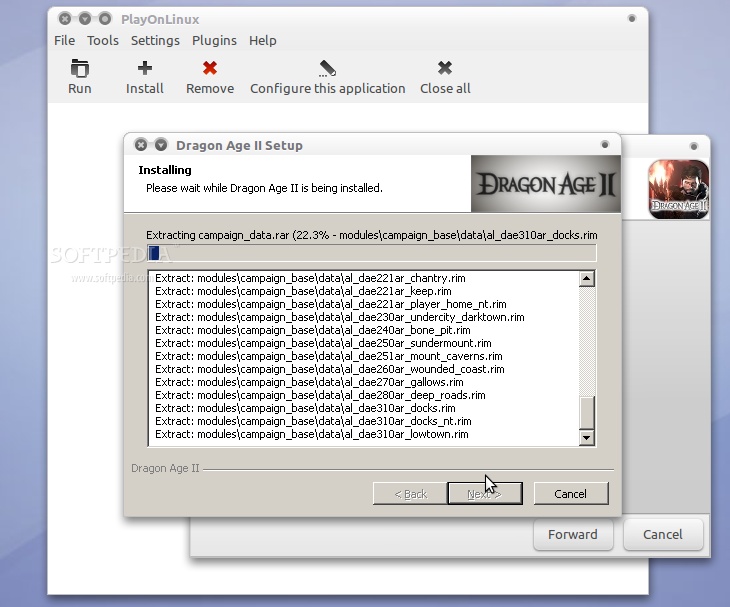
Wait for the installation to finish...
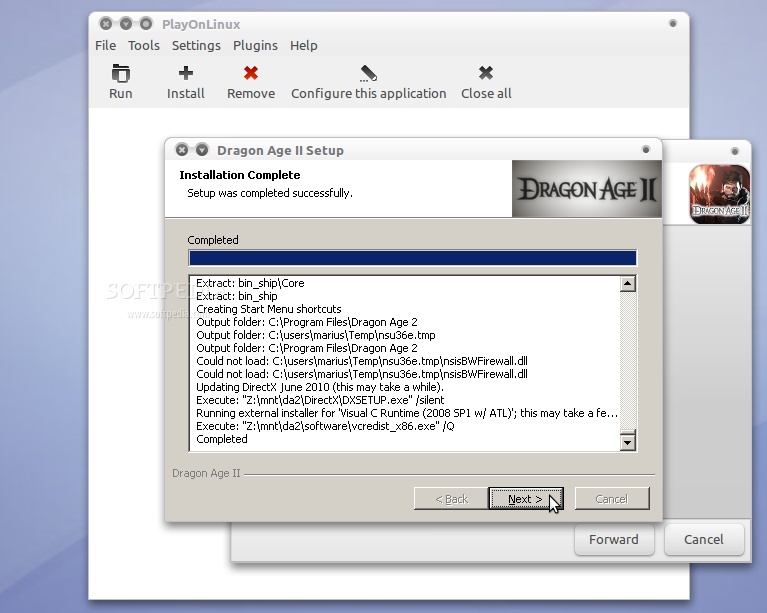
Click "Next" when the installation is completed...
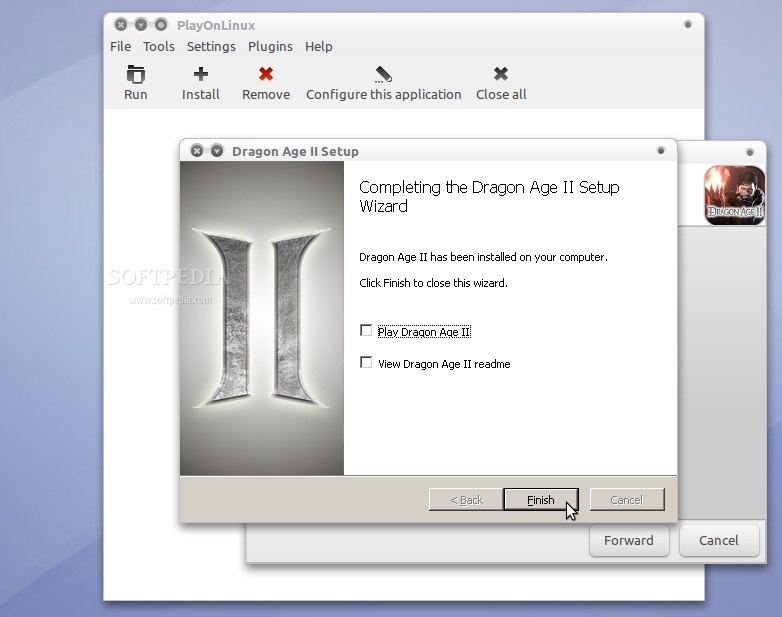
Do NOT check any of the options on the next screen, just click on the "Finish" button...
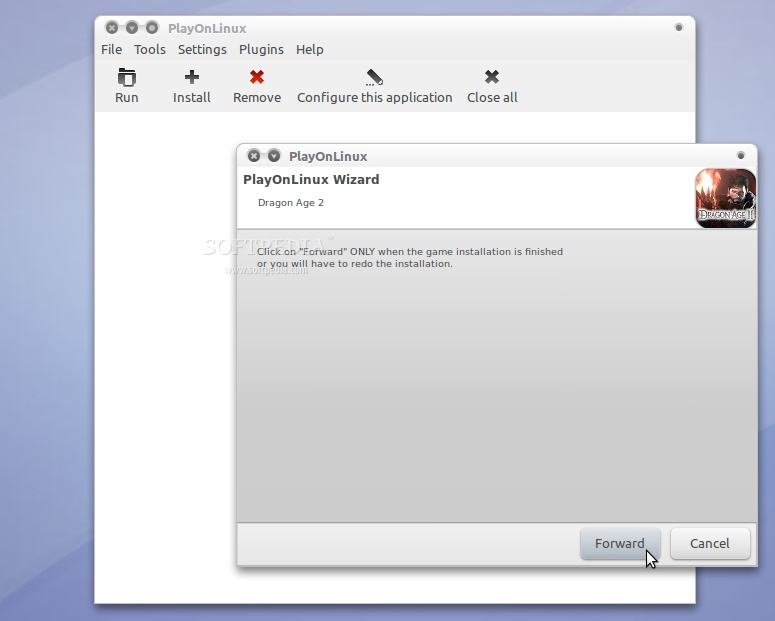
Click the "Forward" button to continue...
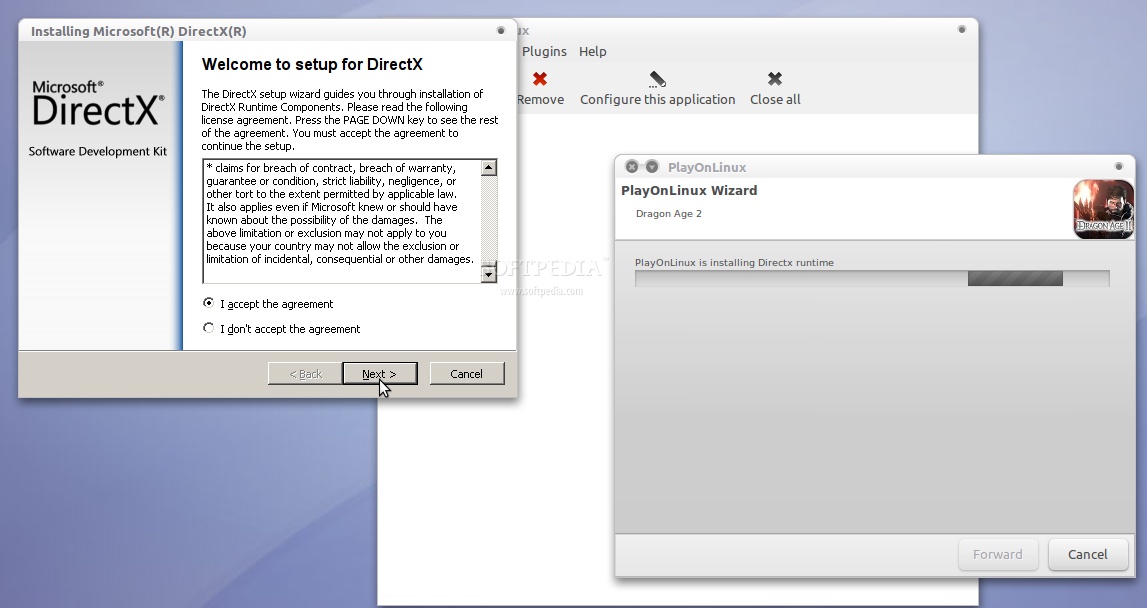
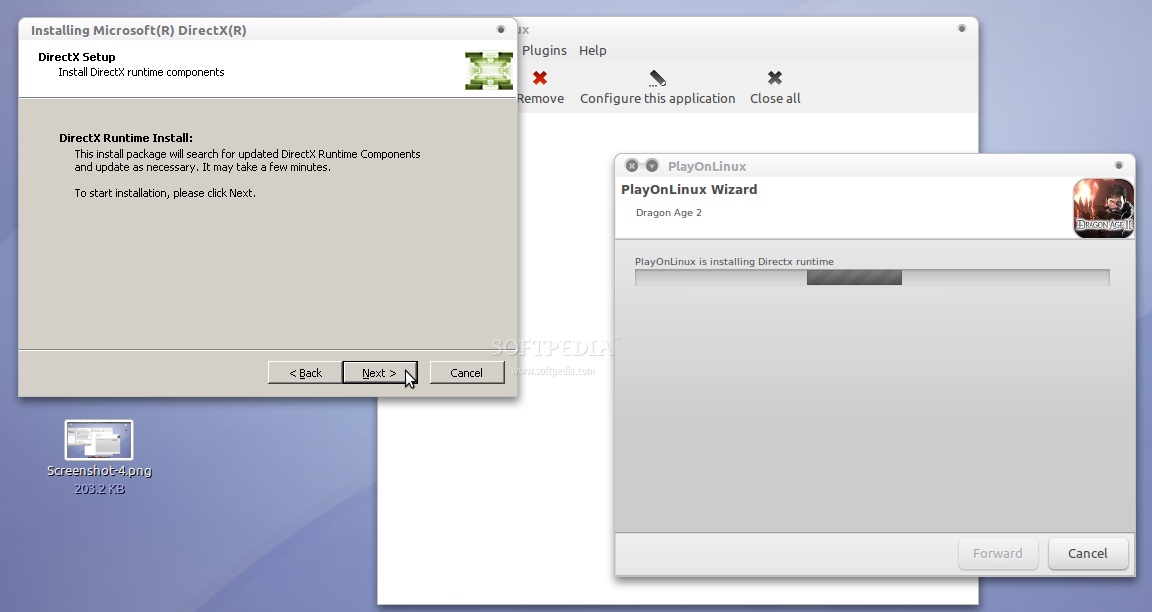
PlayOnLinux will download and install DirectX...
The DirectX installer will appear. Accept the license and click the "Next" button to continue...
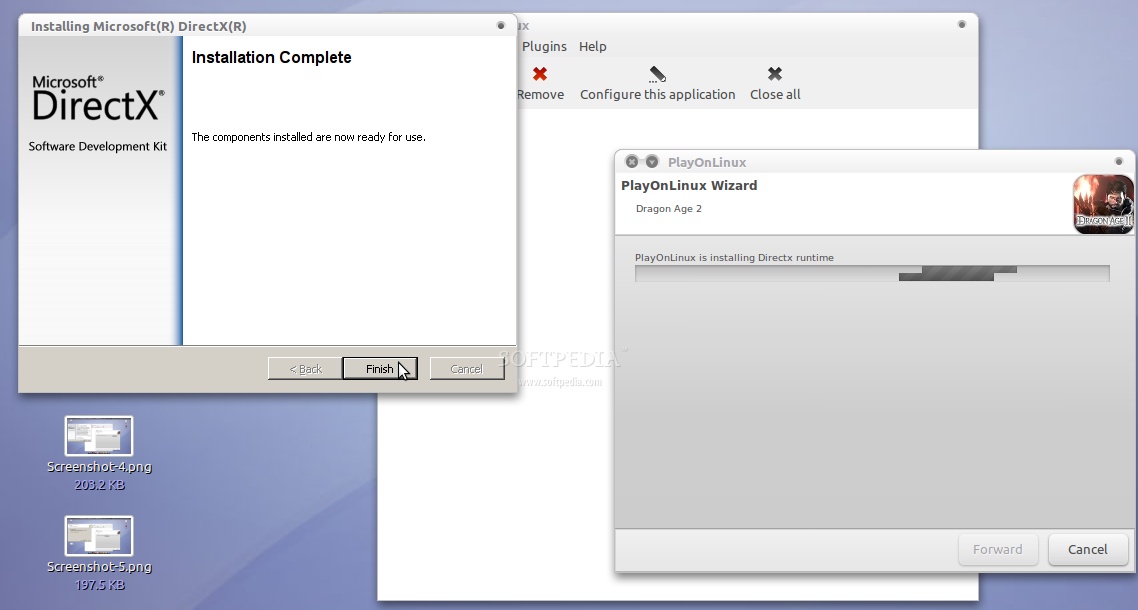
Click the "Next" button again and wait for DirectX to be installed...
Click the "Finish" button to close the DirectX installer.
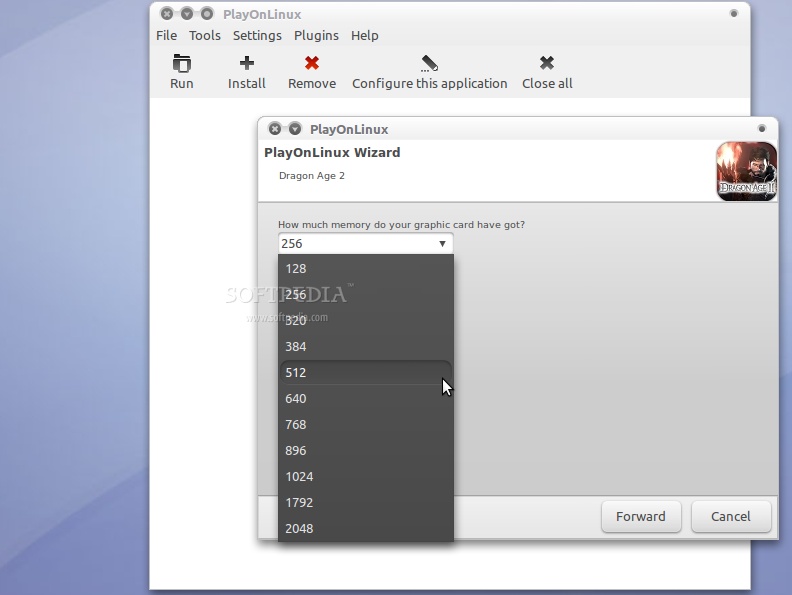
Choose the memory of your graphics card...
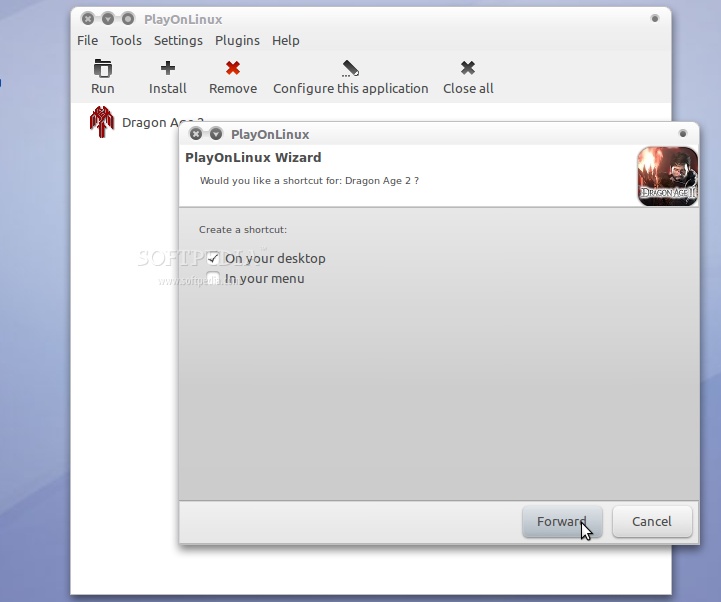
Choose where and if you want the installer to create shortcuts for Dragon Age 2 and click on the "Forward" button to continue...
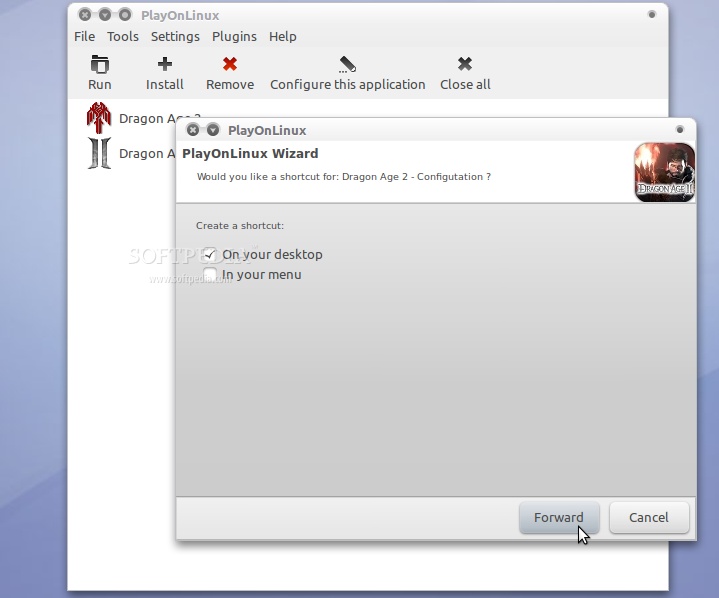
Choose where and if you want the installer to create shortcuts for Dragon Age 2 Configuration and click on the "Forward" button to continue...
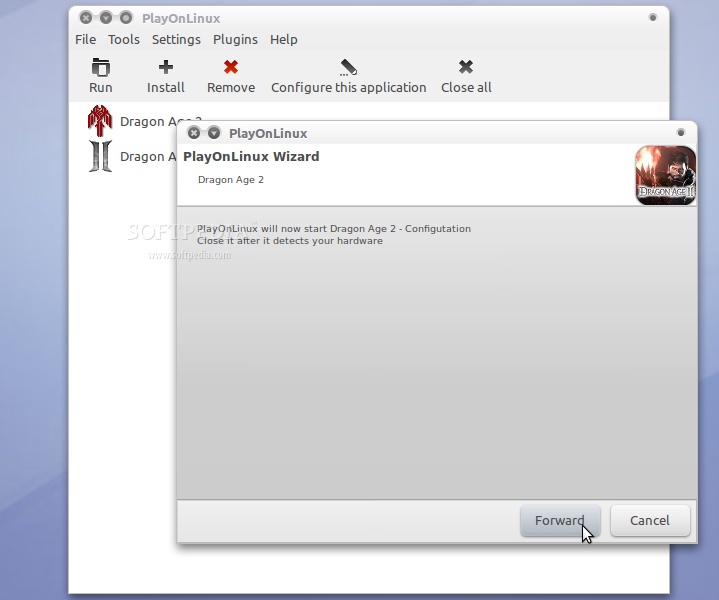
Click on the "Forward" again to start the Dragon Age 2 configurator ...
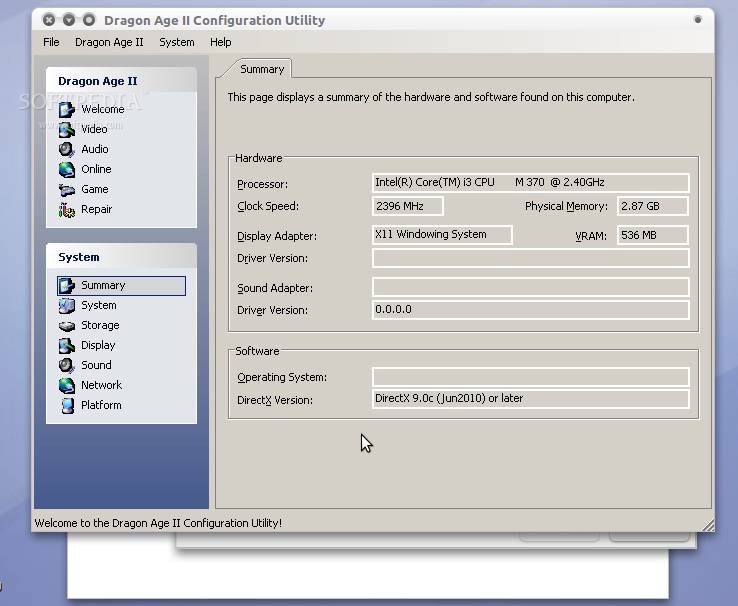
Close the Dragon Age 2 configuration window...
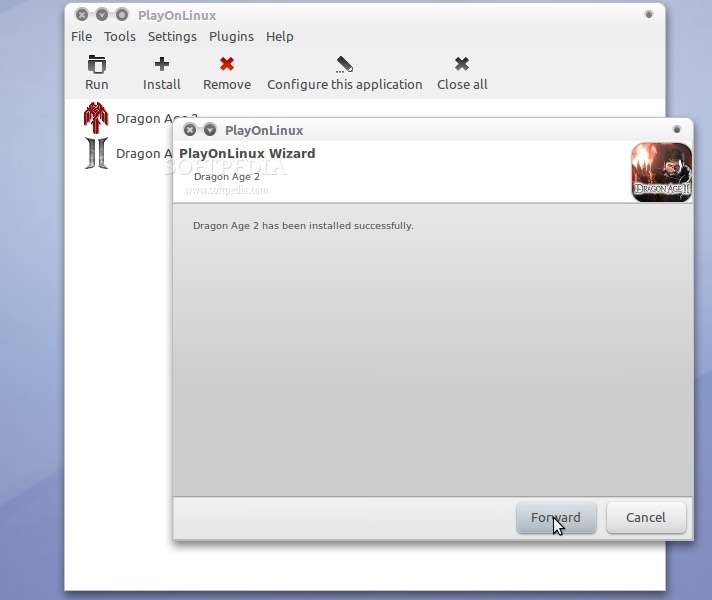
...and click "Forward" again to close the PlayOnLinux installer...
Now you can close PlayOnLinux and double click the Dragon Age 2 shortcut on your desktop. Have fun playing Dragon Age 2 on your Linux/Ubuntu machine!
 14 DAY TRIAL //